Merck Vaccines
Vaccine Inventory Management Mobile App
Merck
Slalom
User Experience Design Lead
Healthcare Coldchain Logistics Mobile App
Ecosystem & Journey Mapping, Actors & Touchpoints, Workflows & Mobile UI
Vaccine Organizations and Personnel
Challenge
Identifying the (many) prospective users for the app, across the vaccine supply chain ecosystem
Solution
Capturing and understanding the actors / user segments who will be using the app, at each stage or location of the vaccine cold chain ecosystem
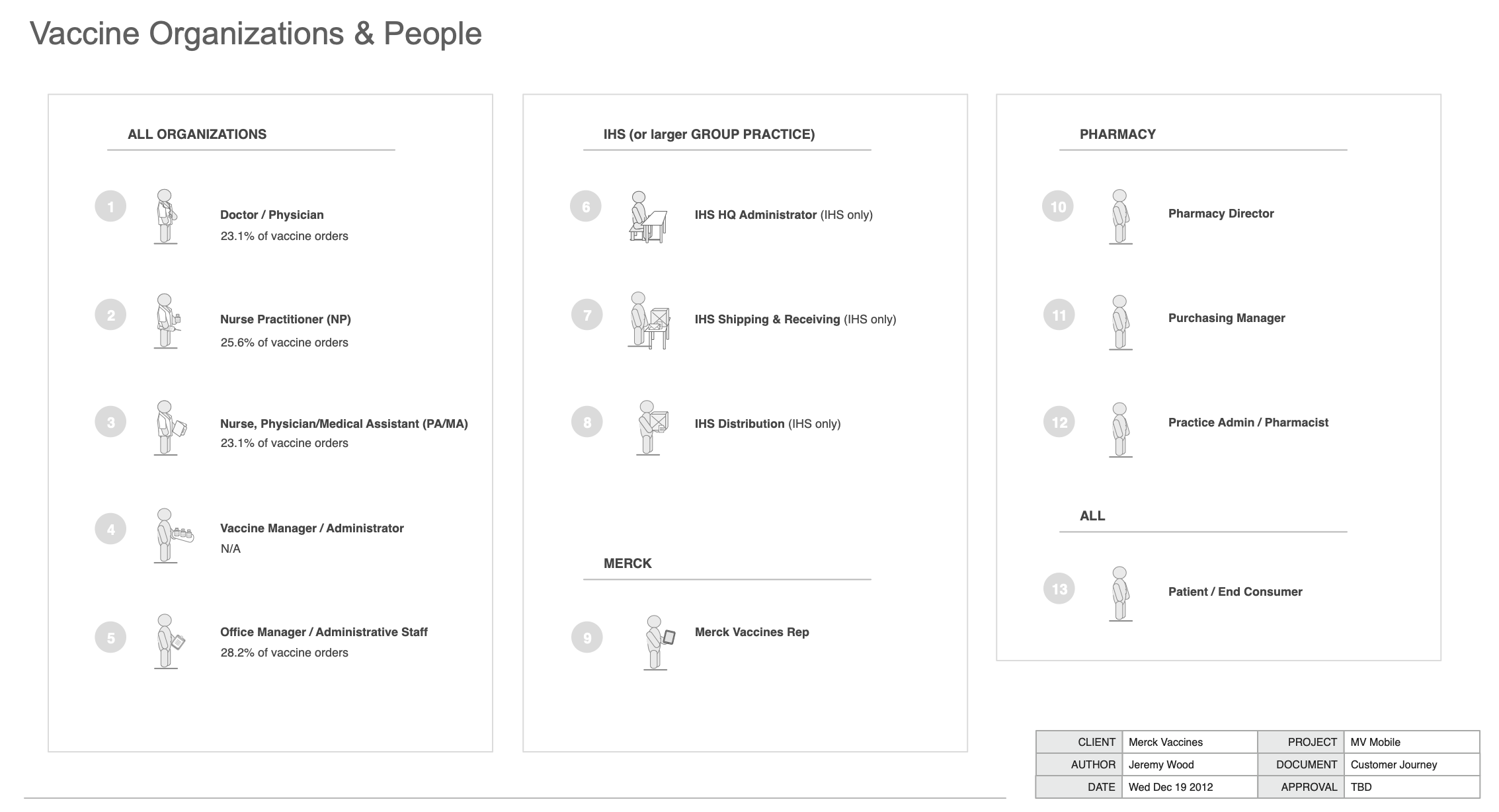
Inventory of all Actors within the vaccine’s cold chain delivery ecosystem.
Main groups include the medical professionals at all medical vaccine-distributing organizations, and those found at hospitals or large scale group practices, professional staff at pharmacy distribution sites, the Merck vaccine representative, and the patient.
For professional roles within the medical setting, additional data shows breakout of vaccine orders % of current business, by role, for prioritization purposes - indicating a fairly equal balance of prioritization, for each user segment.
Actors Inventory
Vaccine Distribution, Storage & Inventory Ecosystem
Challenge
Understanding when, where, and how the app can be useful to these prospective users, in contexts and scenarios across the ecosystem and vaccine journey
Solution
Mapping the physical locations and physical and digital flow of product material (vaccine supply) and digital information (vaccine data, commerce, etc.) across the system
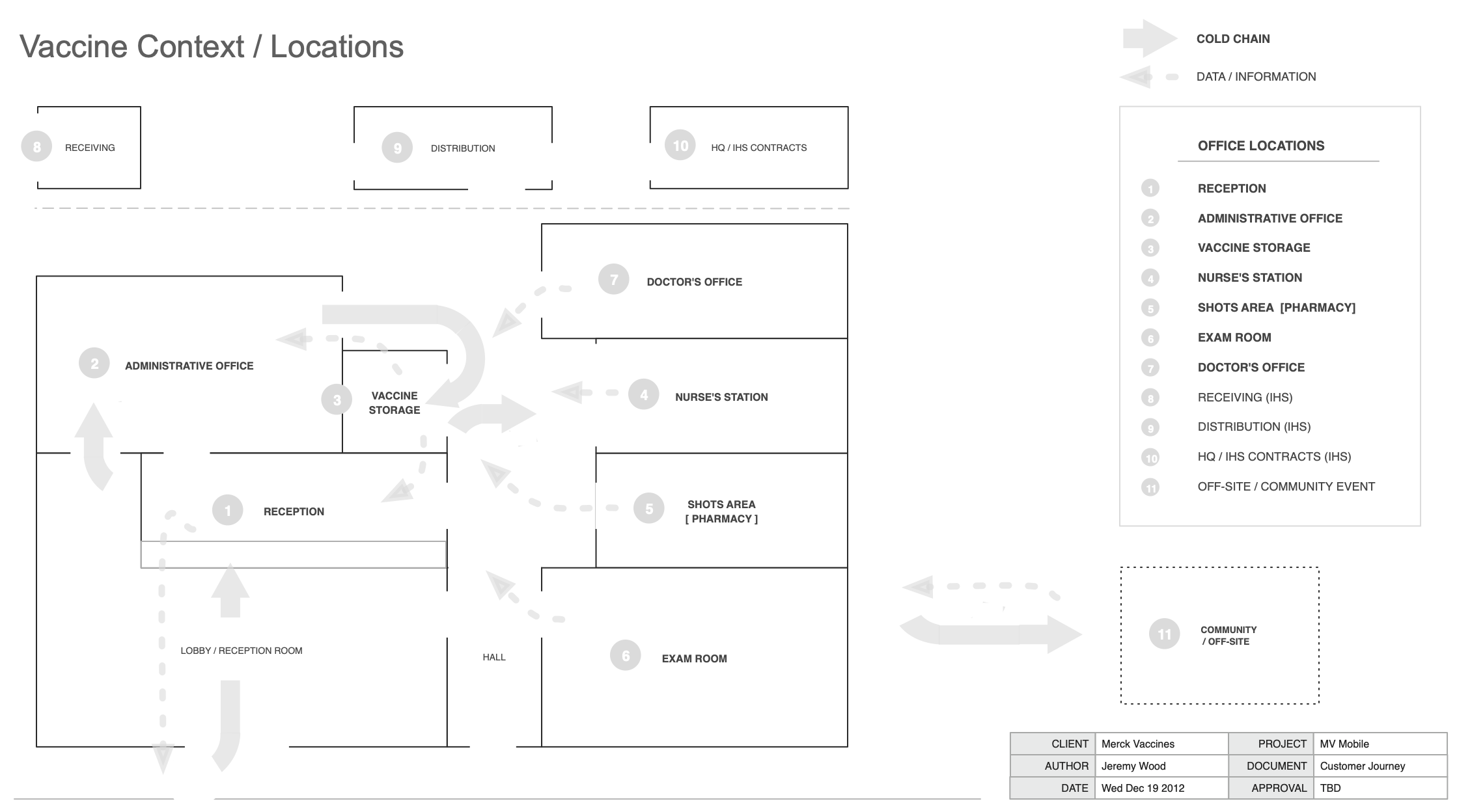
Floorplan of medical office showing the vaccine journey. Three primary areas were identified - the main one being the medical doctor’s office, and its typical layout and areas. Secondarily, for hospitals and larger clinics, the additional receiving, distributions, and vaccine contracts management functions, typically sited separately from the medical office or clinic, physical location. Last, community distribution or offsite locations, either administering vaccines directly, or distributing them to providers in the community.
Heavier line shows the flow of the physical vaccine product through receiving, storage / inventory, and administration (shots), along the cold chain network. Dotted lines indicate where data flows back regarding vaccine administrations, inventory management such as vaccine dosage counts and expiration dates, and ordering info and commerce date (financial, contracts, etc.).
Ecosystem Diagram
Vaccine Storage & Inventory Touchpoints
Challenge
Understanding the physical and digital points of interaction between the user and the vaccine ecosystem / journey, to understand where and how the app should intervene, and what screen or other systems will be involved / used
Solution
Identifying key digital and physical touchpoints, along the journey, within the ecosystem, where the different actors will be situated when using the app
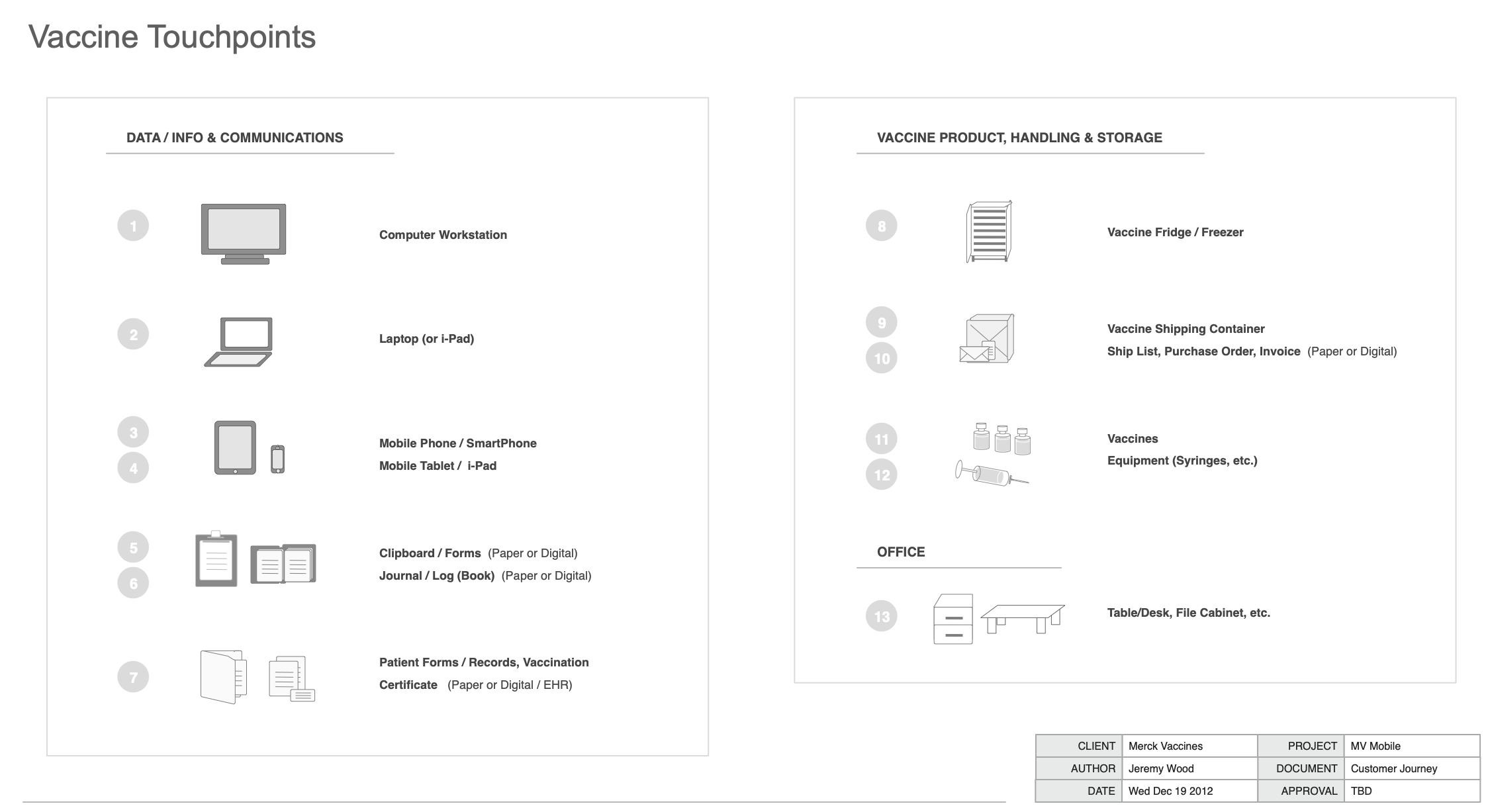
Inventory of physical & digital vaccine touchpoints builds additional specificity to the Ecosystem & Flow, towards understanding user goals, physical context, and usage setting for using the app, at various different points within the flow.
Touchpoint Inventory
Vaccine Inventory Management Operational Workflow
Challenge
Understanding and capturing how vaccine ordering, receiving and stocking, and inventory management, as well as dose administration, takes place
Solution
Illustrate the top-line workflow for all activities along the vaccine lifecycle - ordering, receiving, stocking, managing, and administering vaccines
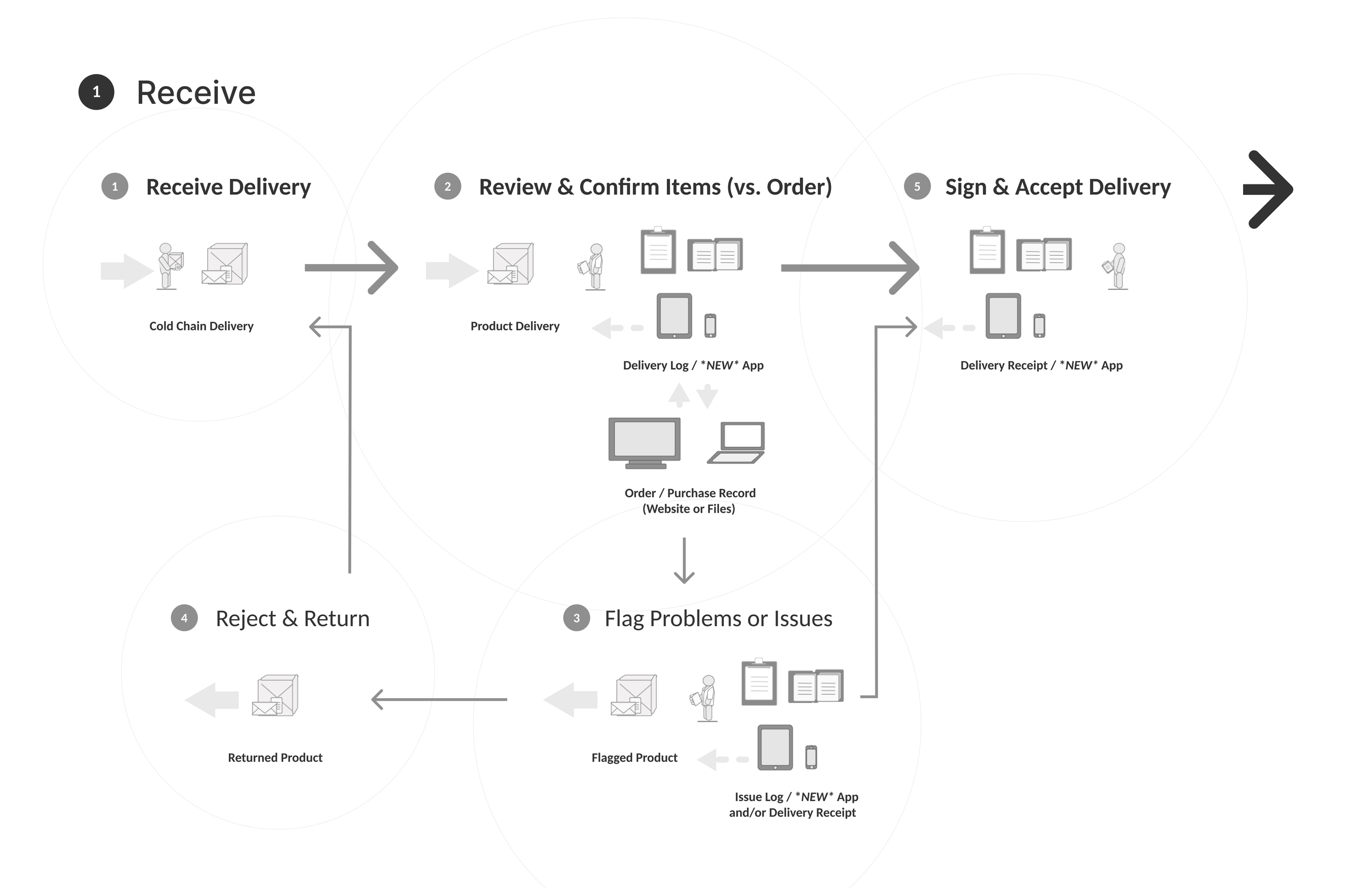
Vaccine cold storage delivery is typically received at the front desk / reception facility of the doctor’s office or medical clinic (or hospital or pharmacy shipping and receiving station).
The receiver must review and sign for the delivery. Currently this is done via paperwork hardcopy; in the new app the user will be able to review, individually scan and confirm receipt of, and then sign for and accept all items in the shipment digitally.
Today, any gaps, discrepancies, or other issues must be handled off-line, manually, through follow-up communication with customer support or other necessary parties, to resolve, handle returns or re-shipment, and address refunds; in the new app users from the office, clinic, hospital, or pharmacy will be able to flag issues and manage any follow-up digitally via the app.
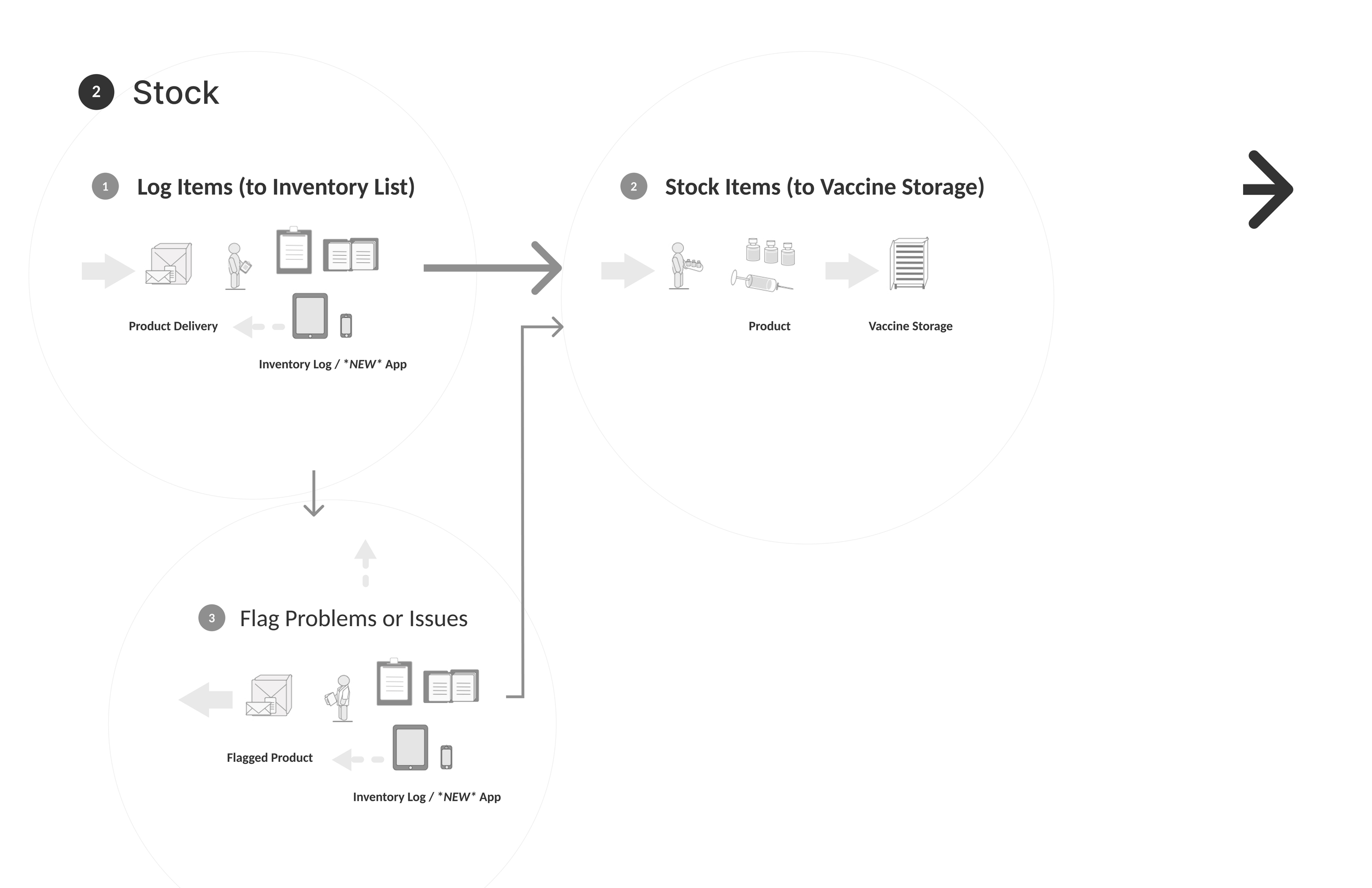
Once received, vaccine coldchain product must immediately be unpacked, stocked and loaded into vaccine cold storage (refrigerators and / or freezers).
New / incoming product is typically logged and added to an inventory log, which is kept either in a locally-stored electronic file or in written inventory log documentation. Where any problems or discrepancies with inventory are noted, they will be manually logged as well, for off-line follow-up.
In the new app, user will be able to digitally scan and confirm each new product item being stocked, to automatically add that item to the digitally tracked inventory list within the app. User may also digitally flag items for any problems or issues, which will add them to the set of flagged inventory to be managed within the app - for return, re-order, refund, etc.
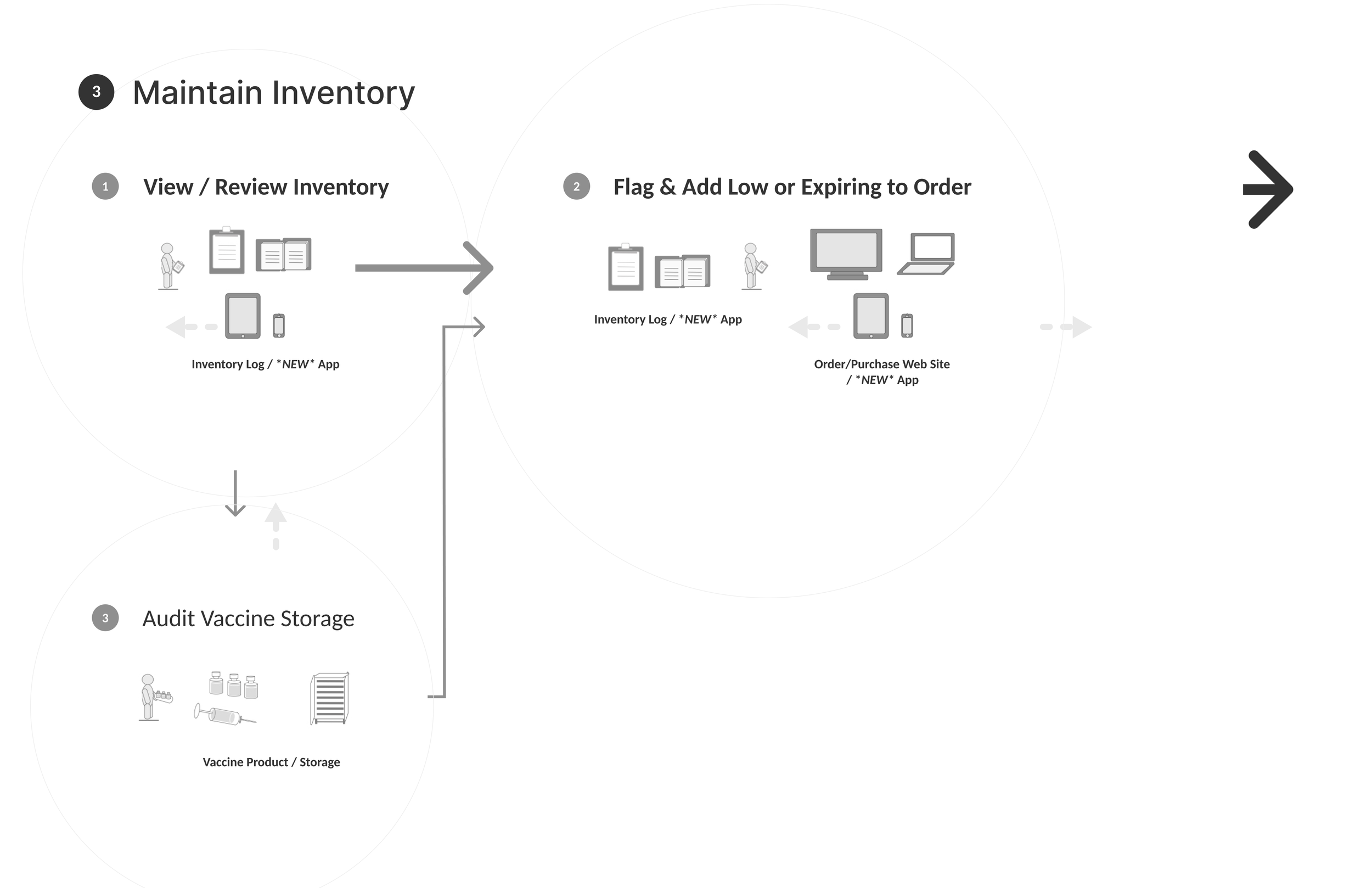
Medical and administrative staff, vaccine managers, or others typically review inventory logs at regular intervals (in some cases daily, or weekly; typically monthly), to manage stock and ensure consistent inventory supply.
Where gaps or low volume of inventory appears, these items are added to order lists, which are (at some point) submitted as orders via the web site.
Additionally, semi-regular reviews / audits of the physical vaccine inventory (within the cold storage units) are performed, in order to ‘true-up’ the real inventory versus the logged inventory supply list. Again, items needing replenishment are added to the list for upcoming orders.
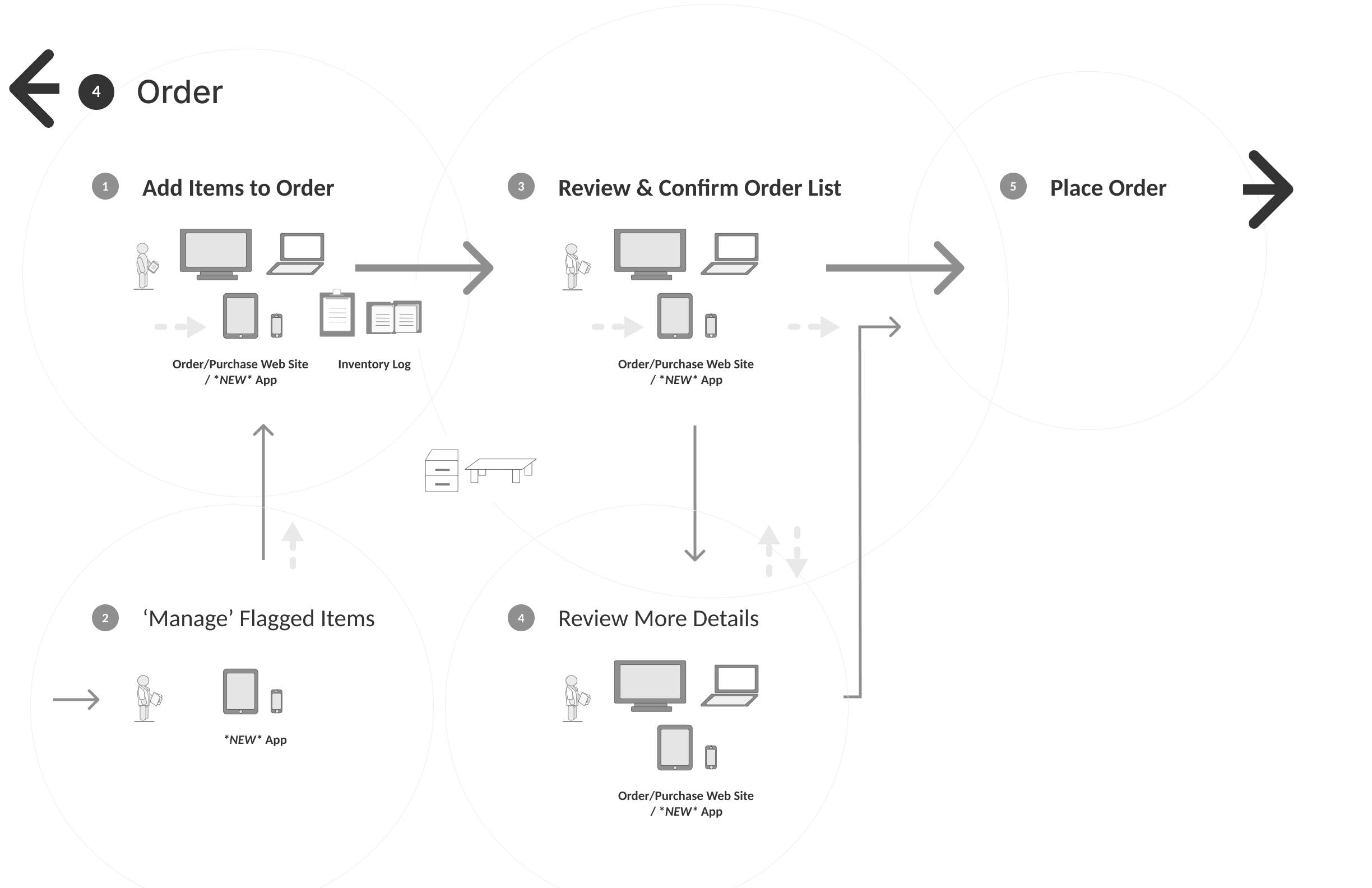
When new inventory is needed, users today log in to the website, to search for and select inventory to be purchased, and place the order. This is done by manual entry based on local inventory logs, spreadsheet files, or other offline sources.
In the new app, users will be able to add inventory at any time to the order list - whether based on low inventory in stock, items approaching expiration dates, regularly planned inventory re-stock orders, product items damaged or sent back for return during inventory receiving, items identified during physical inventory audits of vaccine storage, or otherwise.
The app will allow users to place any order immediately, or continue to add items to the order list, for eventual placement at the appropriate order time. The order list also enables items to be flagged as needed, or potentially even added to the order list by all users, while restricting final ordering (and payment) abilities to only those users who are authorized.
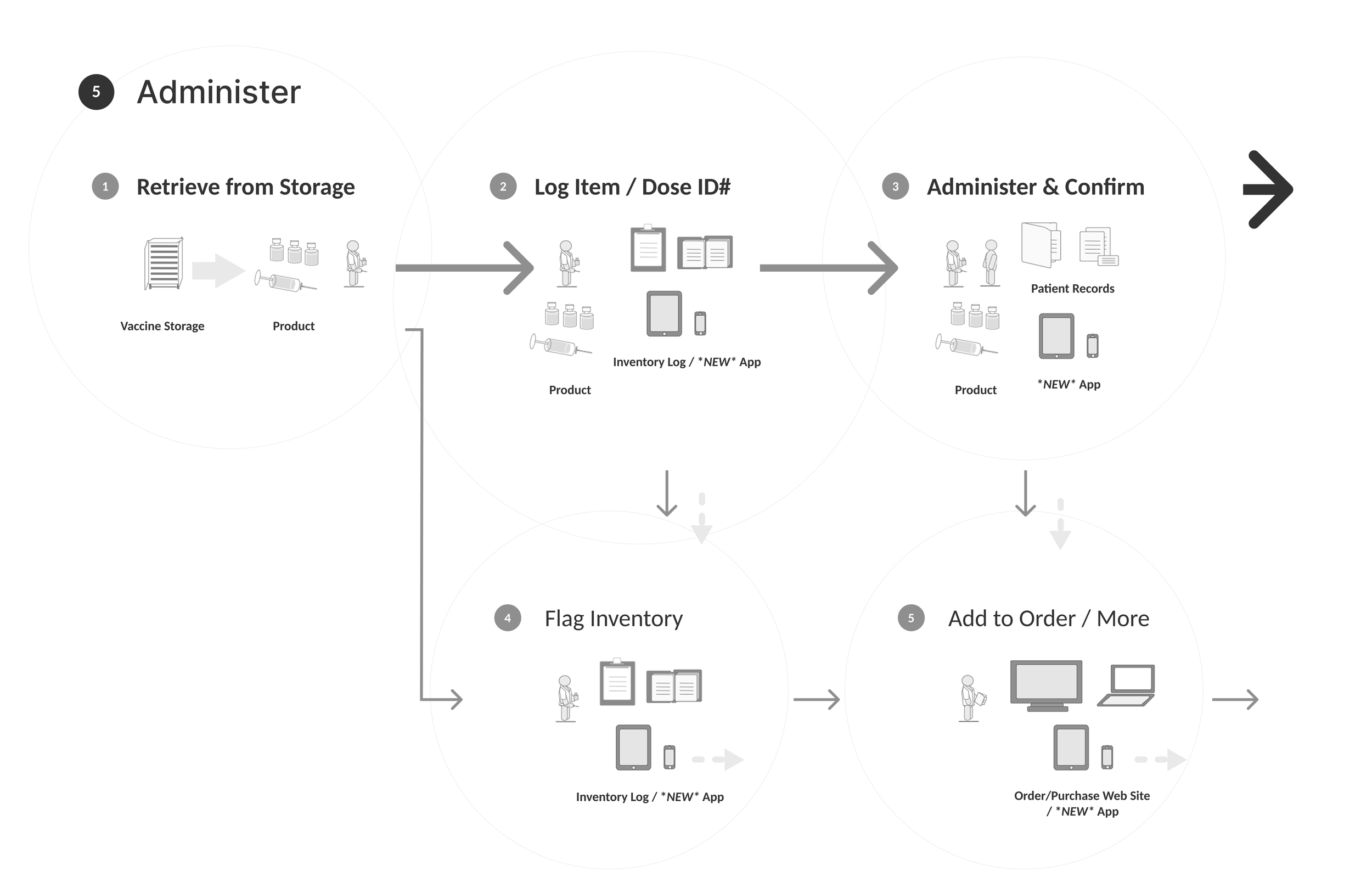
The new app will enable all medical personnel who administer vaccines to track, manage, and log usage / administration of each vaccine (dosage) that is administered. User may simply scan (or manually enter) the vaccine product, to automatically log it.
The app will also allow user to flag any problems or issues, including flagging low or expiring inventory, when administering.
Operational Business Flow
Mobile Vaccine Inventory Management App UI Design
Challenge
Inferring the branding and style guidelines from current legacy web site experience and applying them to the mobile app prototype design
Solution
Refreshed visual design language for the app interface, reinterpreting legacy styling in a more updated and mobile-friendly way
Inventory (Home Screen)
Inventory: Inventory Item
Inventory: ‘New Delivery’ Alert
Receive: ‘Accept Delivery & Sign’
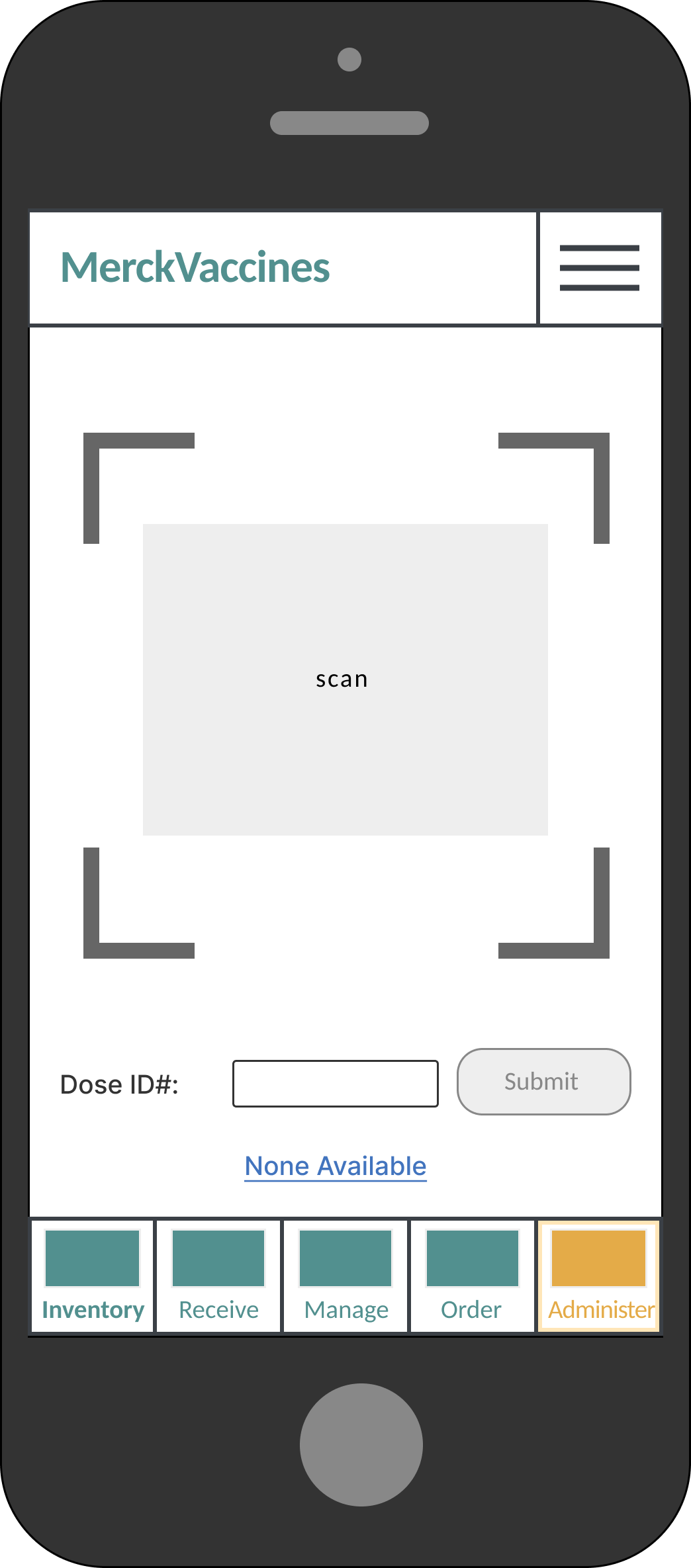
Administer: ‘Scan’ Product
UI Visual Design
Vaccine Inventory Management Mobile Prototype UI
Challenge
Reduce ordering, delivery, and supply chain friction. Shift call-center-dependent customer service to more efficient self-driven customer self-service. Facilitate more regular, consistent ordering and distribution patterns. Add value for our customers with digital app-based inventory management. Increase Merck Vaccine Customer satisfaction.
Solution
UI for mobile app prototype. Designing an interface for vaccine inventory management and ordering
Inventory > Inventory List
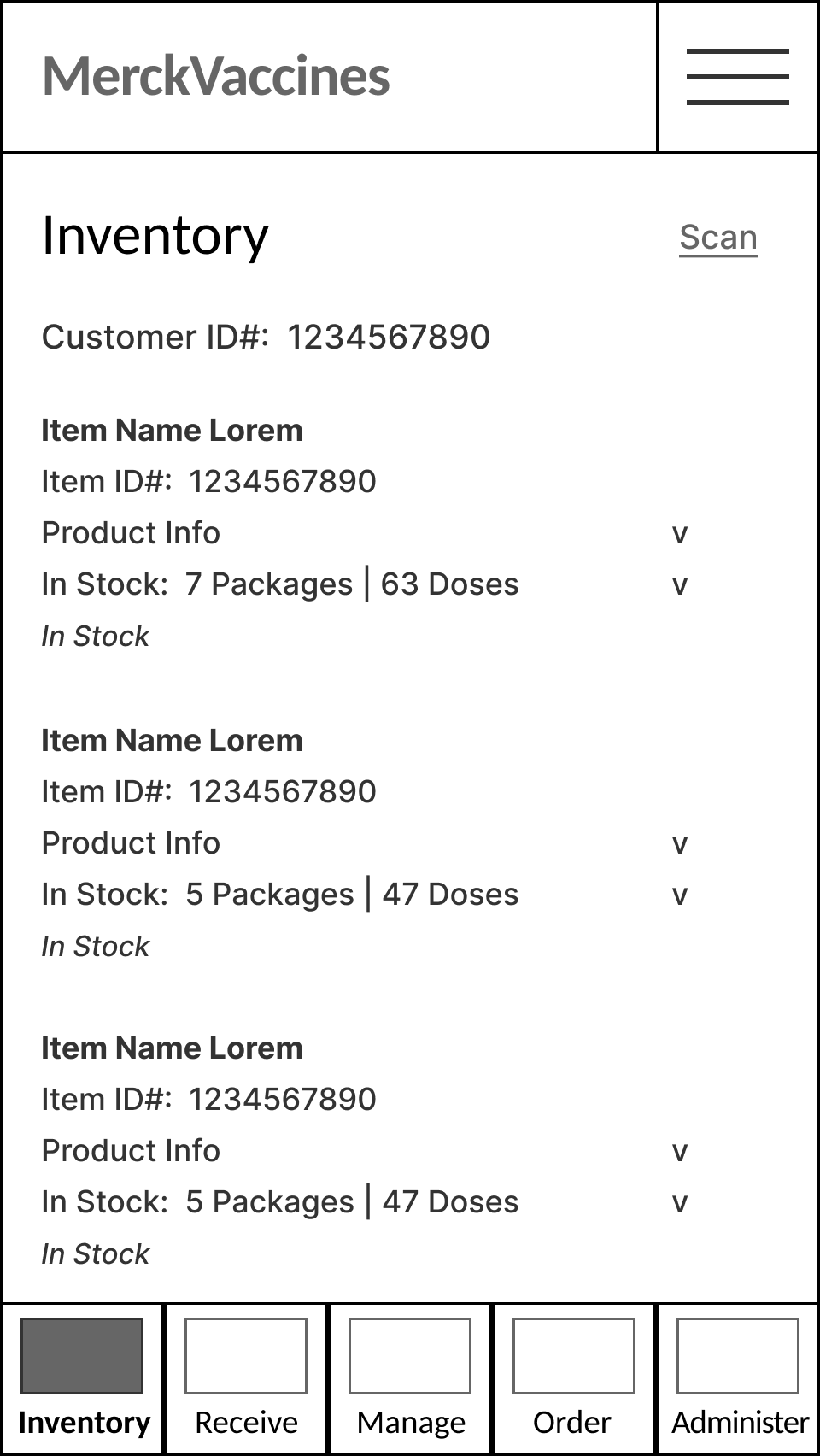
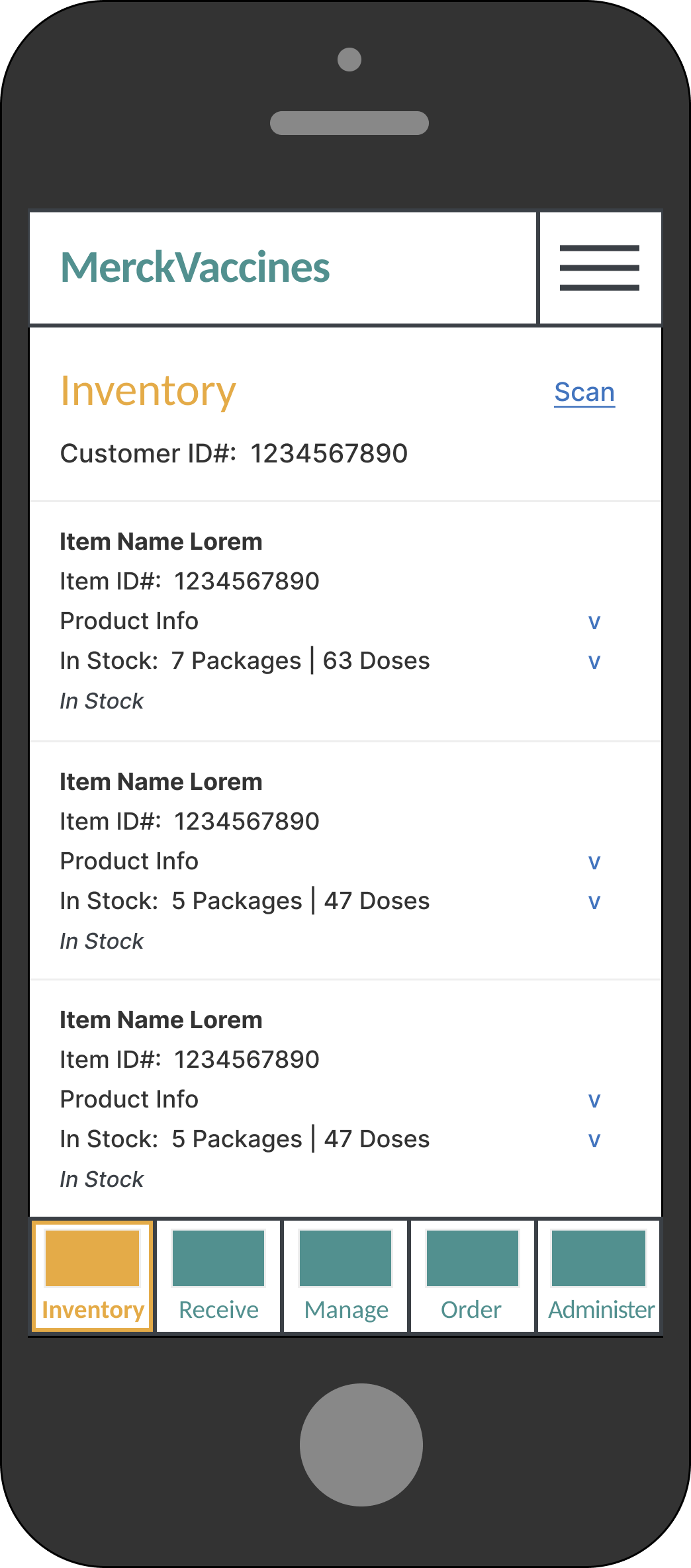
Home screen: Inventory.
Inventory is the primary home screen of the app, listing all vaccine inventory.
The Inventory section lists each vaccine currently (or recently) in stock, in the vaccine storage.
For each vaccine, the vaccine name, ID#, product information, and how many packs/lots and doses are currently in stock are provided. Customer ID# is also listed, for reference.
‘Scan’ feature allows the user to scan any vaccine item into the app via the graphic code (barcode, QR, etc.), using the phone camera, at any time.
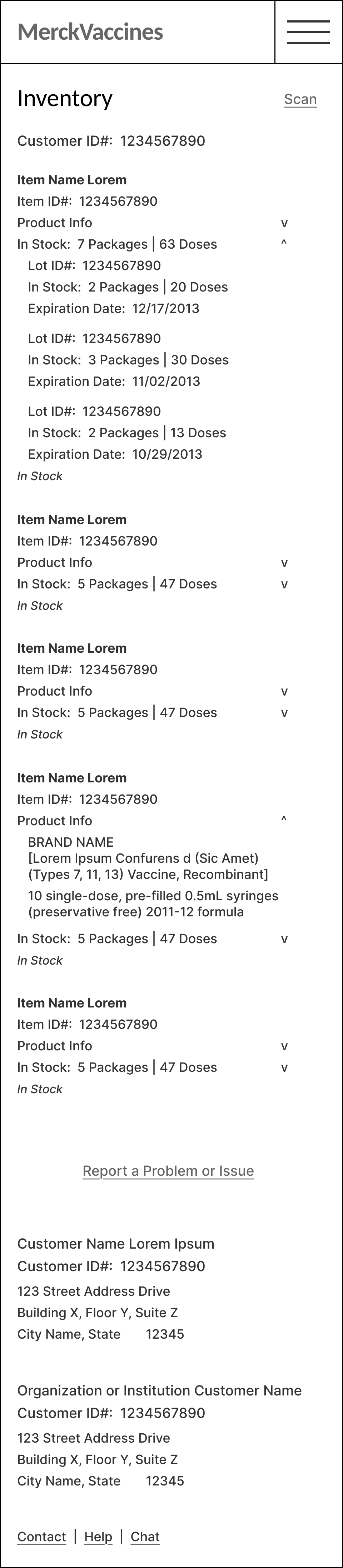
Each Inventory item can be expanded to show individual Lot #s, with current supply volume and expiration date info for each.
Inventory can also be expanded to show full details of Product Info.
A link allows user to flag or report a problem or issue, for example low inventory, approaching or past expiry date, damaged stock, missing inventory or other discrepancies - to inform vaccine management staff of the need to re-order, restock, etc.
Additional links to Contact, Help, or Chat, connect user to support resources, as needed.
Customer Information is also indicated, including both local office, and larger Organization or Institution, where applicable.
Inventory > Select an Inventory List Item - ‘Scan’ or ‘Press to Select’
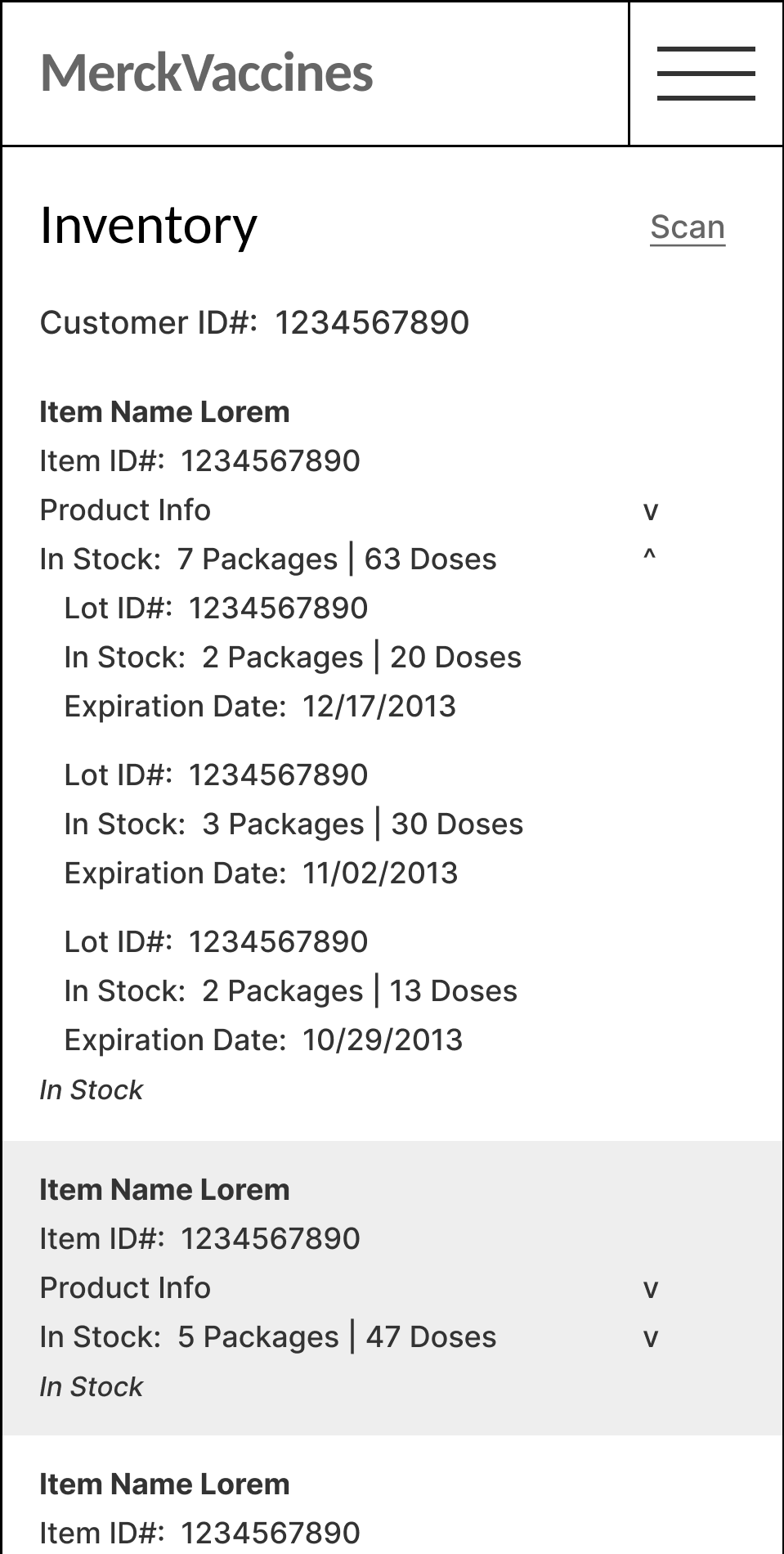
Inventory items may also be selected from the list by the user to view information about, and manage it.
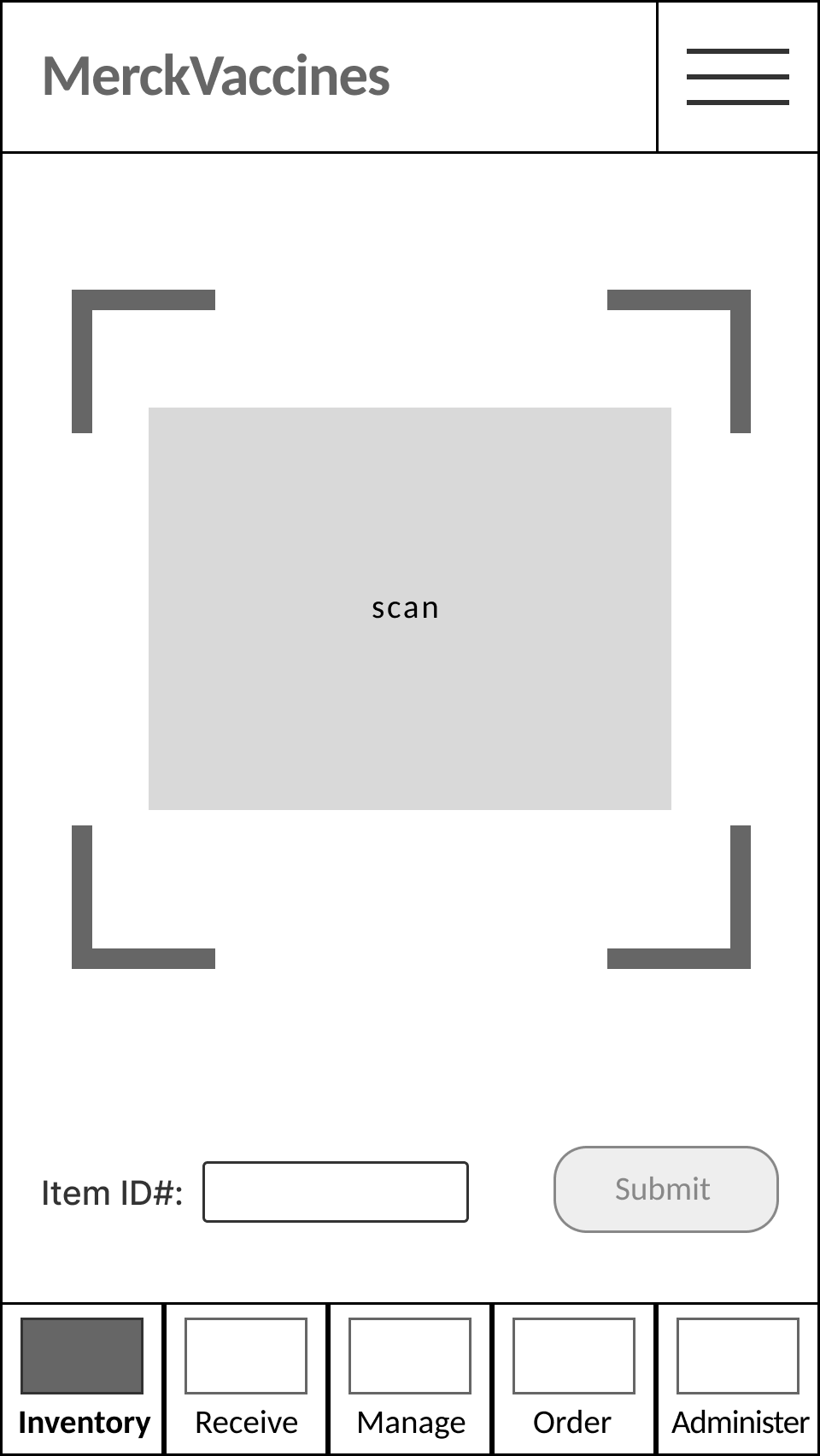
‘Scan' feature allows user to scan any individual inventory item, to select, view information about, and manage it.
Inventory > Inventory Item Selected - Flag ‘Low’ or ‘Expiring’, ‘Problem’ or ‘Issue’
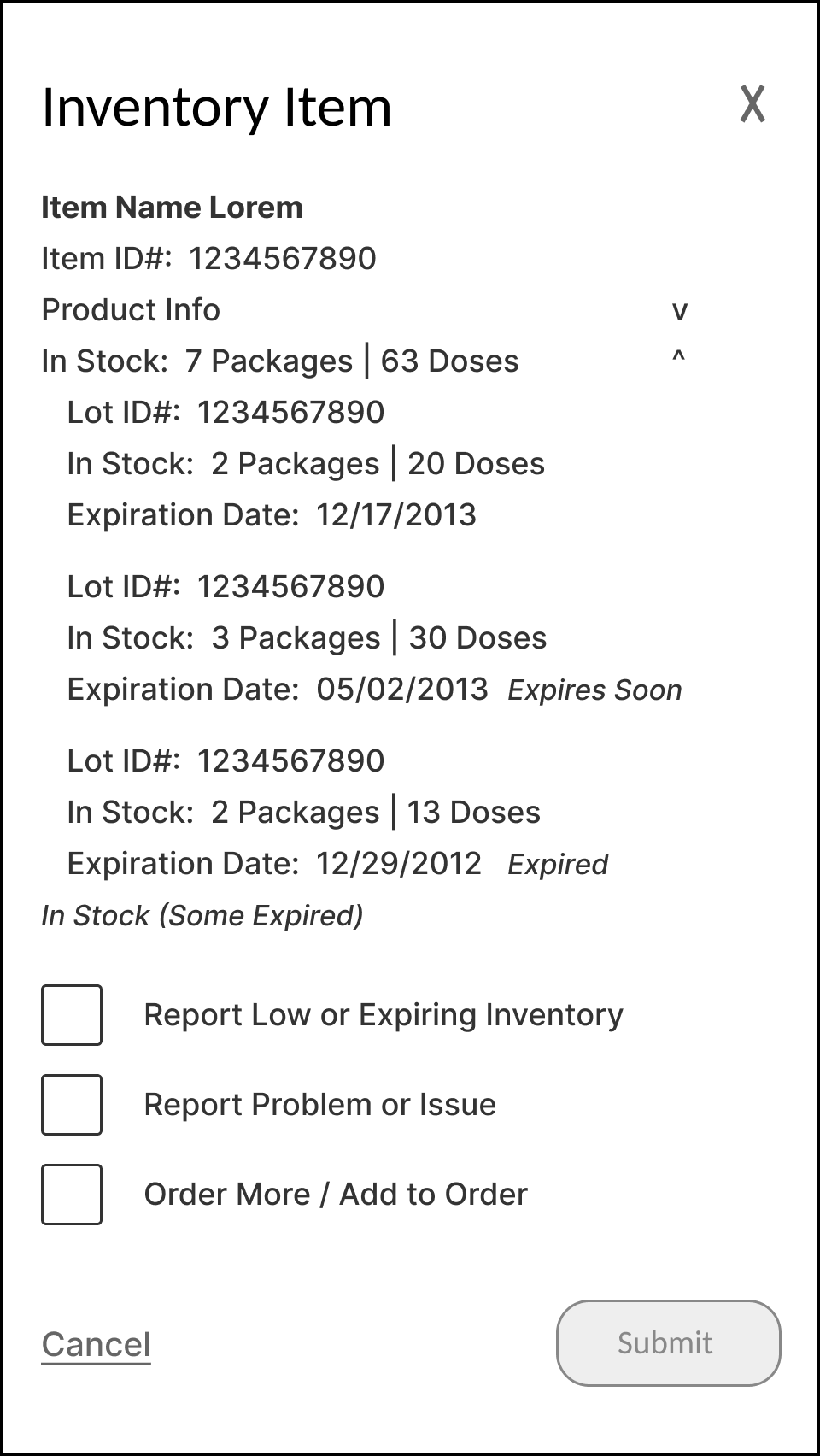
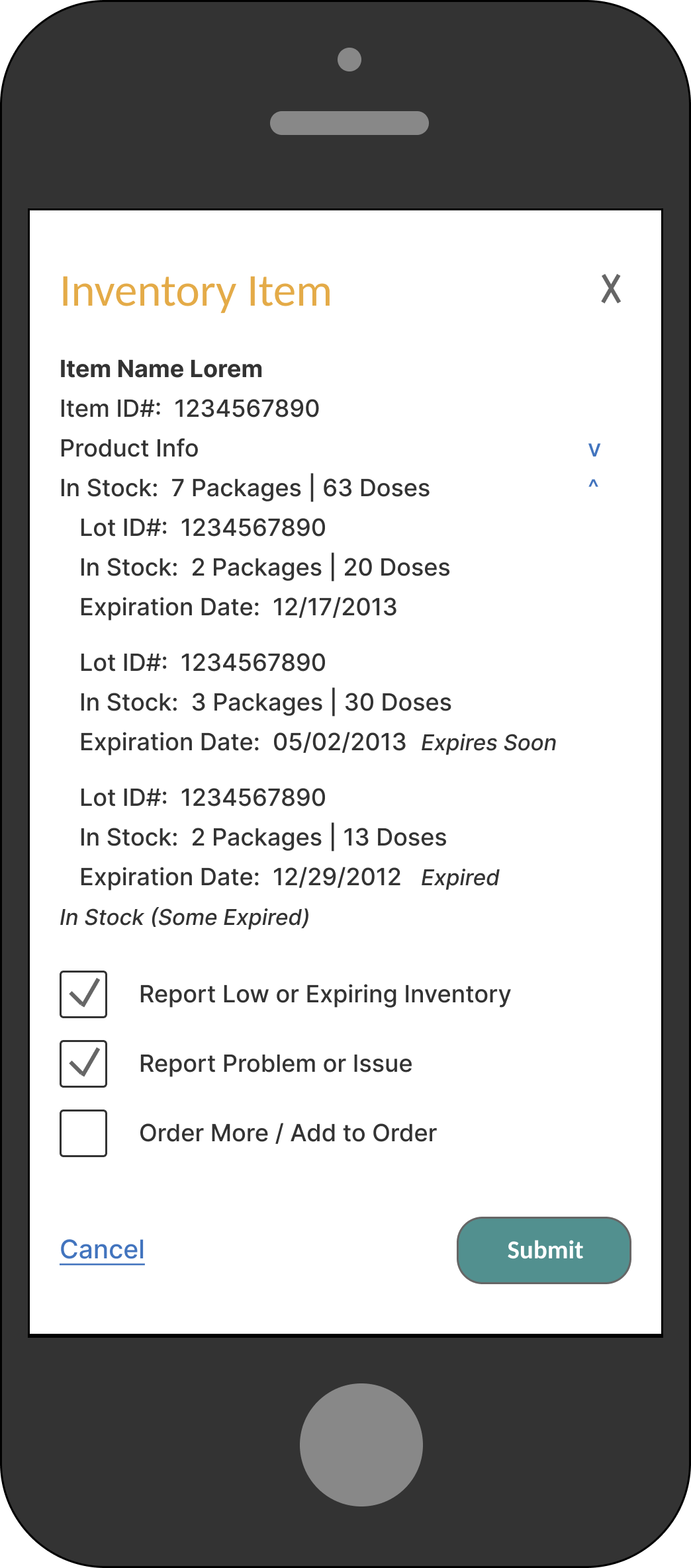
Inventory Item screen displays full info about the item, with options to Report Low or Expiring Inventory, Report Problem or Issue, and/or to Order More (Now) or Add to (Next) Order.
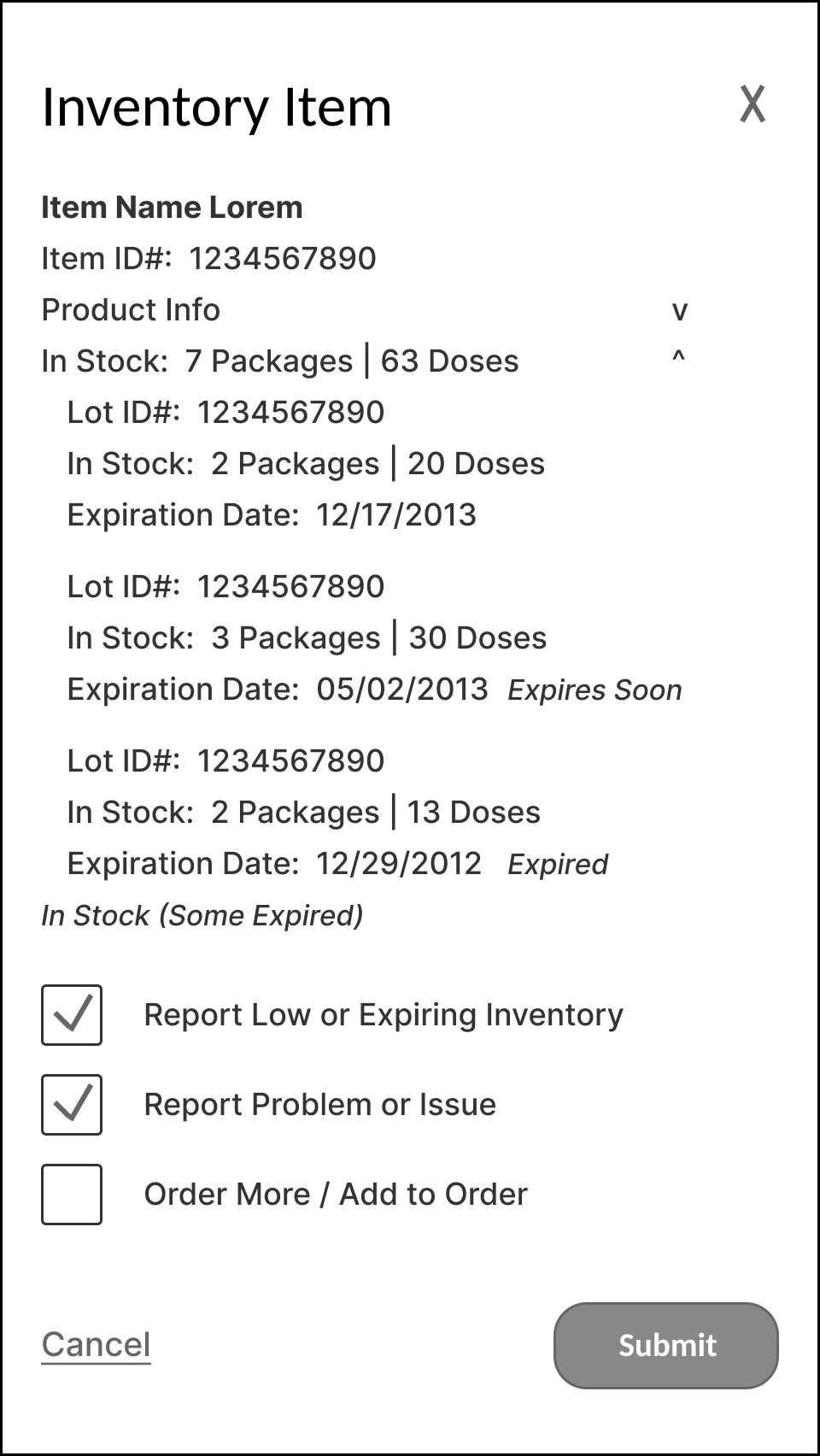
Report Low or Expiring Inventory and Report Problem or Issue enable user to track and manage inventory supply volume, in order to ensure continuous supply.
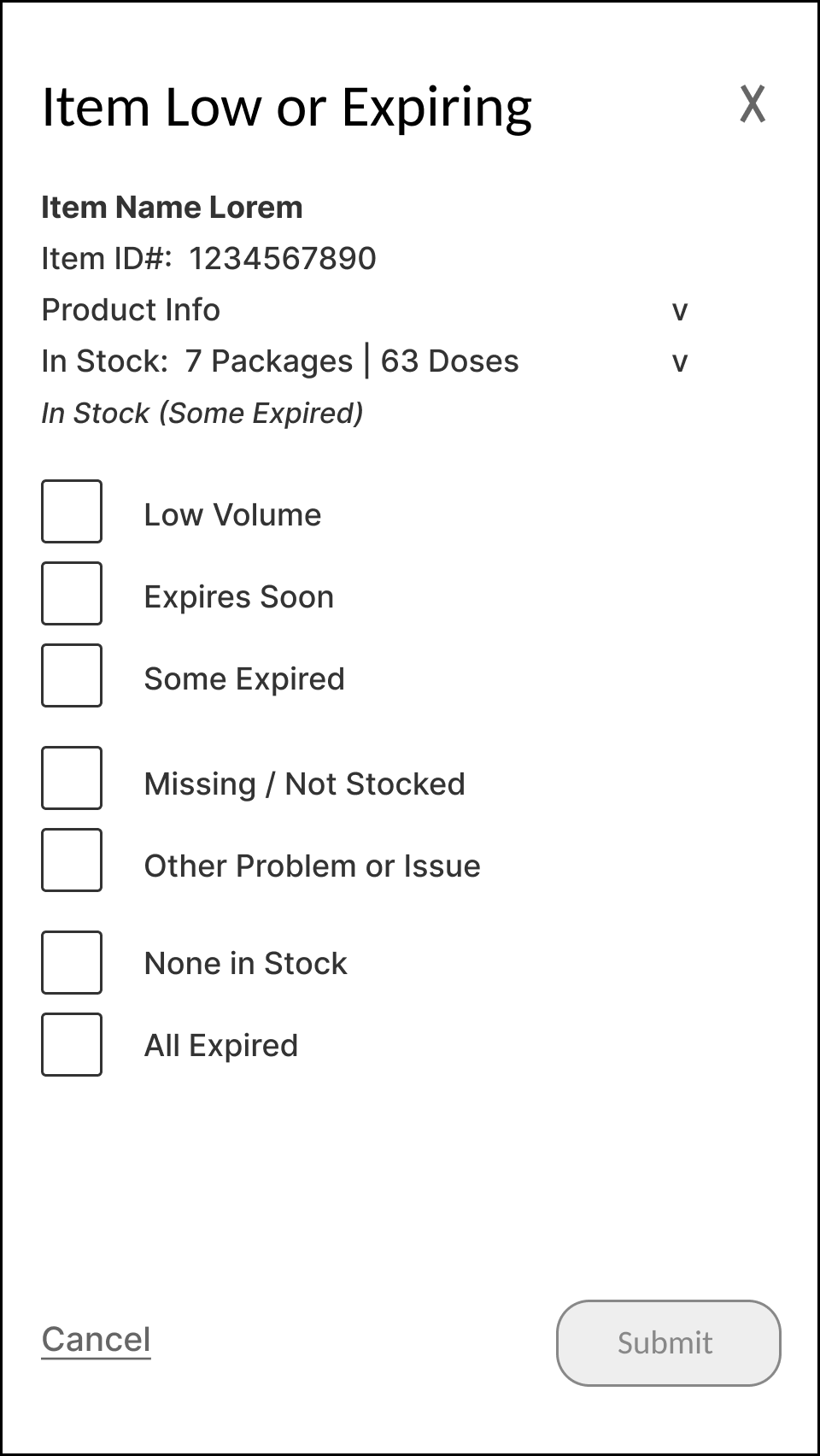
Report Low or Expiring Inventory allows user to specify and flag supply status.
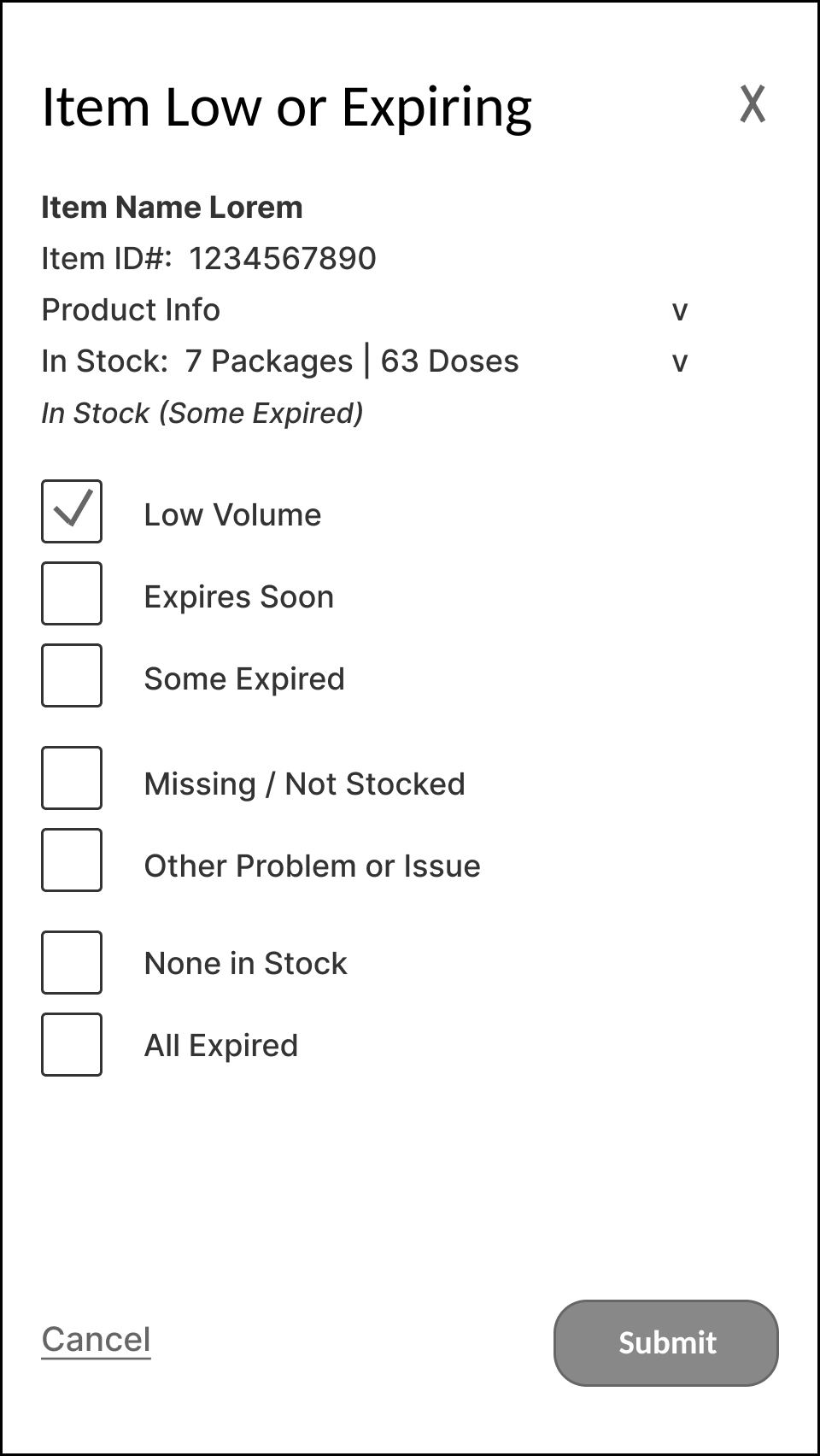
Report Low or Expiring Inventory, flagging Low Volume, shown here.
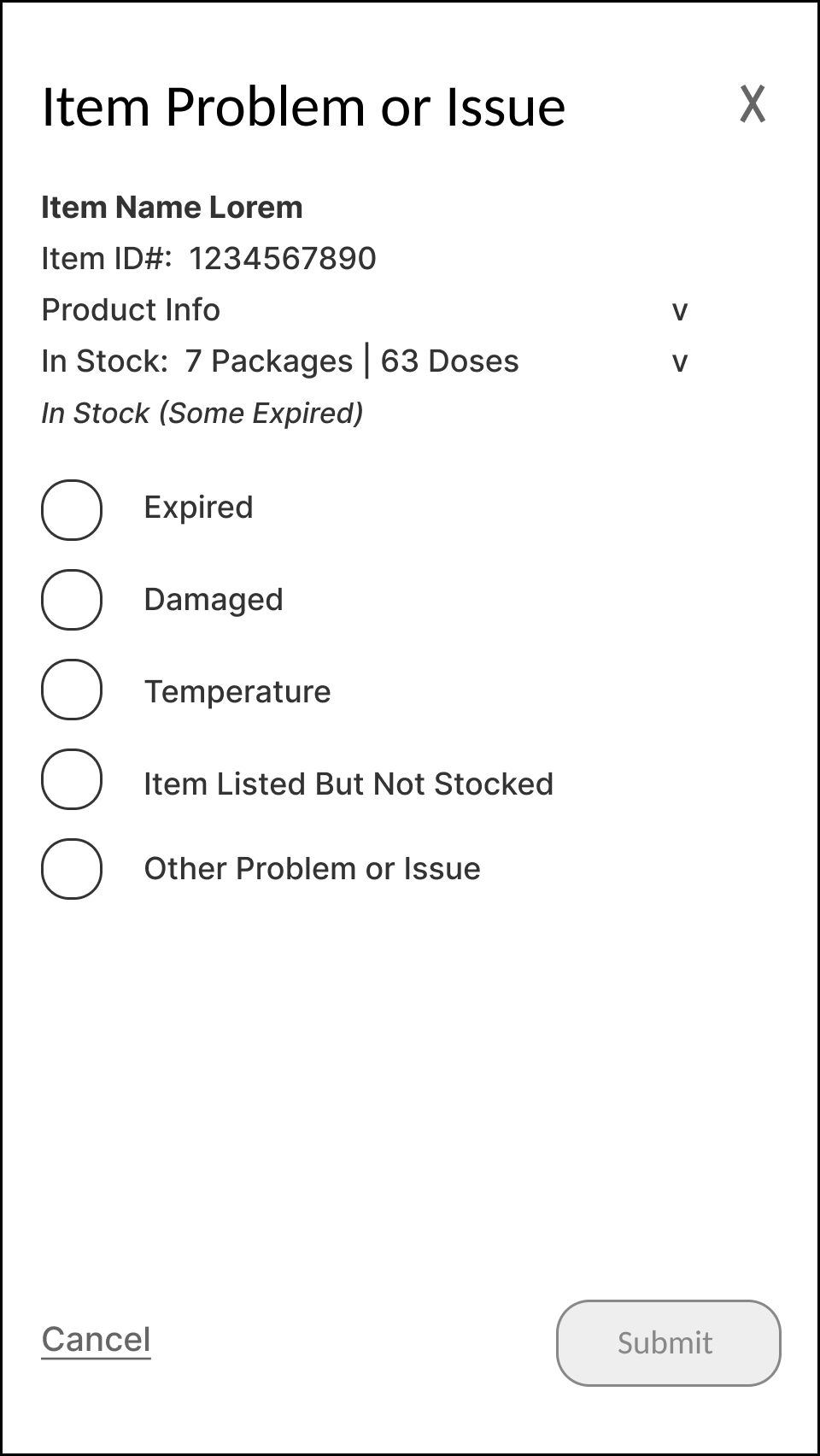
Report Problem or Issue enables user to flag Expired, Damaged, Temperature non-compliant, Missing (Not Stocked), or other issues.
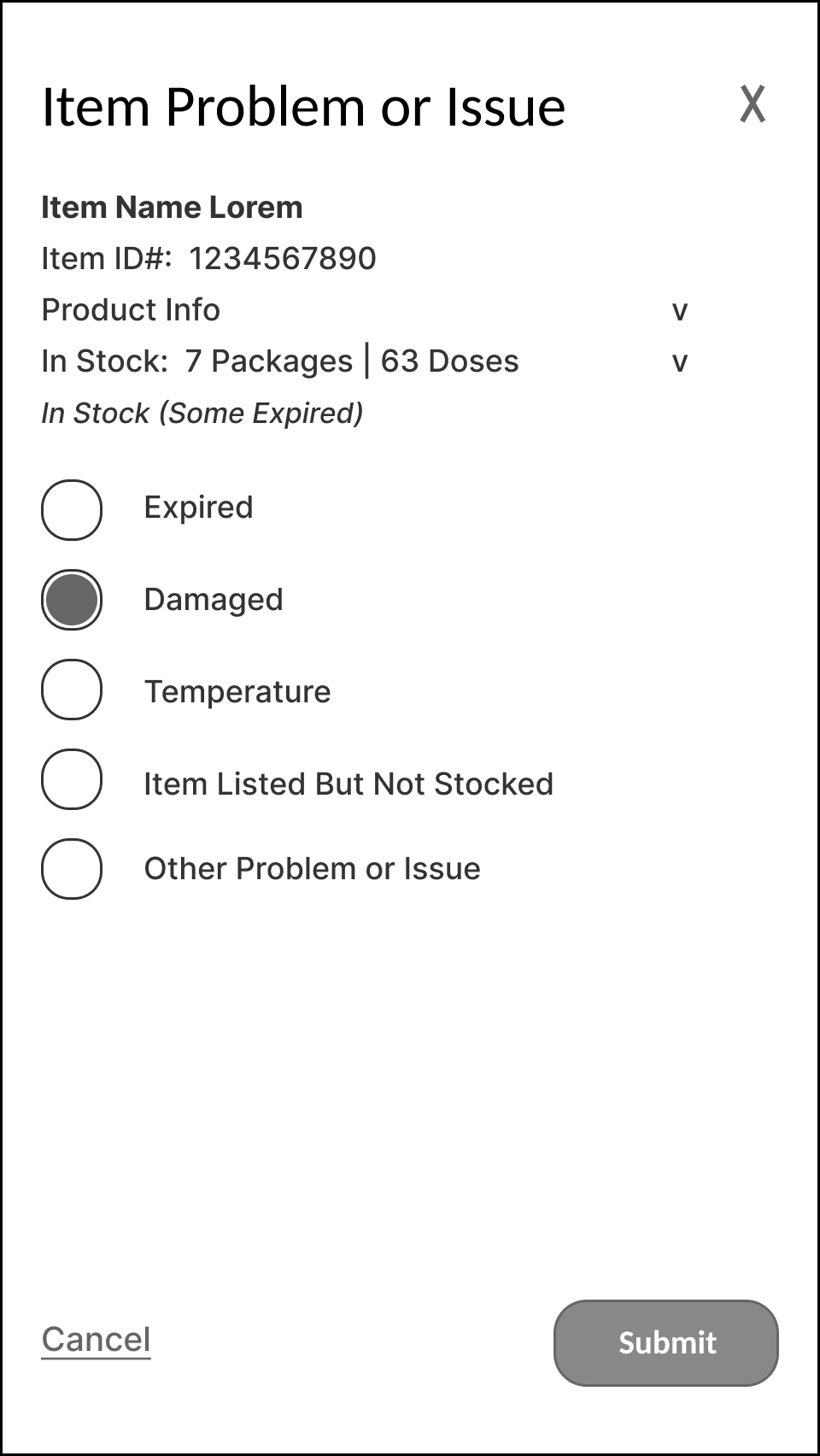
Report Problem or Issue, flagging Damaged inventory, shown here.
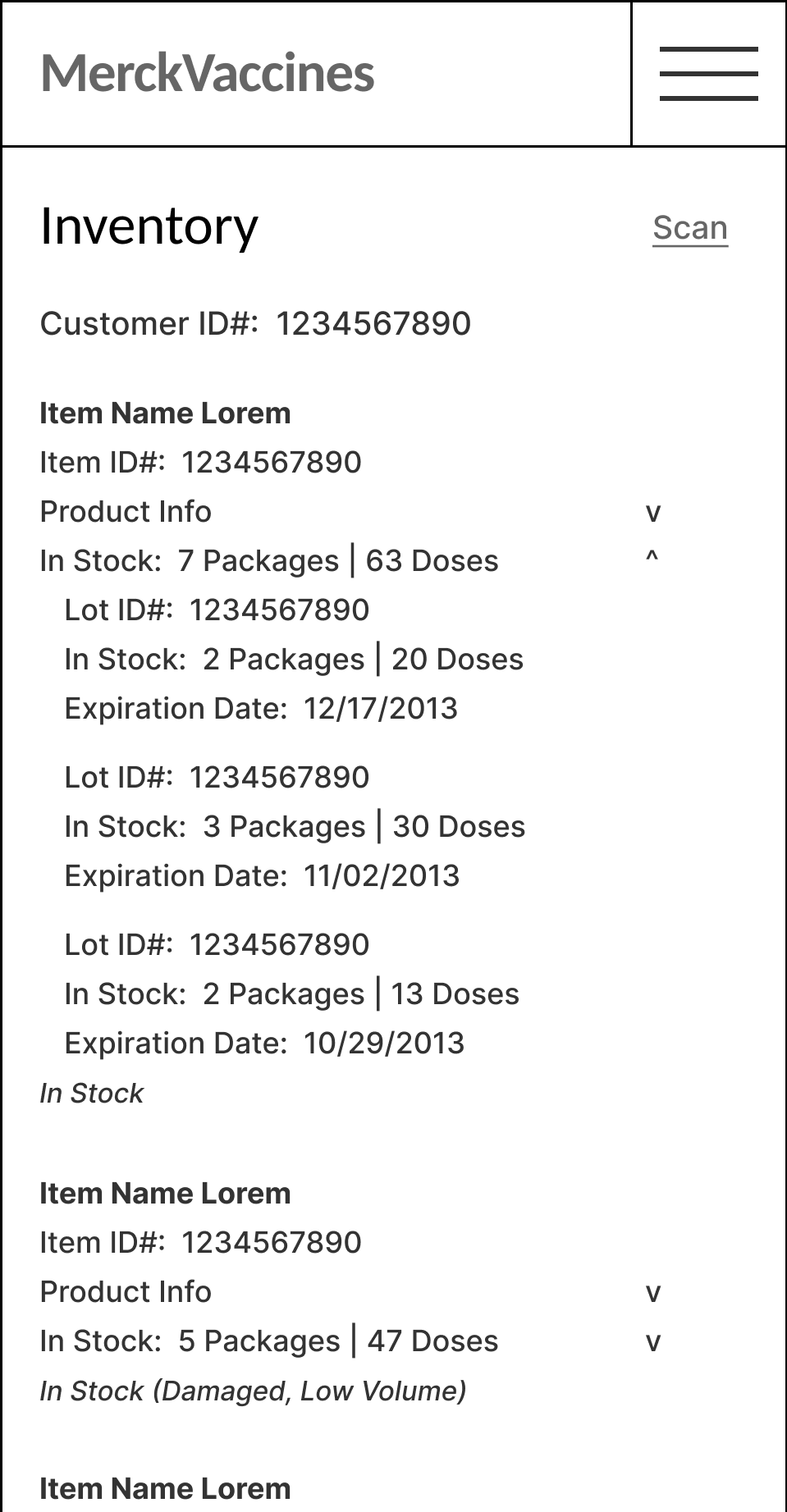
Once they are reported, flags appear in inventory item status.
Item is now listed as ‘Stocked’ and ‘Damaged’, ‘Low Volume’, shown here.
Inventory > Inventory Item Selected - ‘Order More’
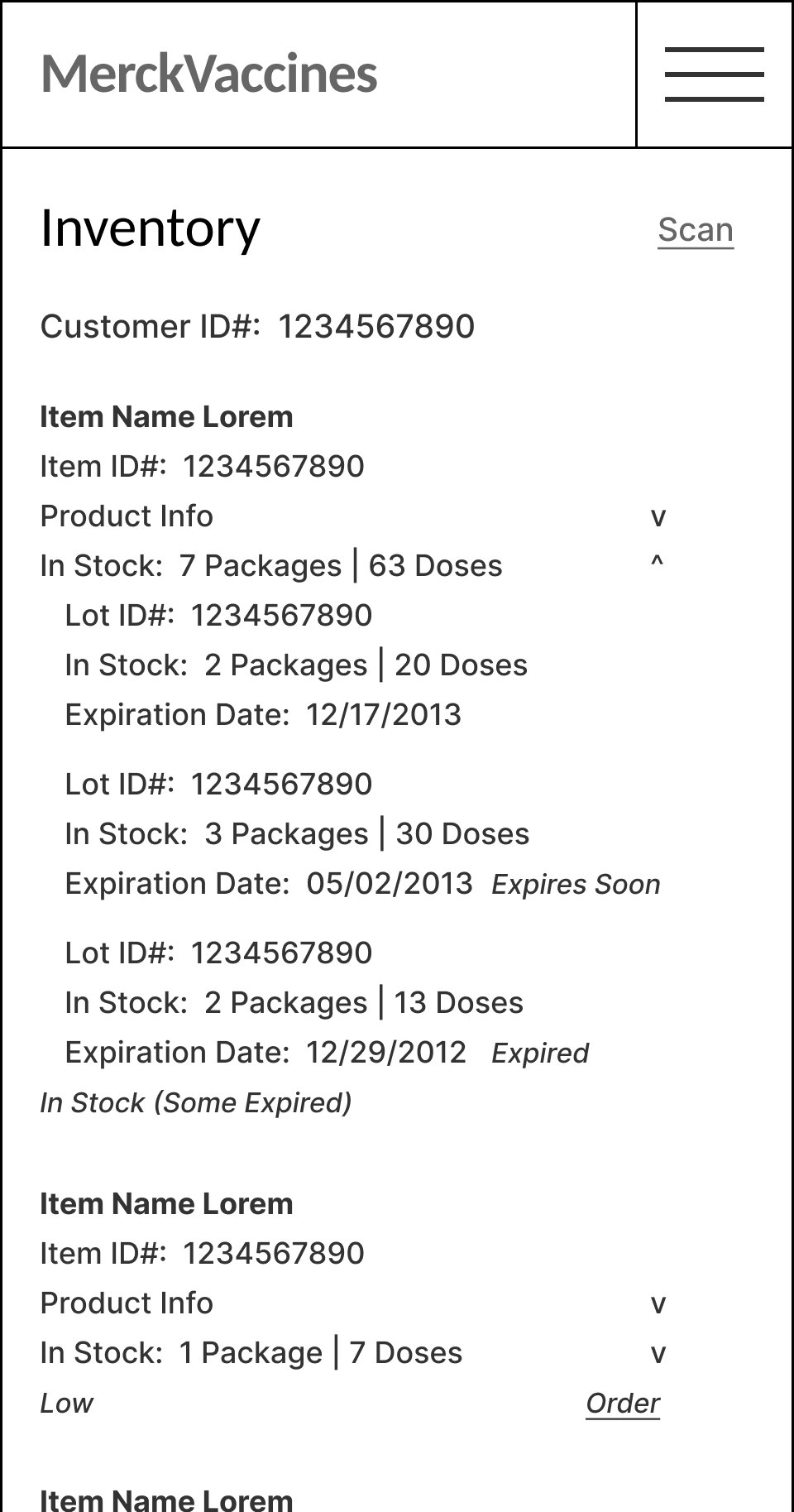
For Inventory items which are running low in supply volume, the ‘Order’ link automatically appears, to encourage and enable user to re-order more to replenish the stock.
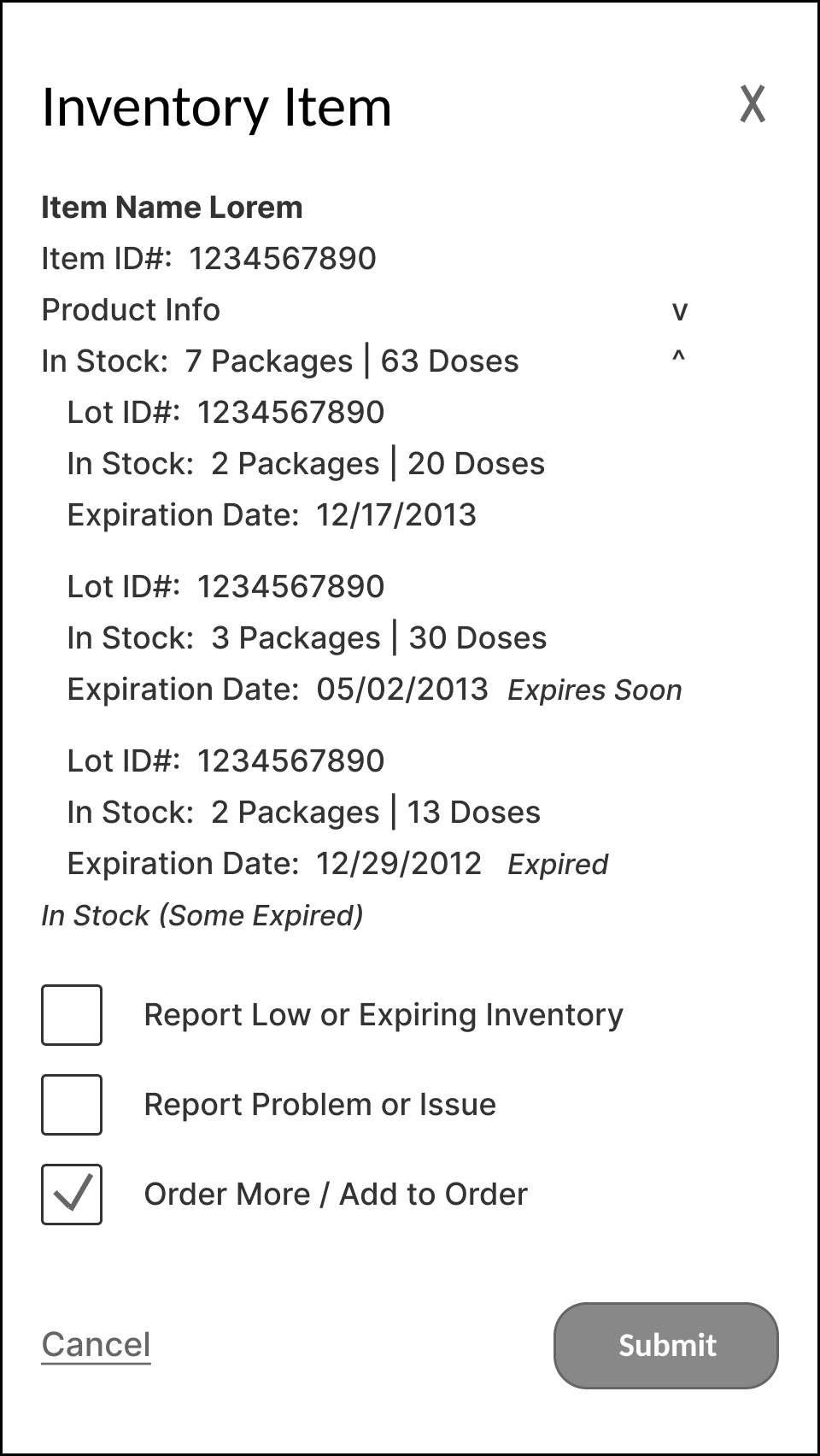
On Inventory Item screen, user can also select option to Order More / Add (Item) to (Next) Order.
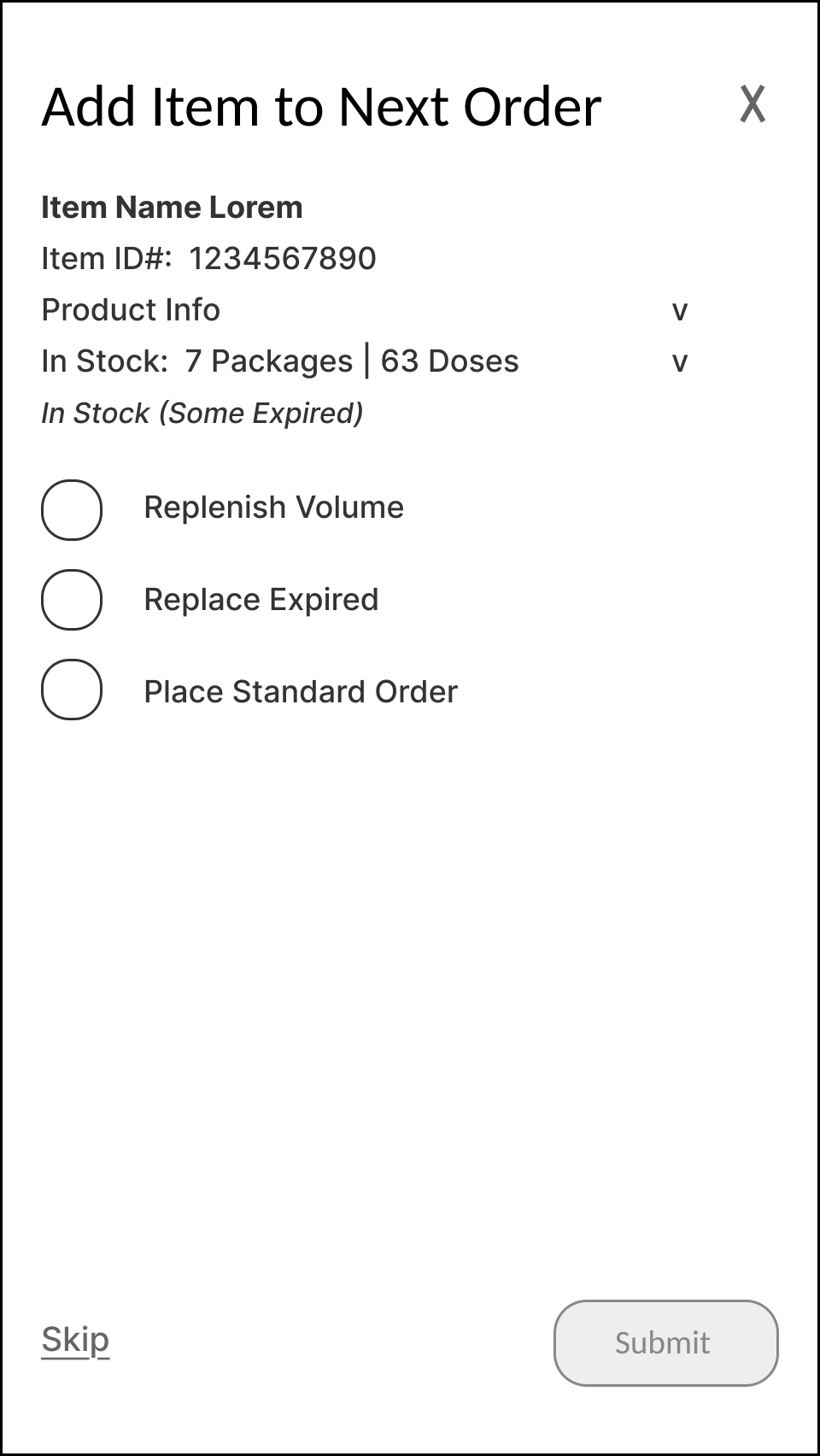
Inventory items can then be added to next upcoming orders, according to a variety of options: to Replenish Volume (based on a pre-defined quantity of desired stock), Replace Expired (based on volume of stock past expiration date), and/or Place a Standard Order (based on pre-defined regular order parameters).
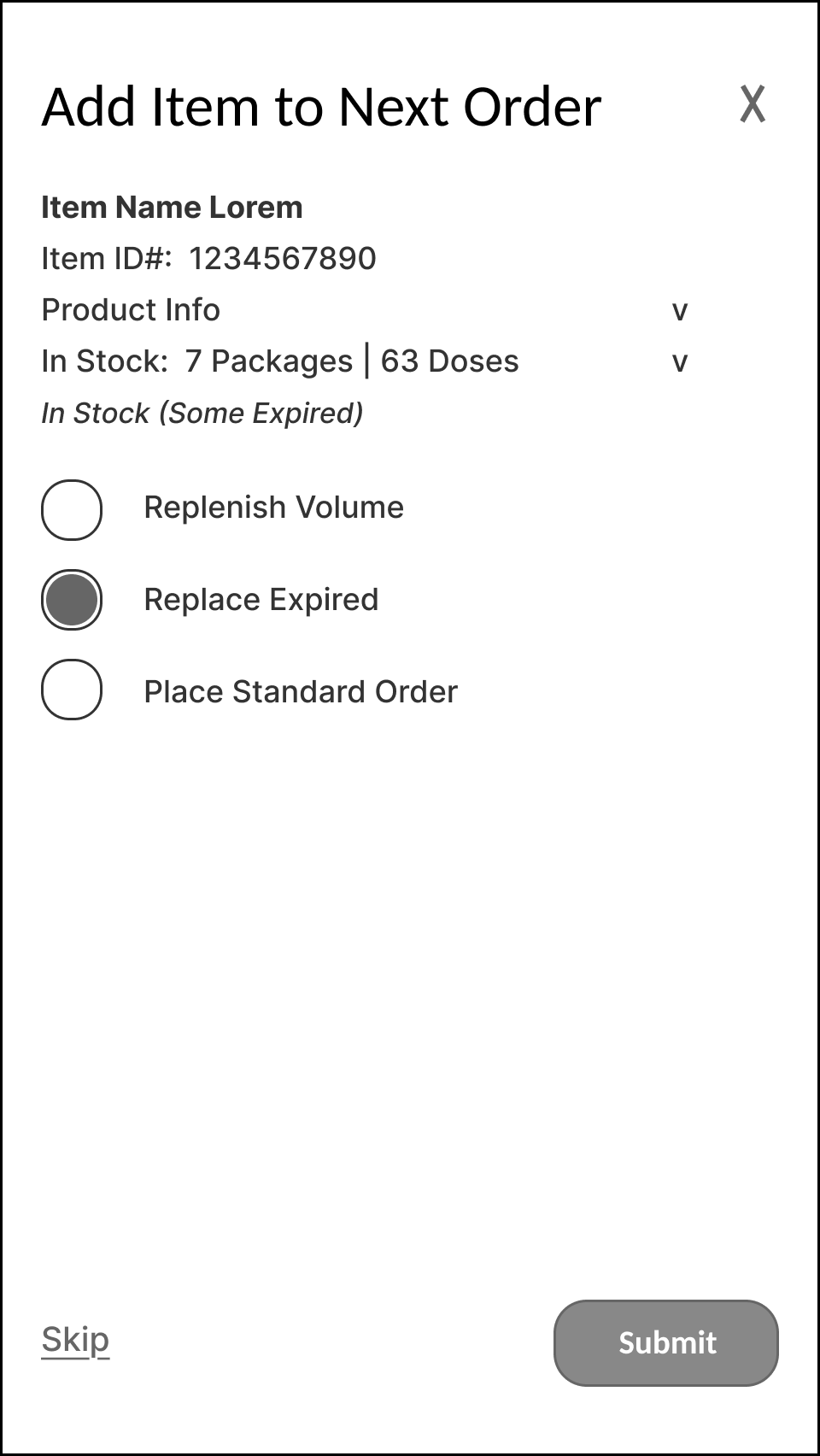
Replace Expired (based on volume of stock past expiration date), is shown selected here.
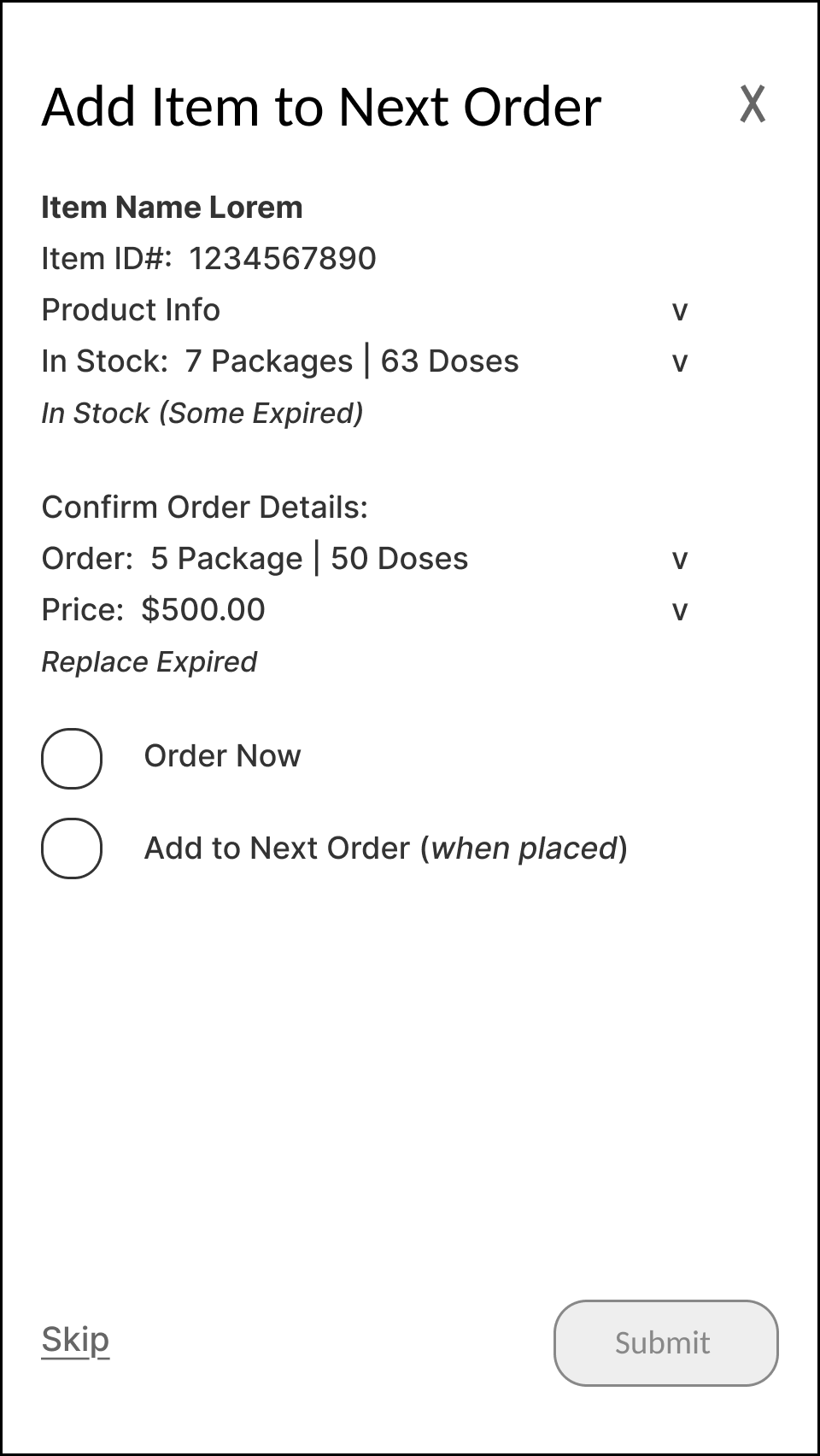
Once item has been added to ‘next order’, user has the option to ‘Order Now’ (immediately place order, and pay), or to ‘Add to Next Order (when placed)’, in which case item will be added to the Order list.
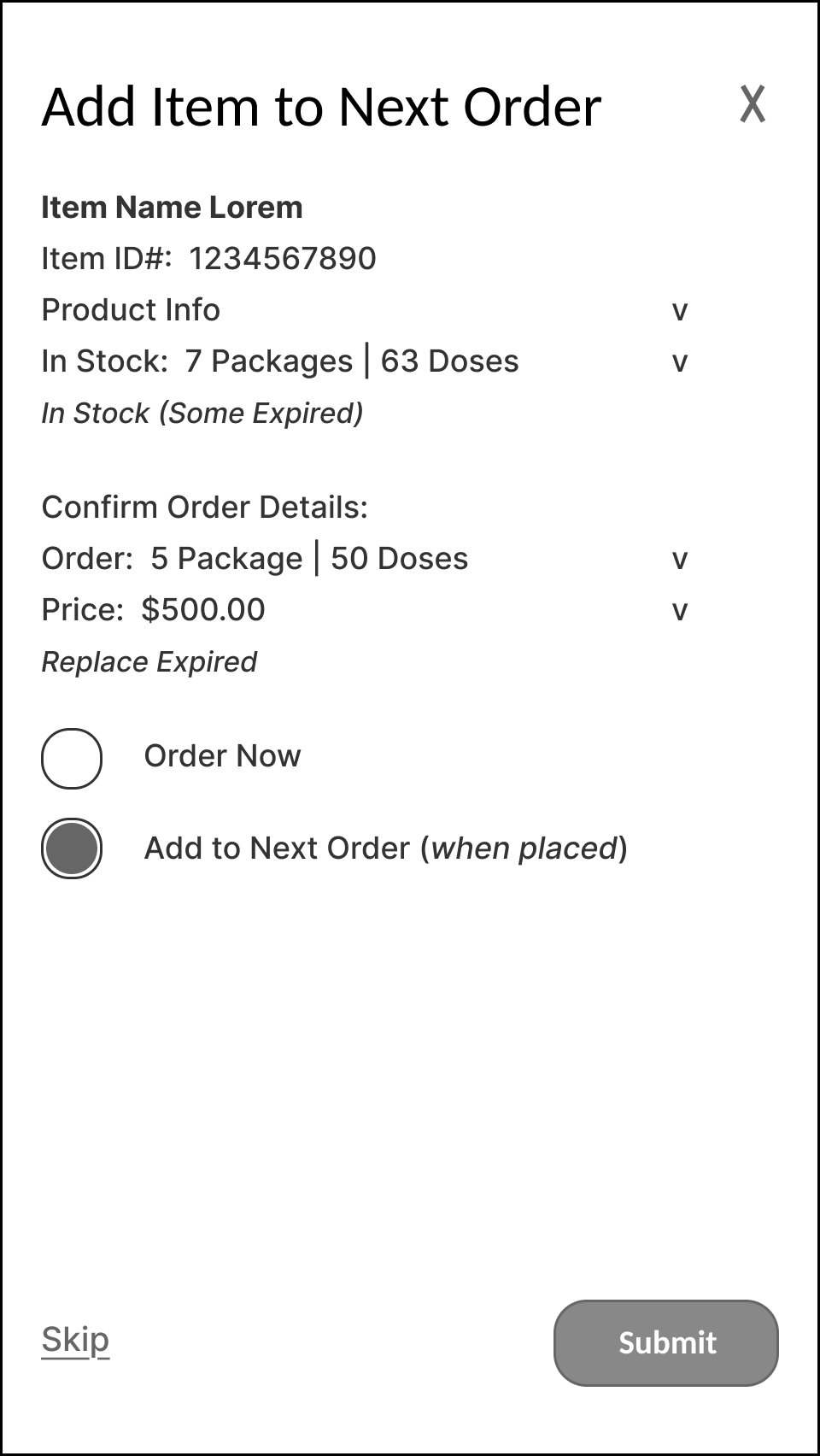
‘Add to Next Order (when placed)’, is shown selected here.
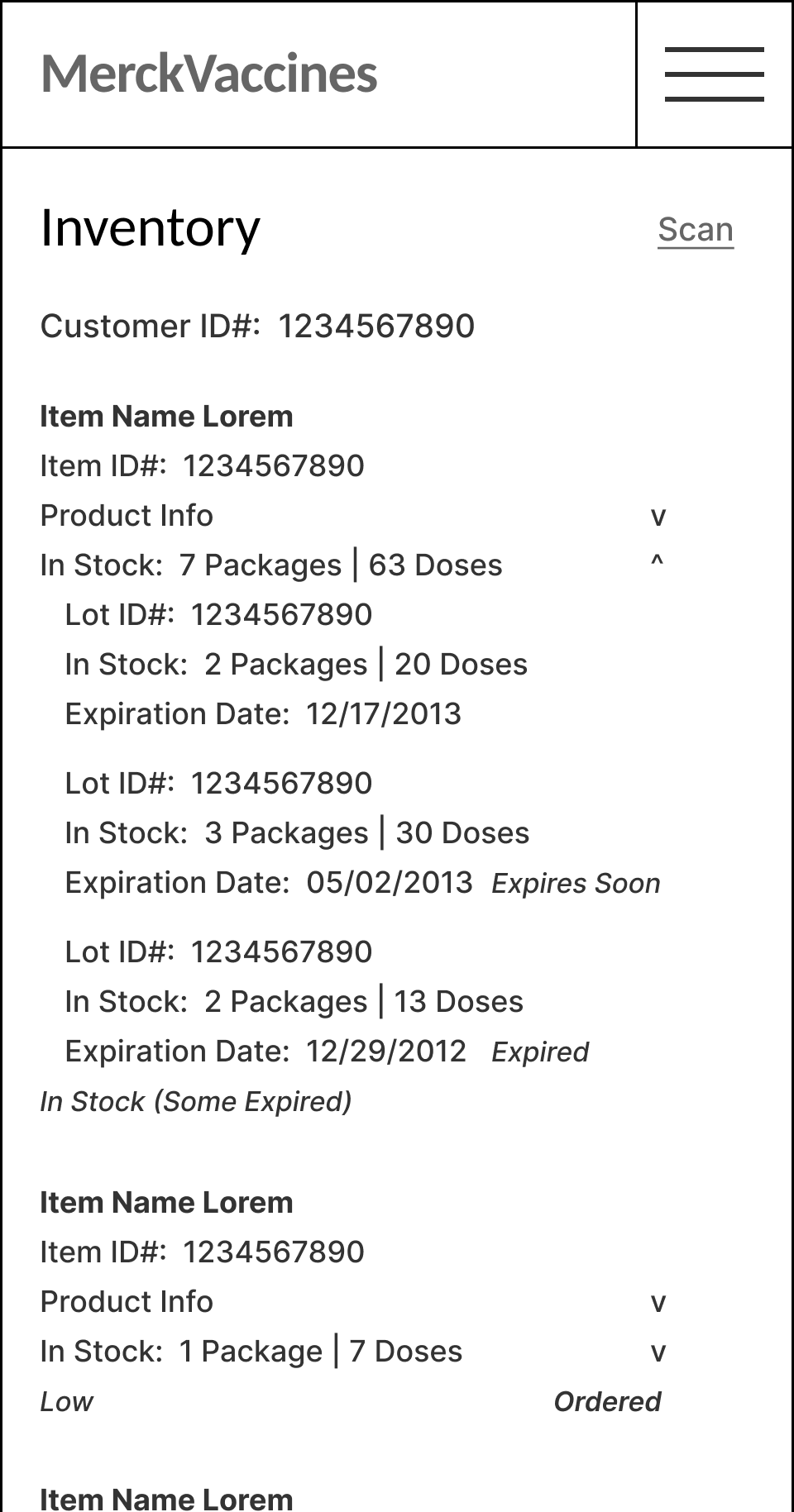
Once order has been placed, the item’s status in the Inventory list is update to reflect that it has been ‘Ordered’.
Inventory > Alerts - ‘New Delivery’, ‘Stock Items’, ‘Expiring’ or ‘Out of Stock’
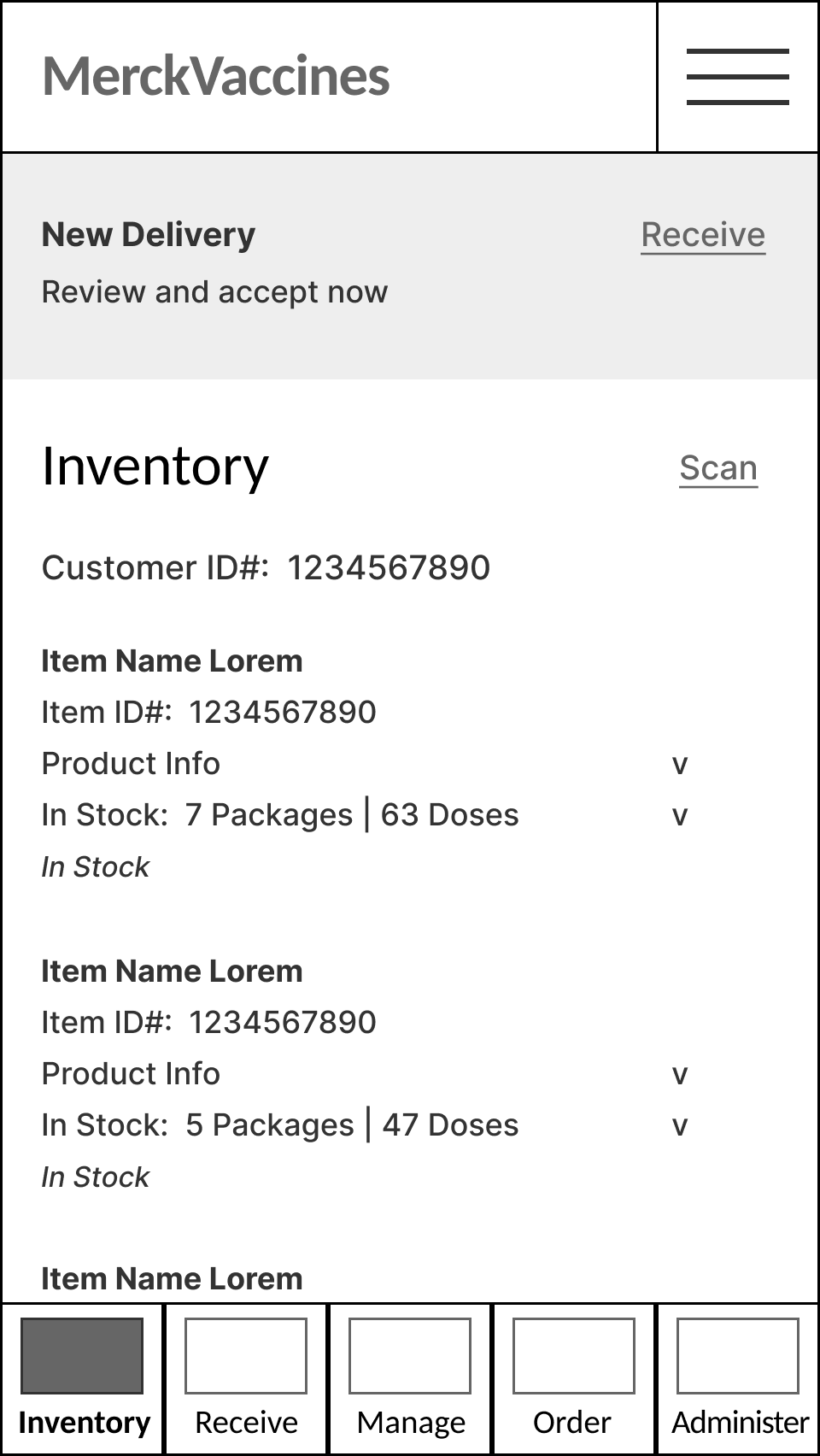
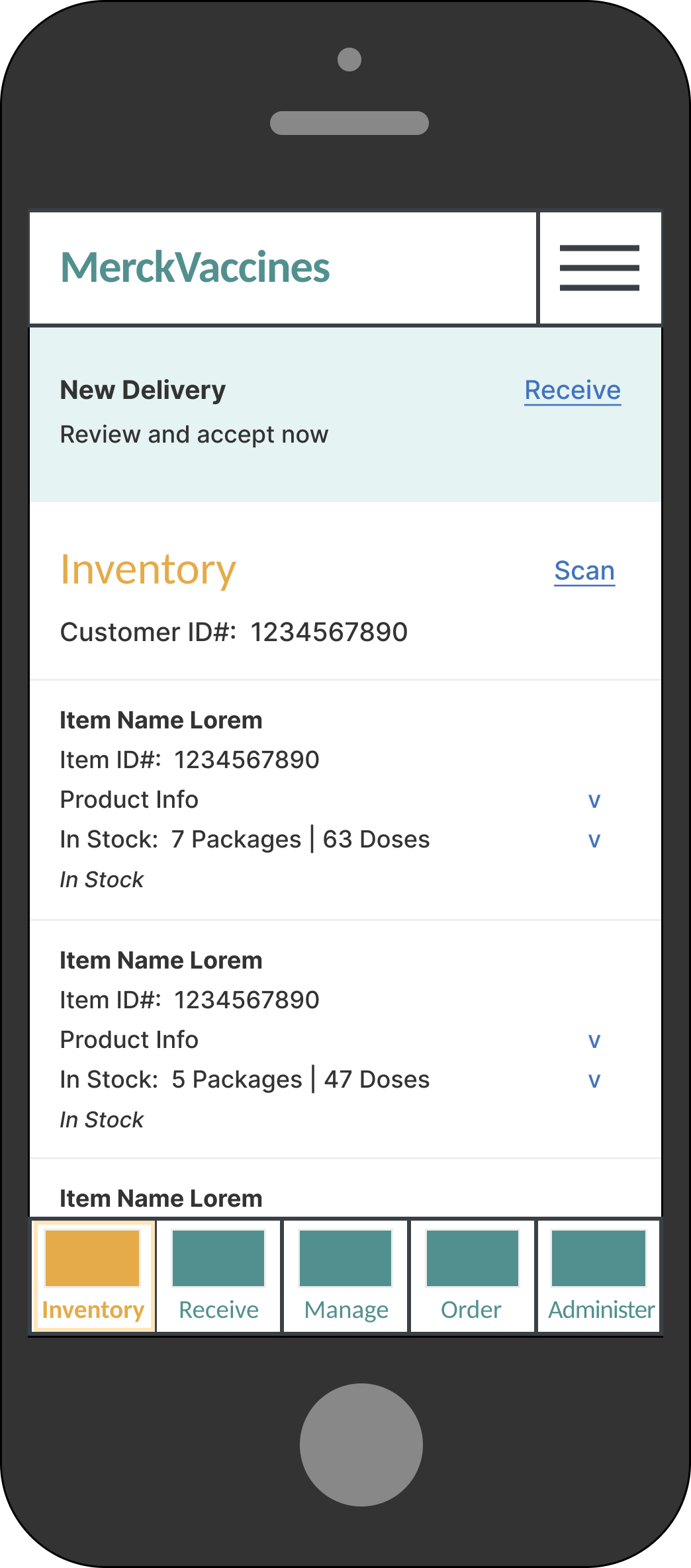
When a new delivery is arriving / has arrived, an alert notification message in Inventory appears with link to ‘Receive’.
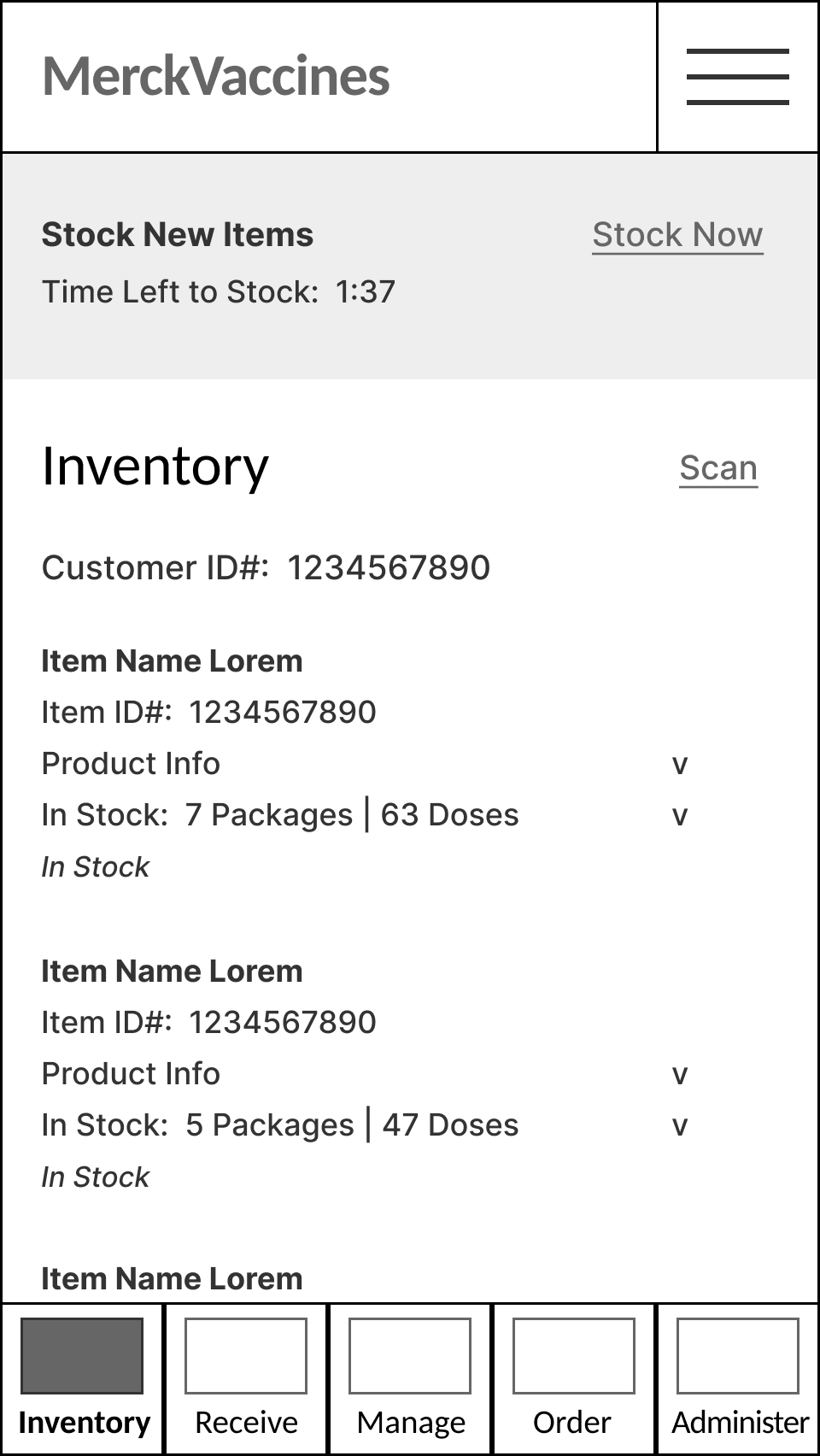
When a new delivery has been received, but not yet stocked into vaccine storage, an alert notification message appears in Inventory with a link to ‘Stock Now’, and a countdown timer clock indicating the maximum time left to safely stock the item(s), without compromising temperature integrity.
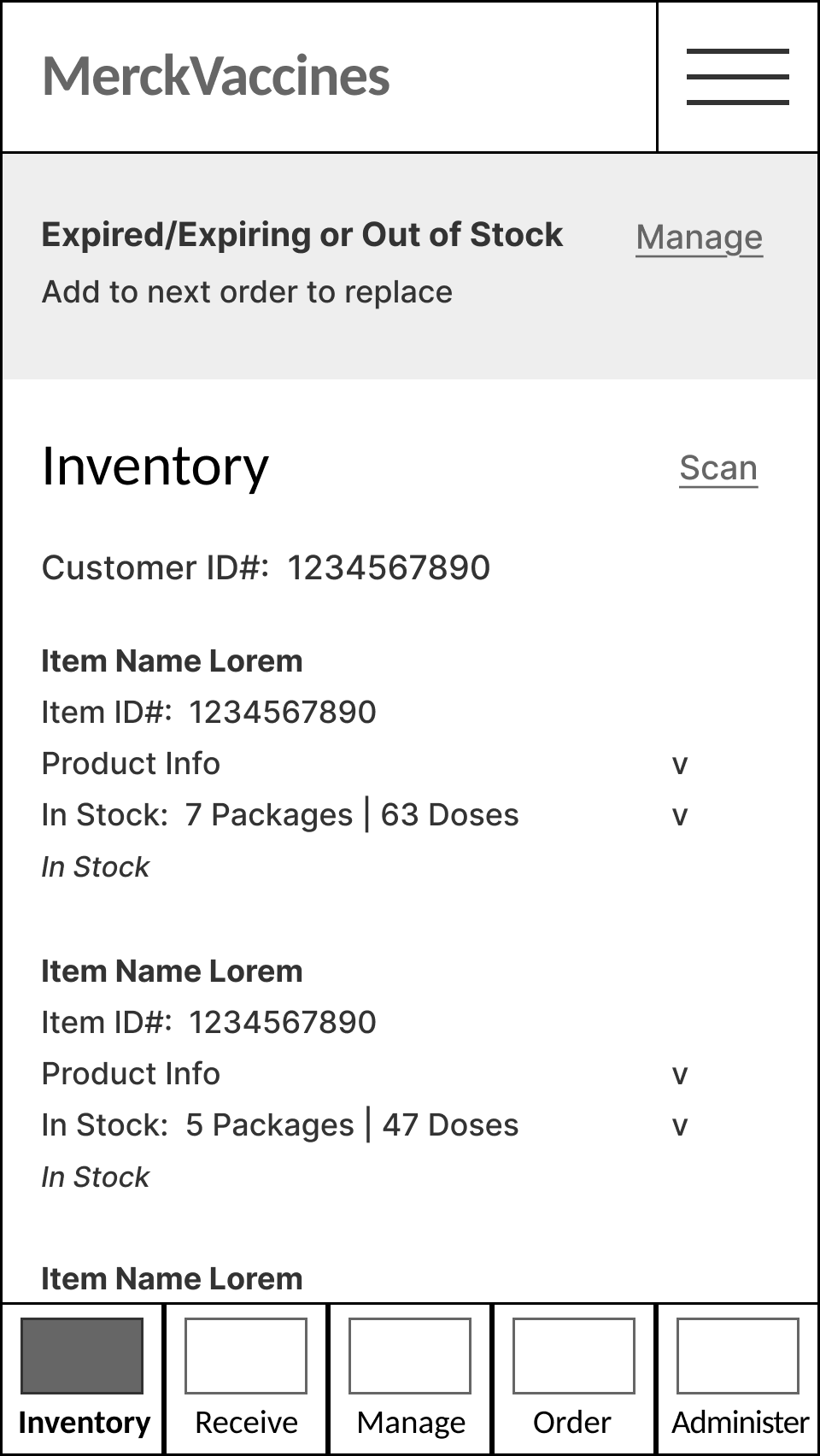
When one or more items is Expired or Expiring Soon, or Out of Stock completely, an alert notification message appears on Inventory with link to ‘Manage’ stock and add items to upcoming orders.
Receive > New Delivery - ‘Accept & Sign’
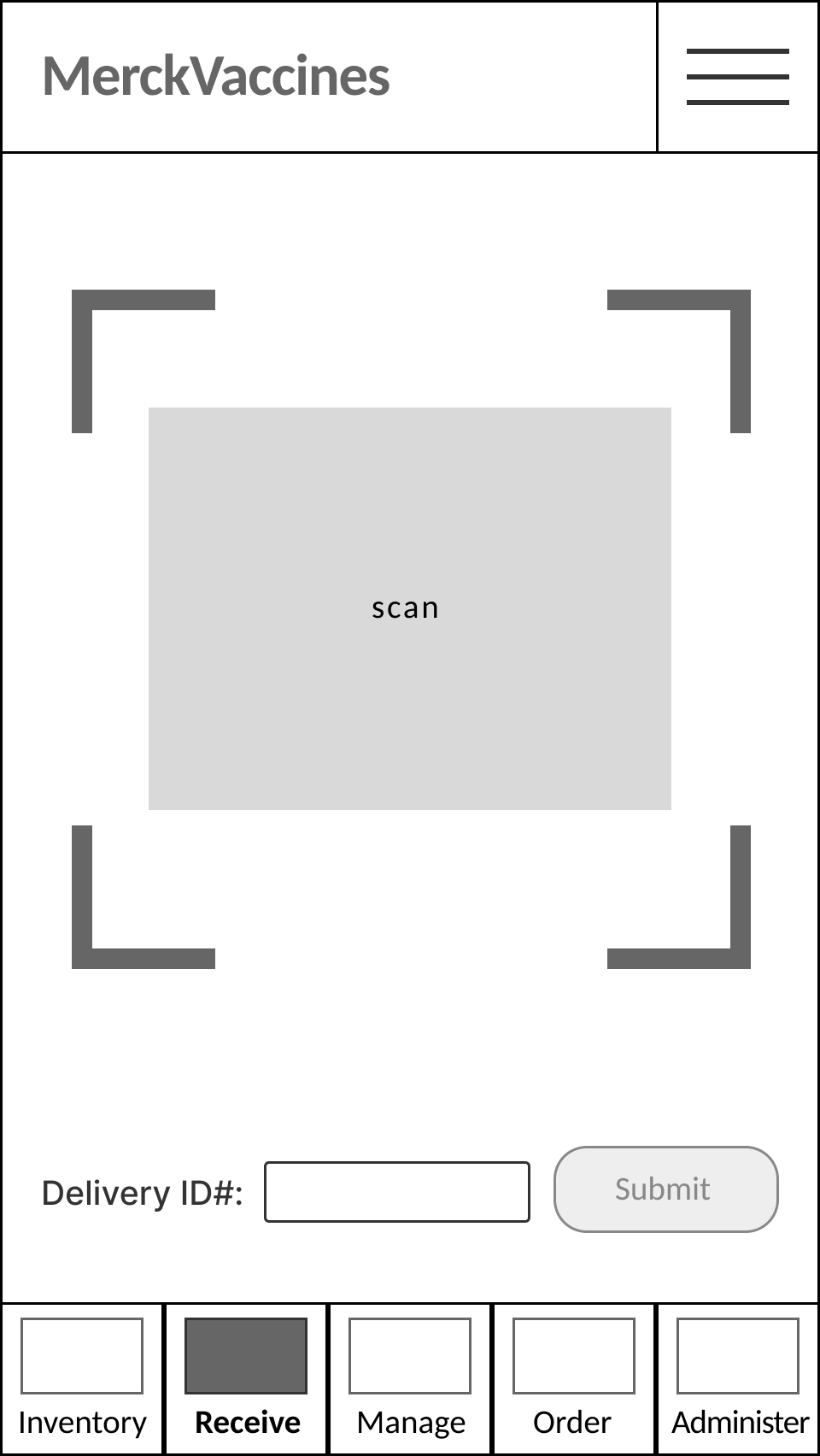
Receive section initial screen.
When a new vaccine delivery arrives, Receive enables user to review, accept, and sign for the new inventory.
User can select Receive, from the app primary navigation menu, to get here.
User may also select the link to Receive from a New Delivery alert notification in the Inventory (or other) section(s).
User can scan the delivery code on the box or shipping materials, or manually enter the Delivery ID#, to initiate.
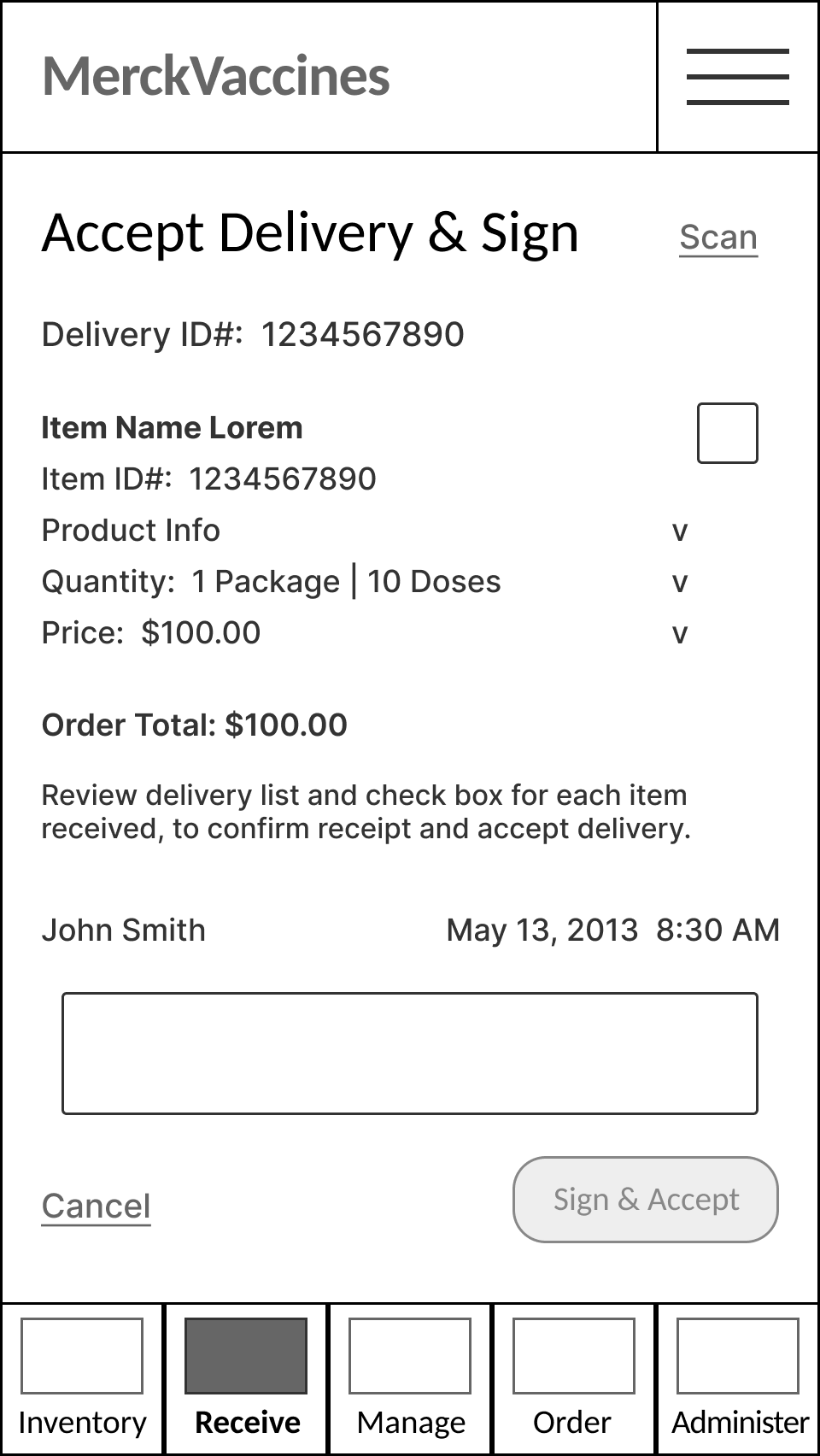
Once the Delivery ID has been scanned (or manually entered) and identified, the Delivery List is displayed.
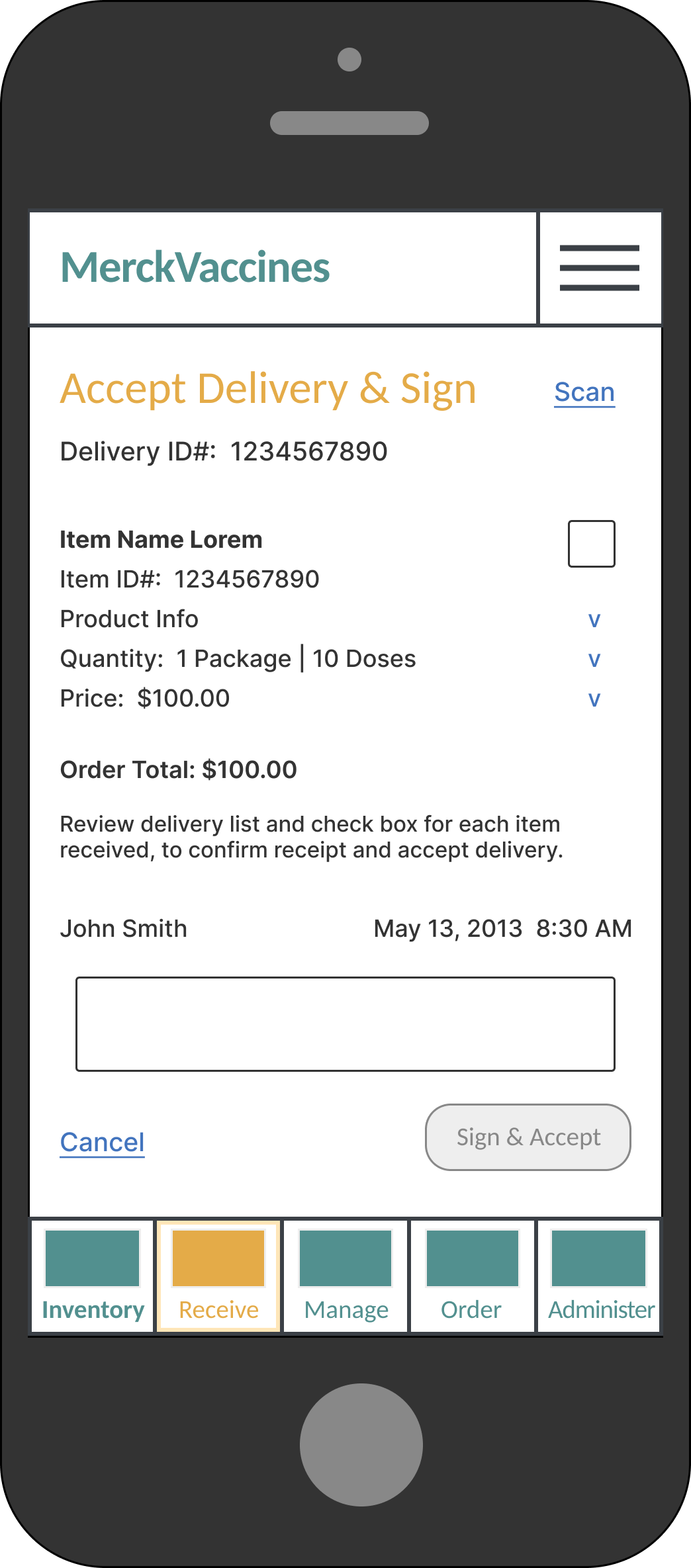
Delivery list includes Delivery ID#, Item name(s) and info, including Quantity and Pricing, and the Order Total price.
Delivery list also indicates date and time of delivery, and the receiver’s name (based on user ID).
A date and time stamp and a signature field enable user to sign to accept the delivery.
(Delivery of one item, shown here.)
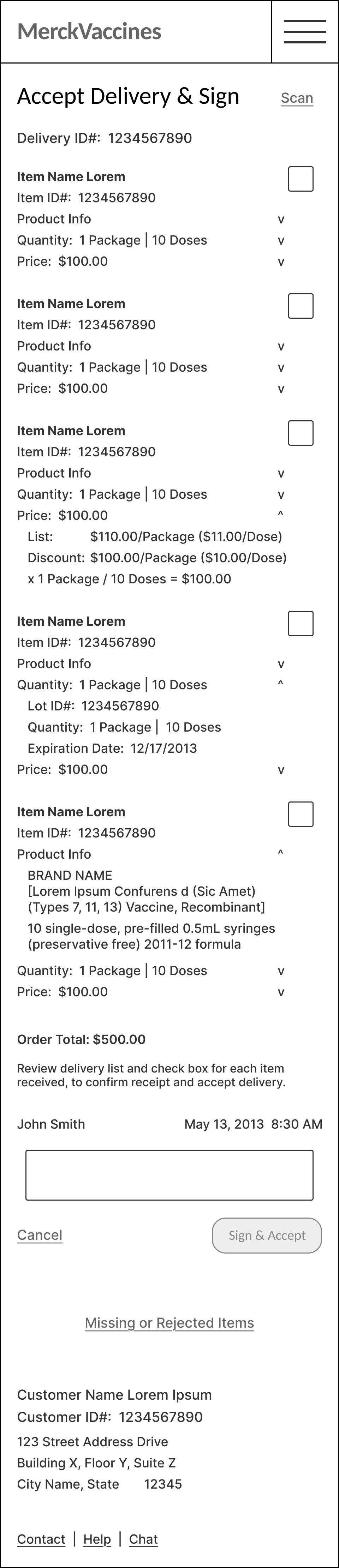
User can review the delivery item list, check the box for each item delivered, to confirm receipt, sign their signature in the box, and then ‘Sign and Accept’ (submit) to accept the delivery.
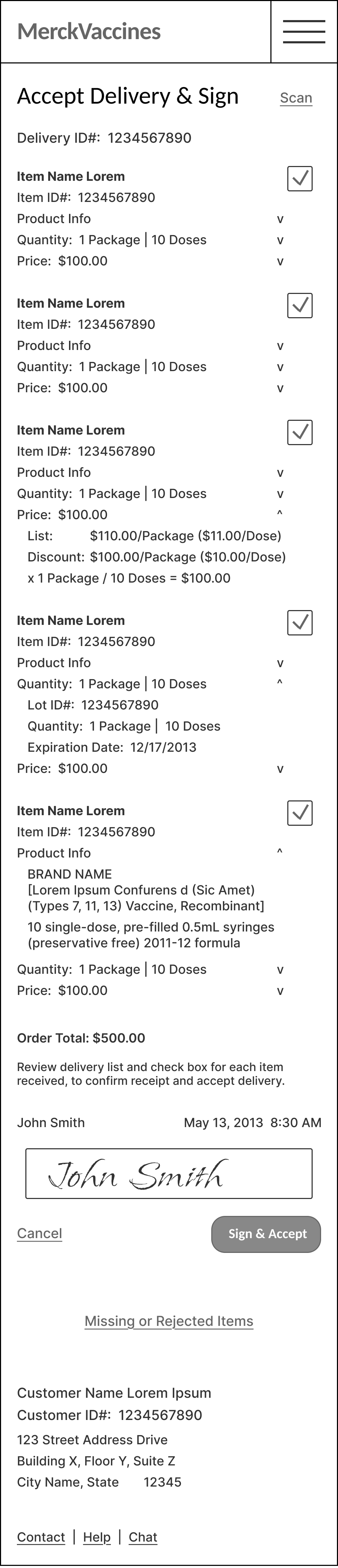
User can review the delivery item list, check the box for each item delivered to confirm receipt, and then sign their signature in the box and select ‘Sign and Accept’ (submit) to accept the delivery.
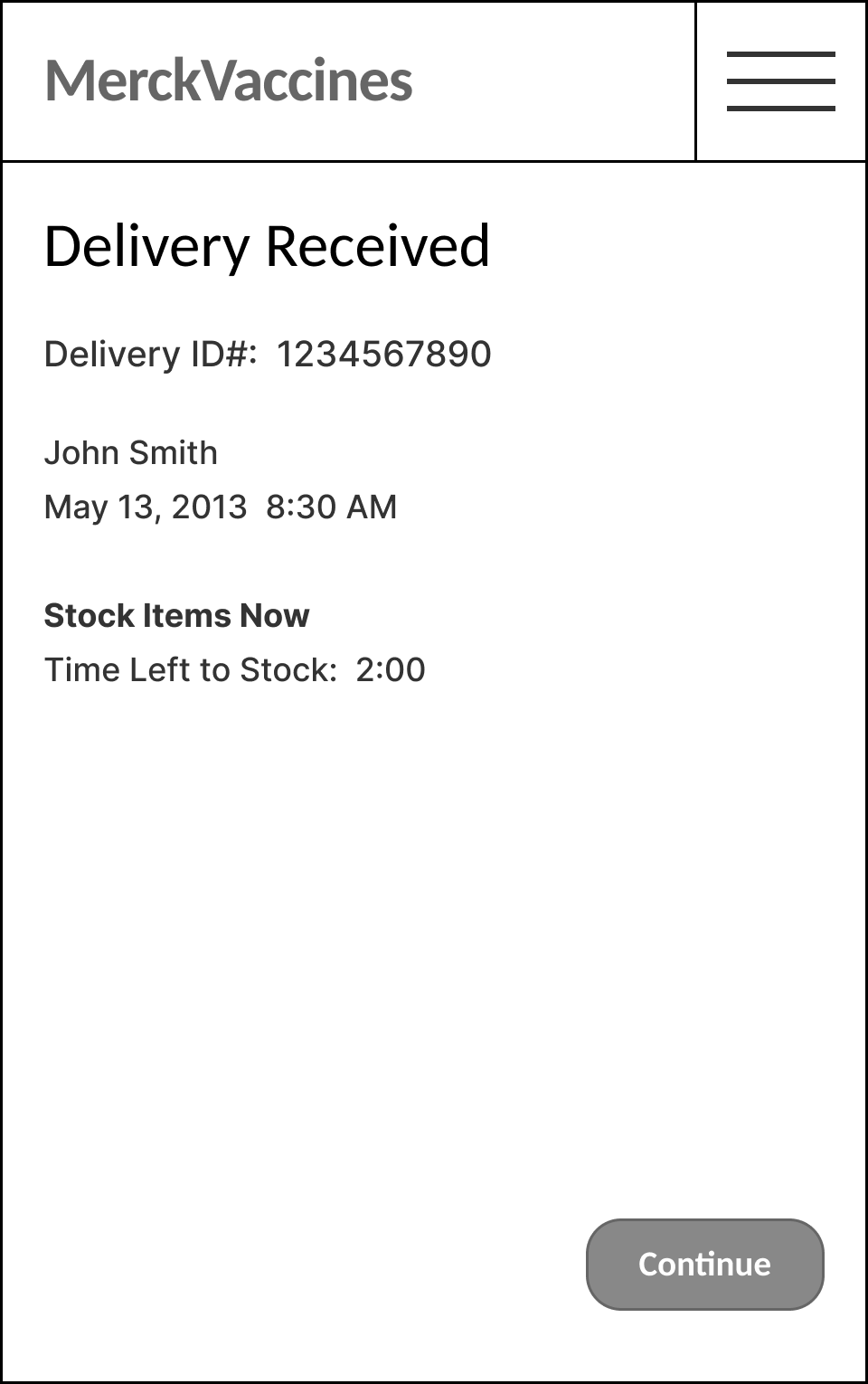
Once user has Signed and Accepted the delivery, a confirmation message affirms the delivery has been received.
Delivery ID#, receiver name and date / time stamp, are all included.
Additionally, a reminder to ‘Stock Items Now’ appears, along with a countdown timer clock indicating the maximum time left to safely stock the item(s), without compromising temperature integrity.
Receive > New Delivery - Select Delivery List Item & ‘Confirm Receipt’
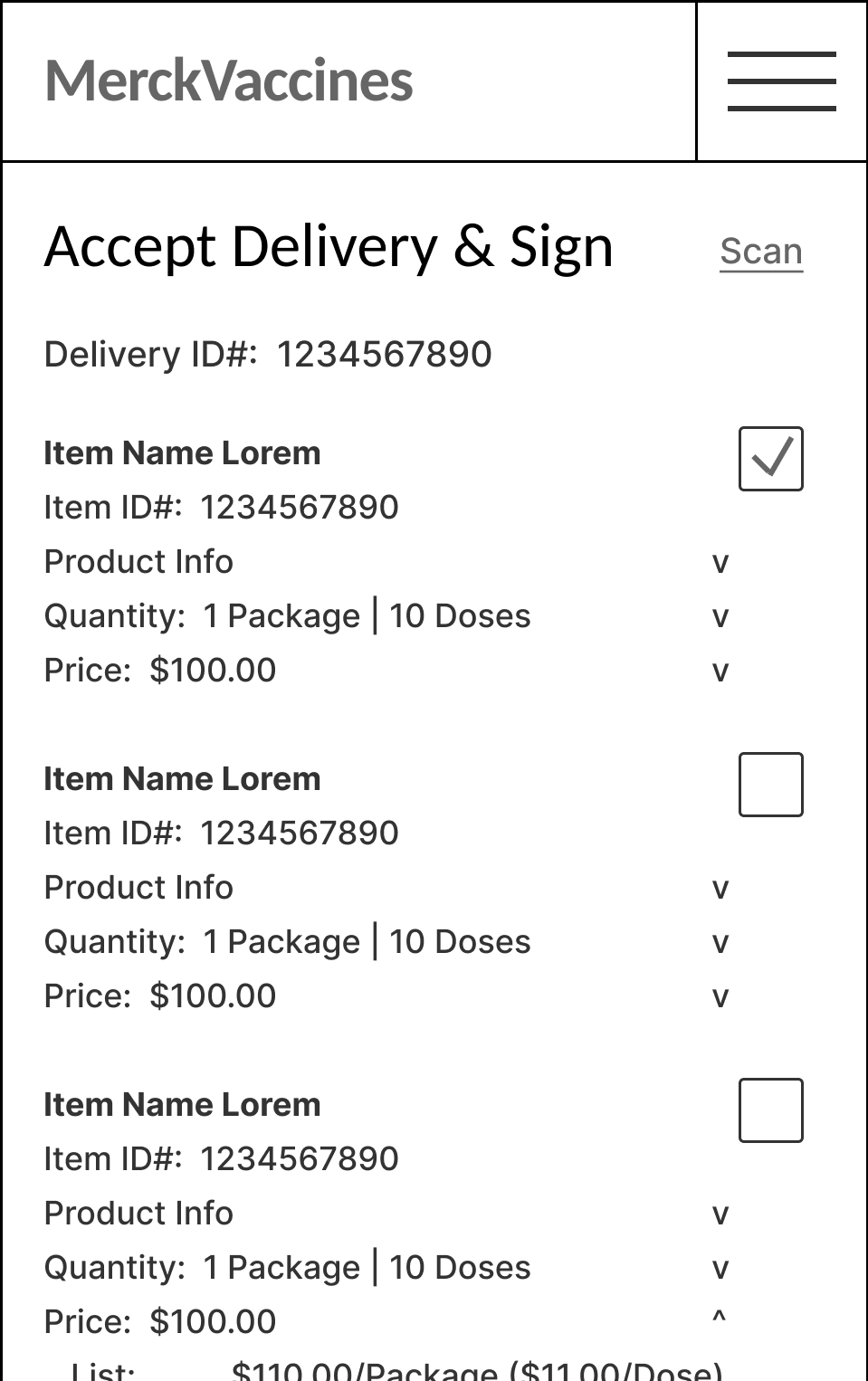
Items on the Receive Delivery list can also be reviewed individually / one by one, to accept (or flag / reject).
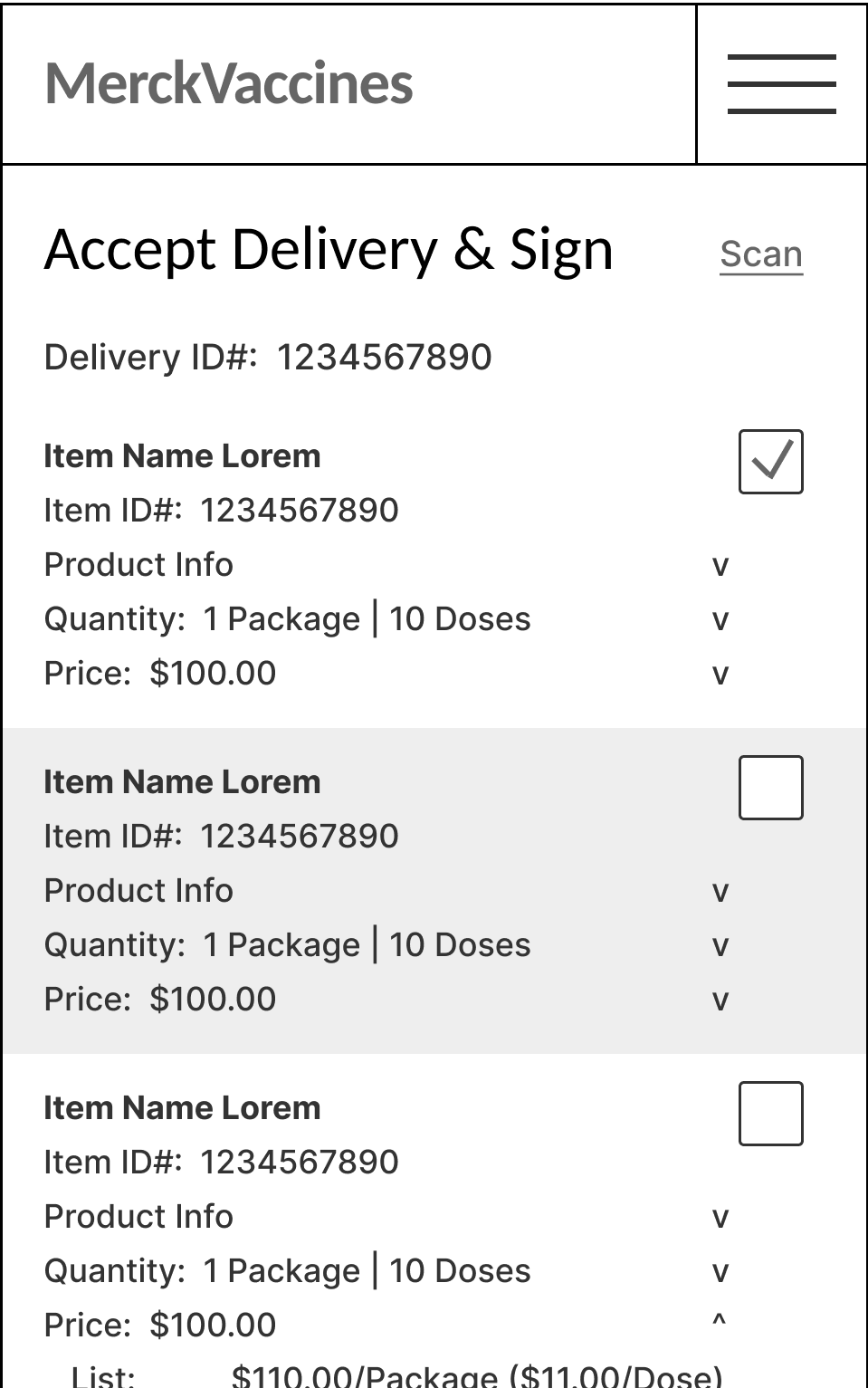
Delivery list items may be selected from the list by the user to view the item and accept, or flag / reject, it.
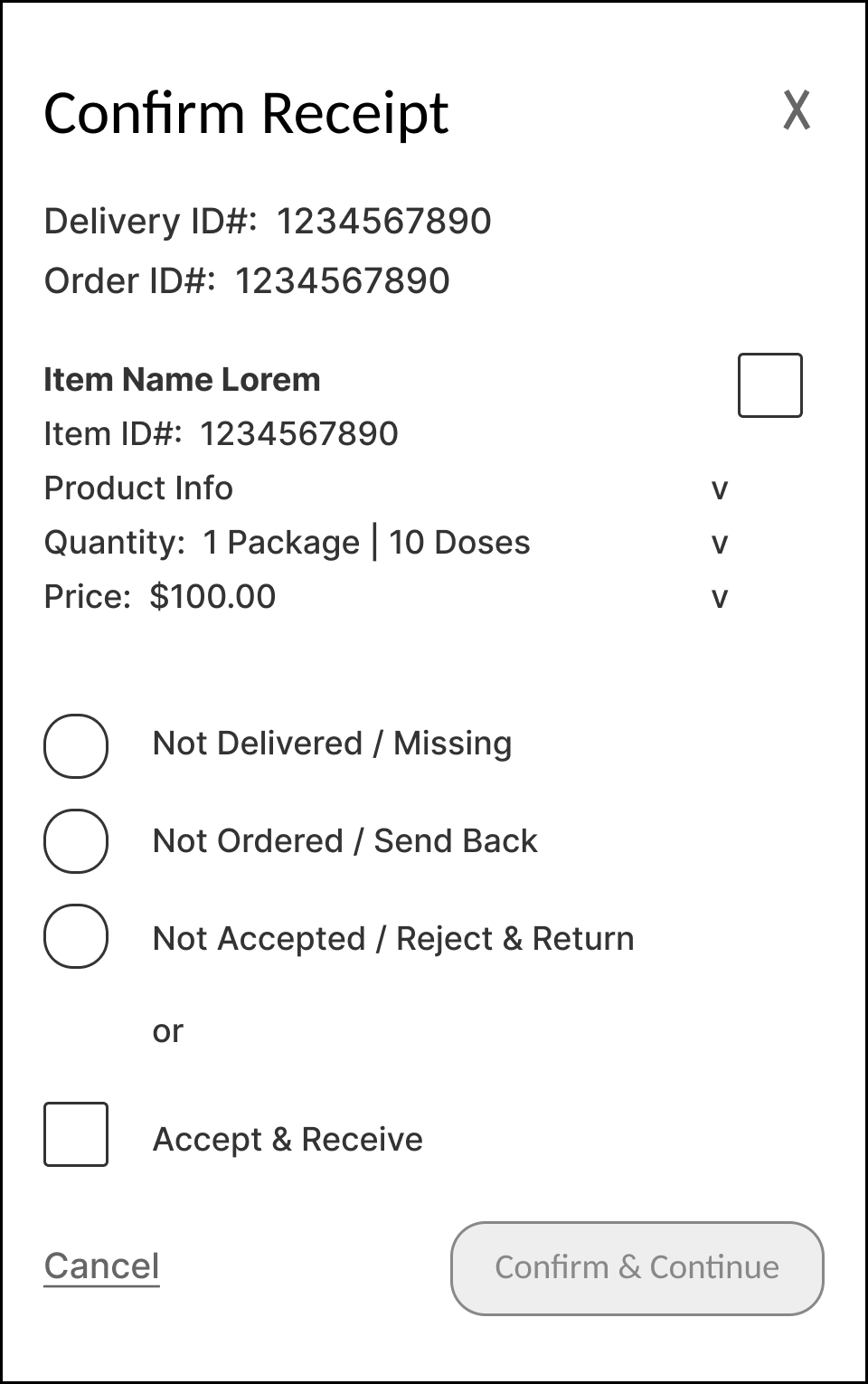
Once selected, the Delivery Item can be individually Accepted & Received, or can be marked as Not Delivered / Missing (if not present in the delivery), Not Ordered / Send Back (if incorrectly delivered), or Not Accepted / Reject & Return - in the case of damage, expiration date, temperature integrity failure, etc.
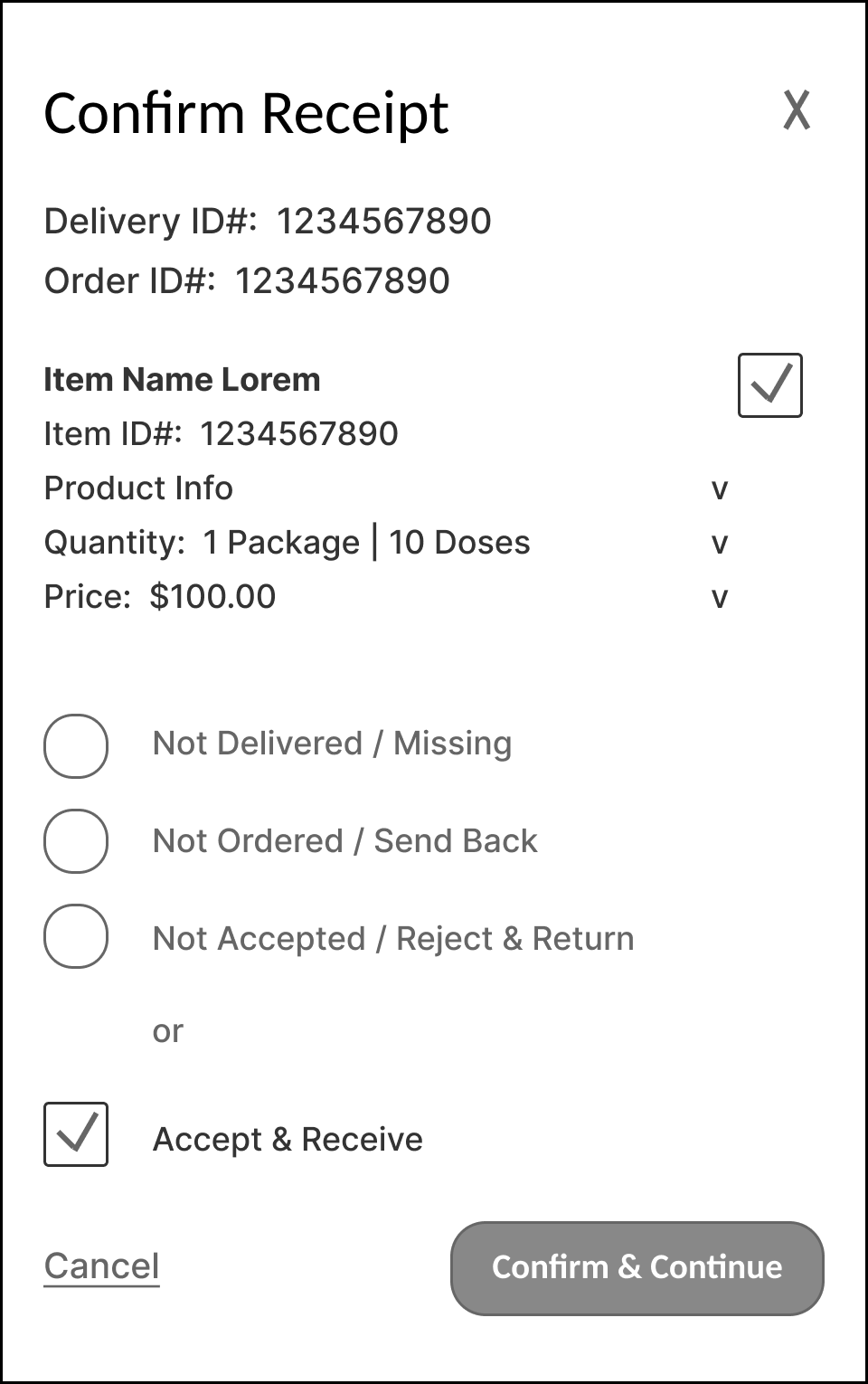
Delivery Item Accepted & Received, shown here.
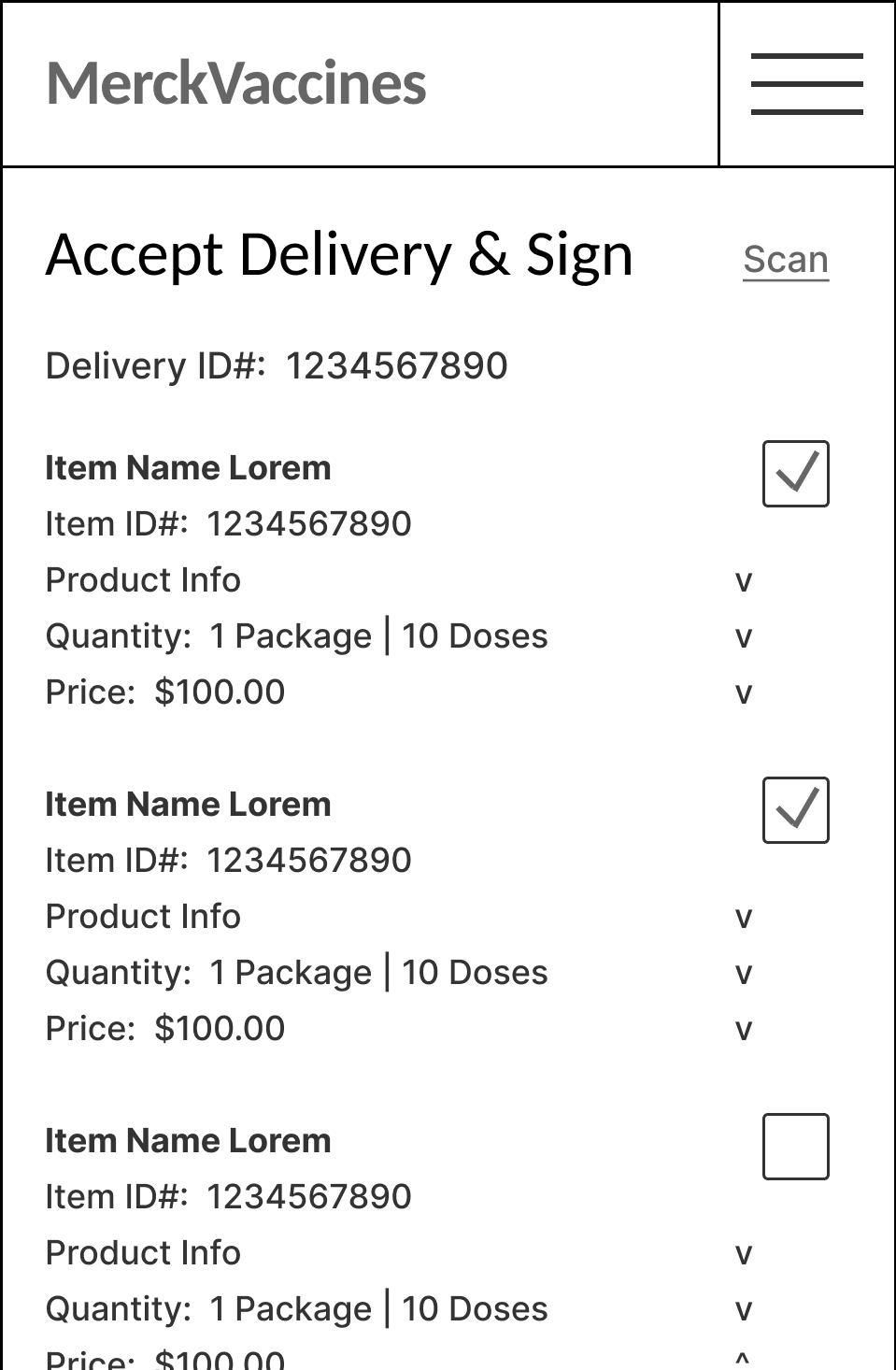
Once confirmed, the item appears on the Delivery list with a check mark, indicating it has been Received.
Receive > New Delivery - Select Delivery List Item & ‘Reject / Return’
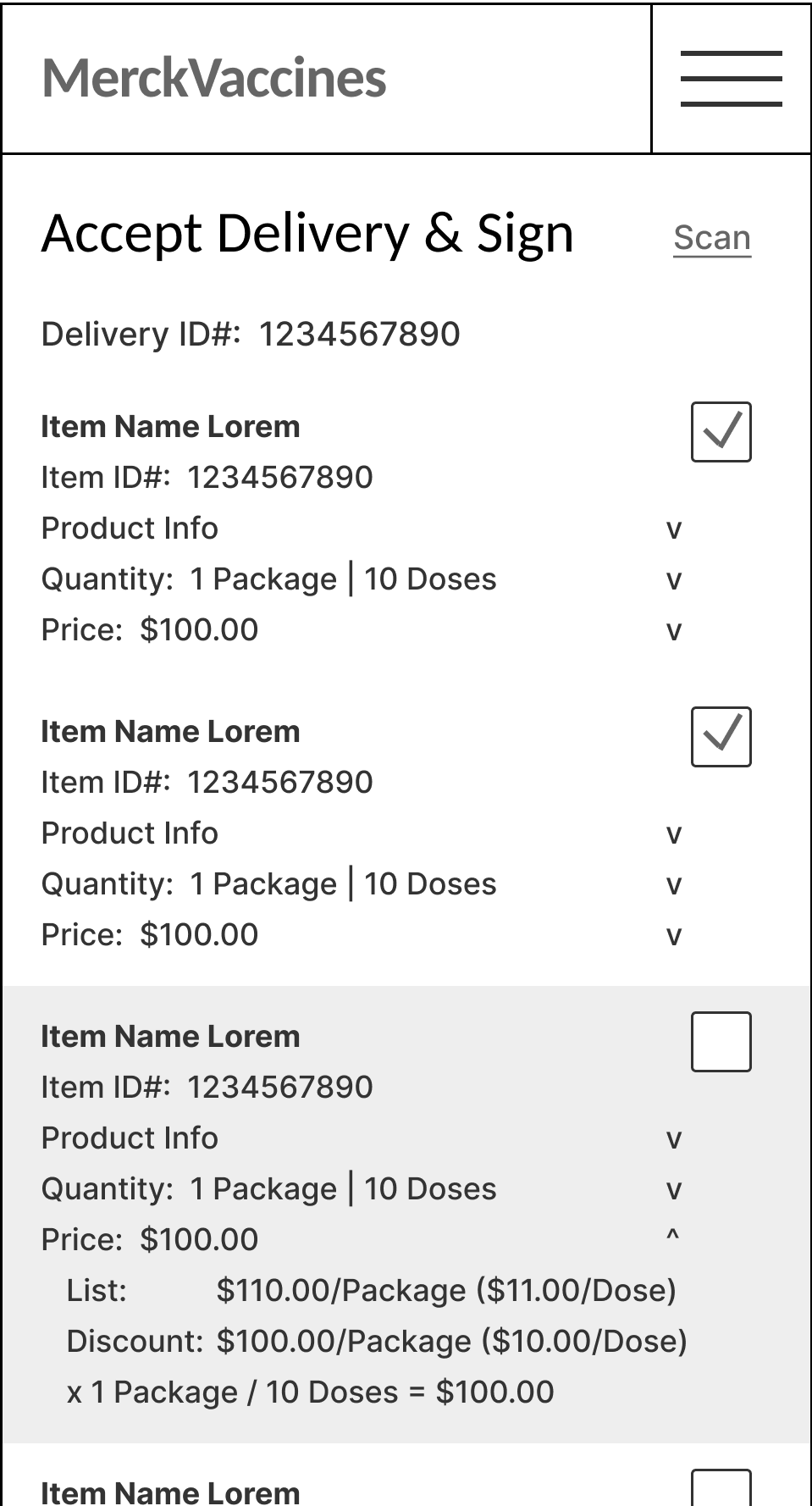
Further Delivery list items may be selected from the list one by one by the user to view each item and accept, or flag / reject, it.
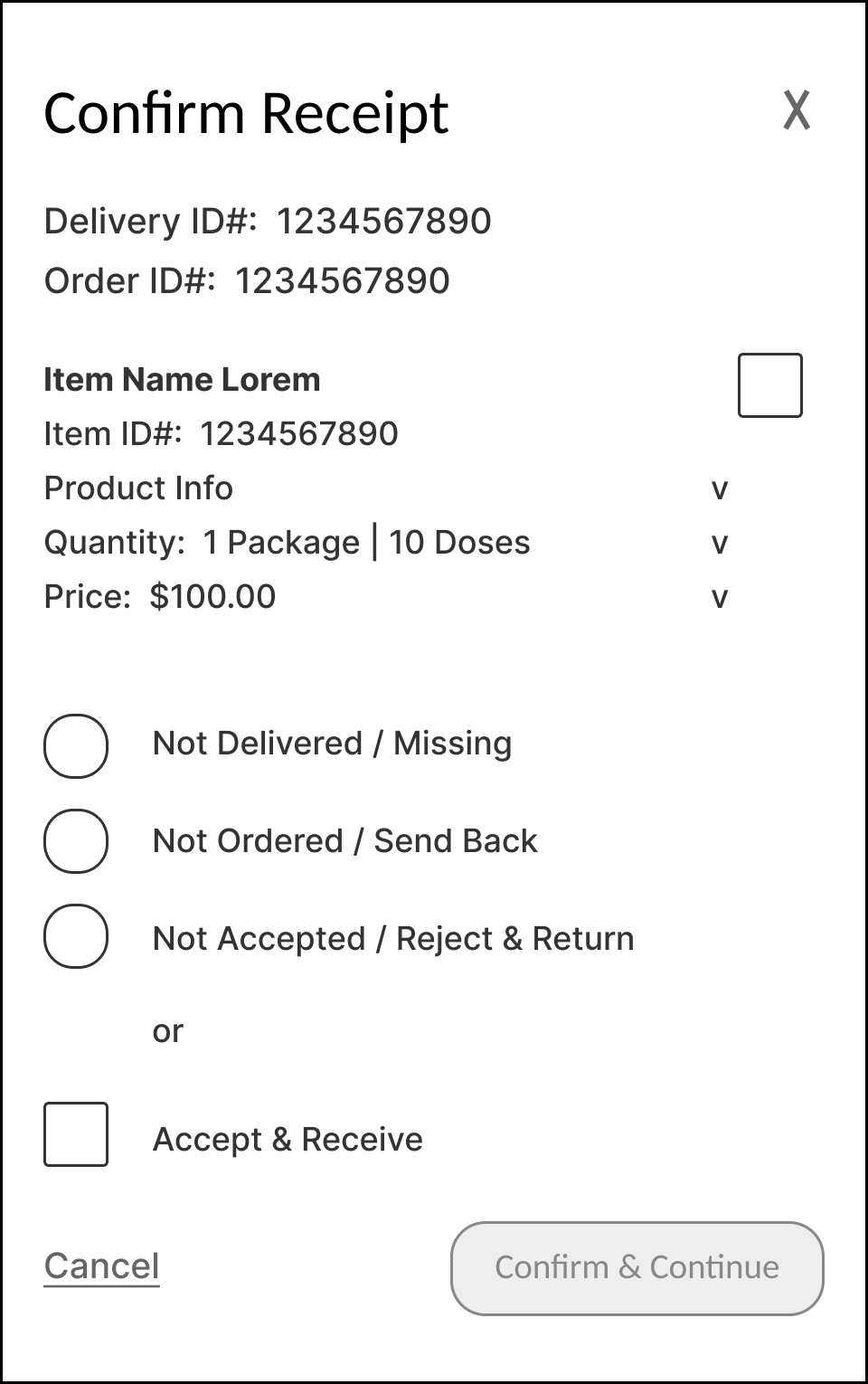
The options to Accept & Receive, or flag and report otherwise, are shown here.
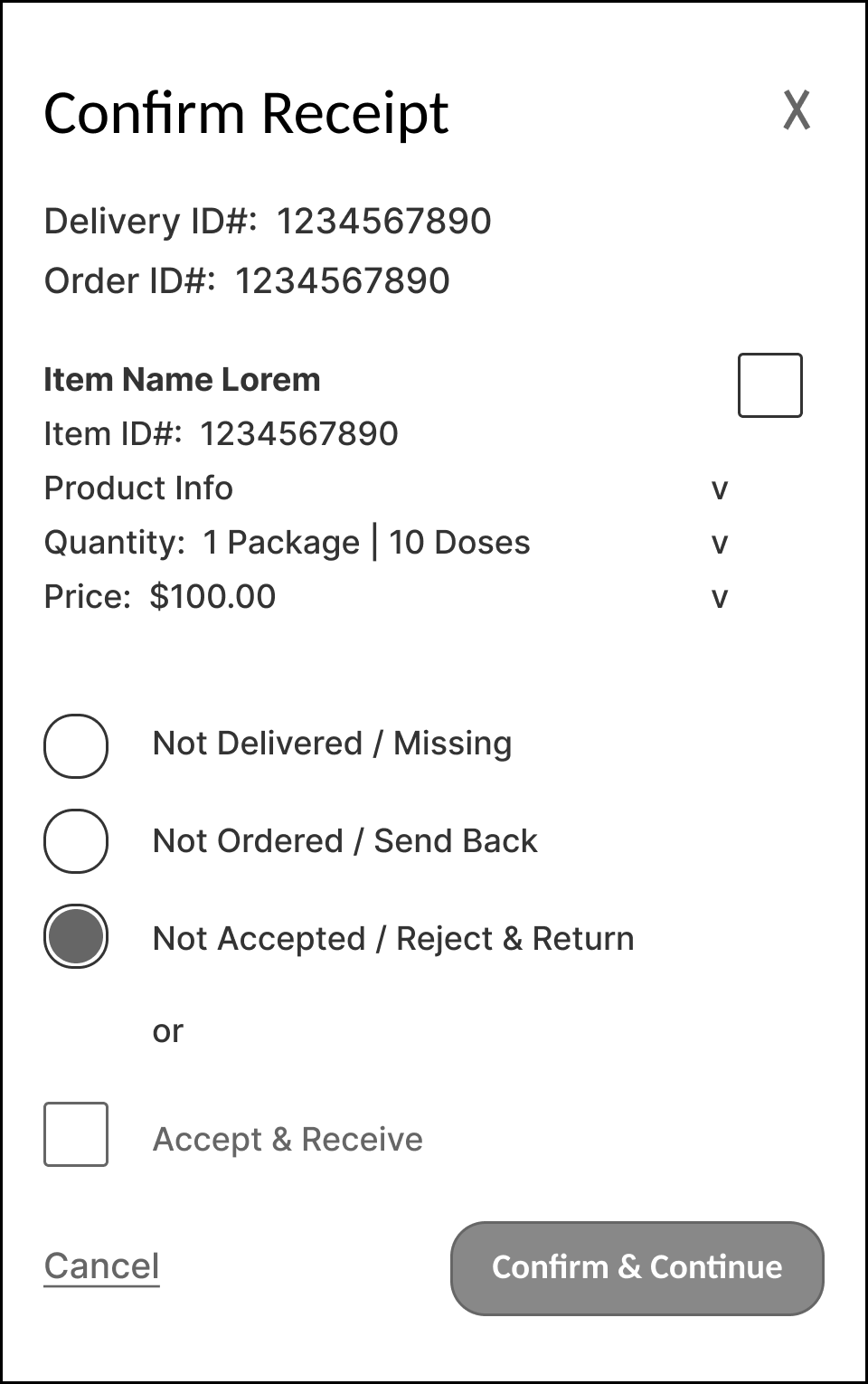
In the case where an Item is damaged, expired, or other issue, the user receiving the vaccine delivery may mark item as Not Accepted / Reject & Return.
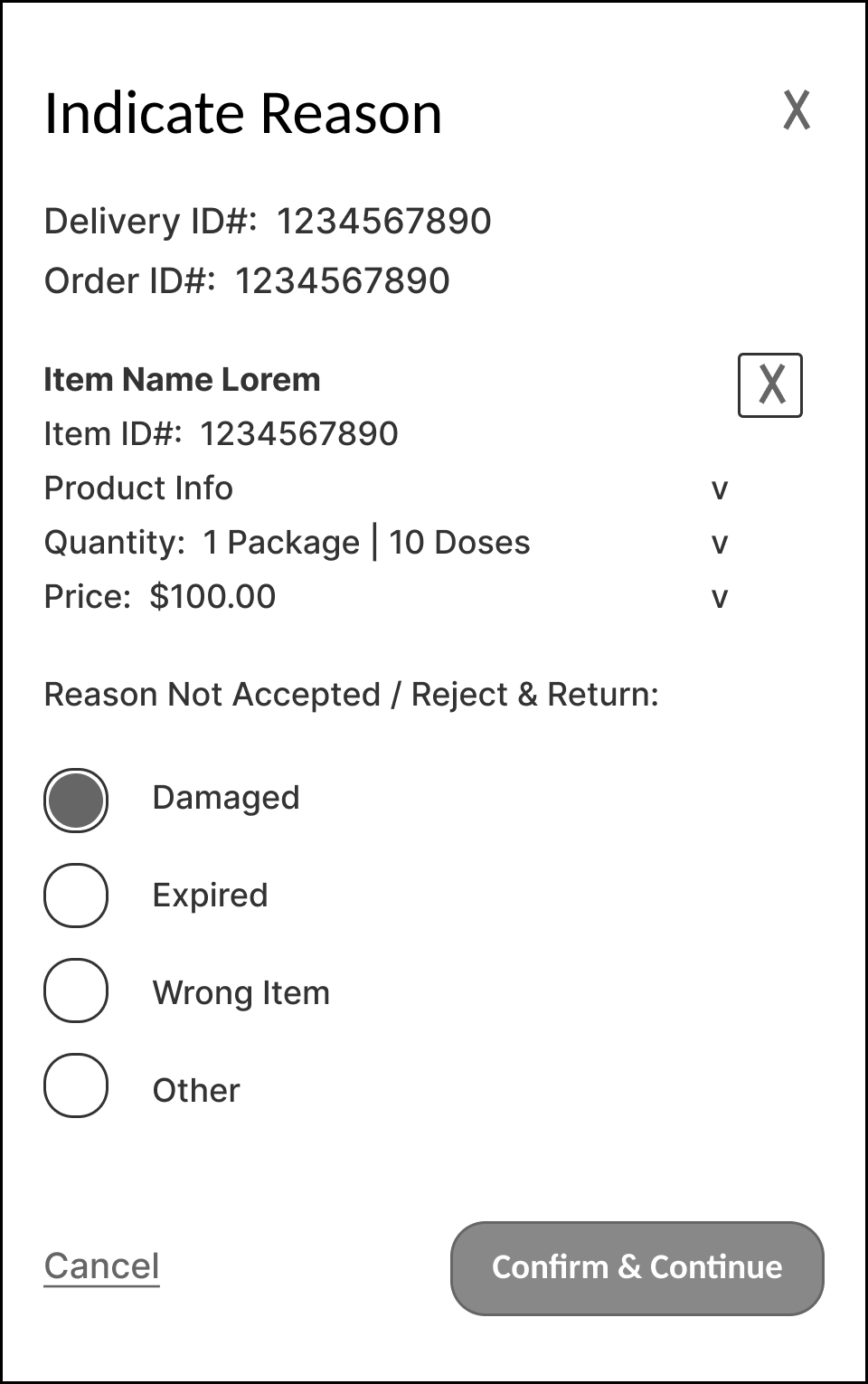
In the case where an Item is marked as Not Accepted / Reject & Return, the user can then specify the reason - item is damaged, expired, or other issue.
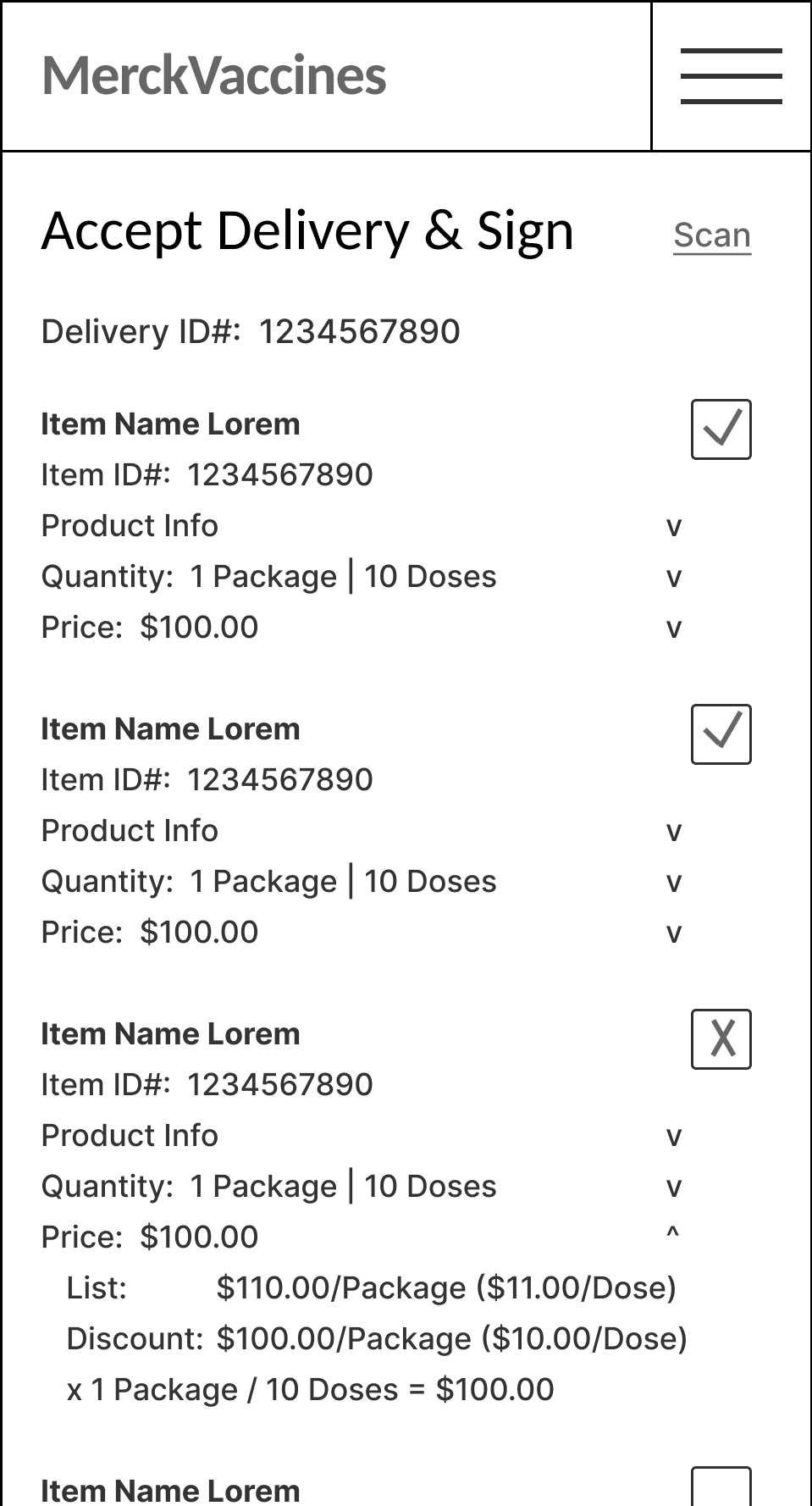
Once item has been marked as Not Accepted, Not Delivered / Missing, or Not Ordered / Send Back, it will appear on the Accept & Sign Delivery list with a mark indicating it has NOT been accepted or received.
Receive > New Delivery - Review Outstanding Items to ‘Confirm’ or ‘Reject’

In the case that some Items have not been marked as Received / Accepted, the user may select the link to Missing or Rejected Items, in order to review all not yet accepted items.
If user signs to Accept the Delivery, but has not yet indicated ‘Accept’ for ALL items on the Delivery List, then the link to Items Not Accepted or Received appears, below the signature field, with instructions to review the Delivery List, and indicate reasons for any / all items not marked as ‘Received’.
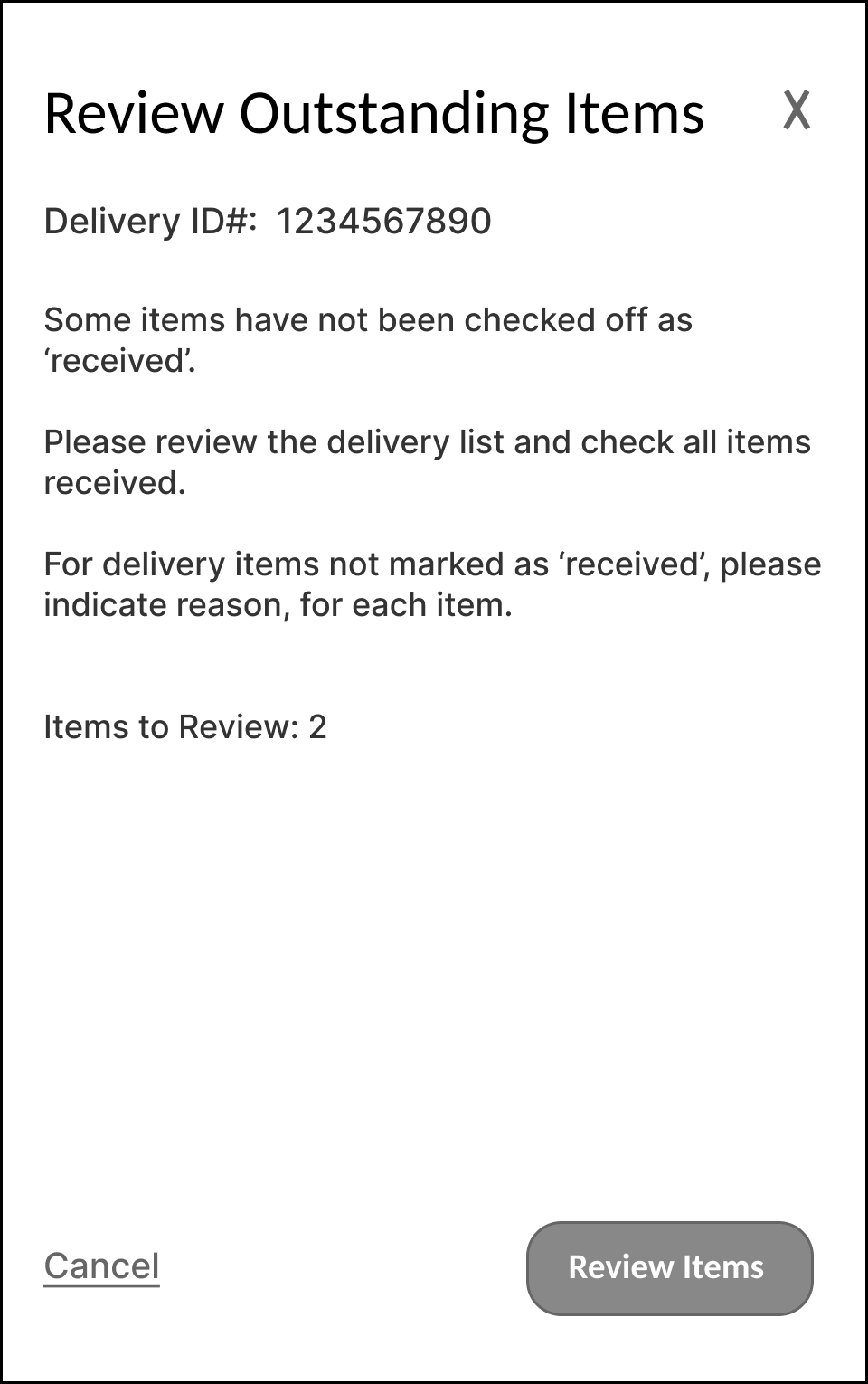
The link(s) to Items Not Received or Missing or Rejected Items will take the user to Review Outstanding Items.
This allows the user to review all Items not yet marked as received / accepted.
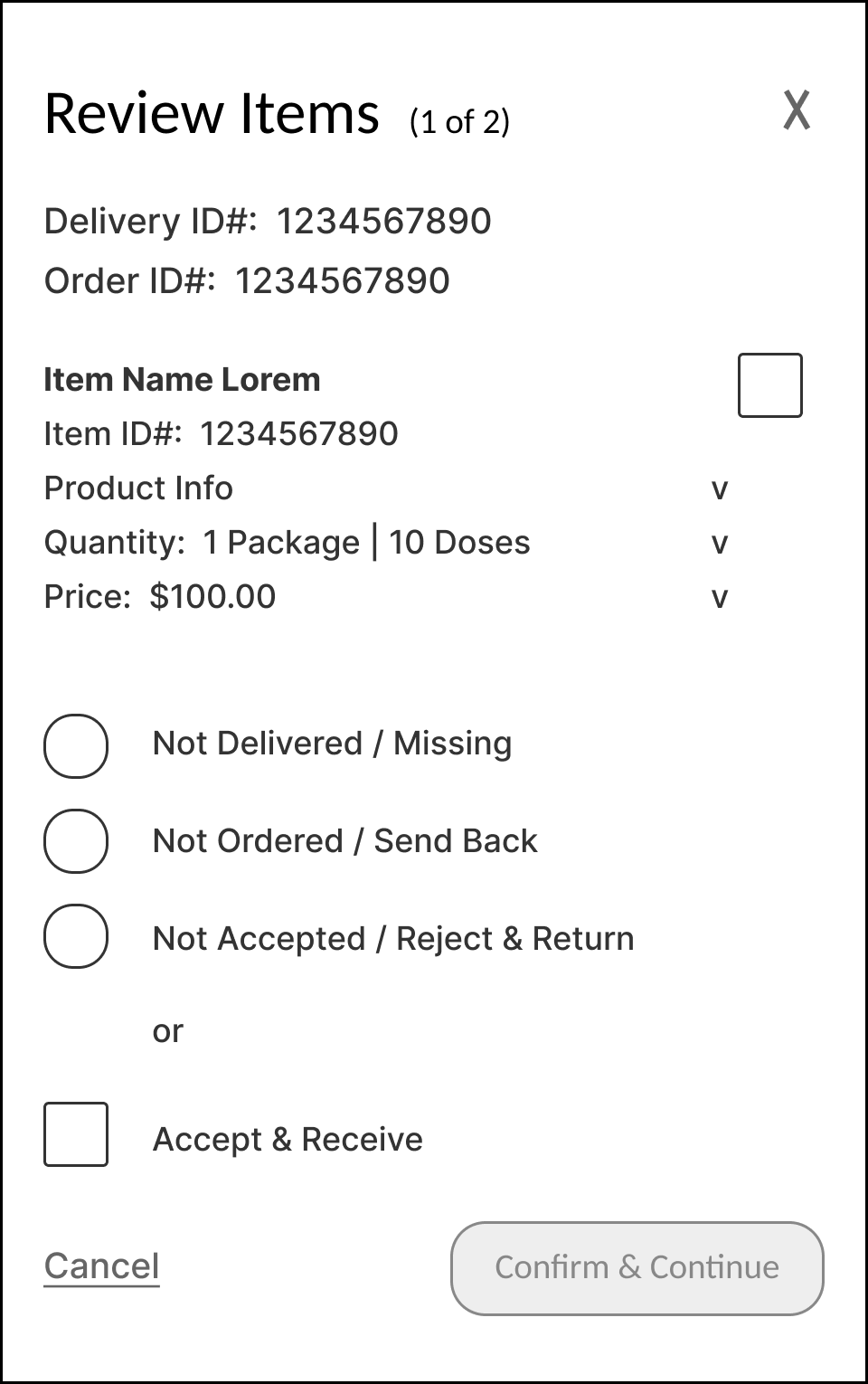
Review Items allows the user to review all Items not yet marked as received / accepted.
User can Accept & Receive the item, or select other options to indicate why item is not accepted or was not received.
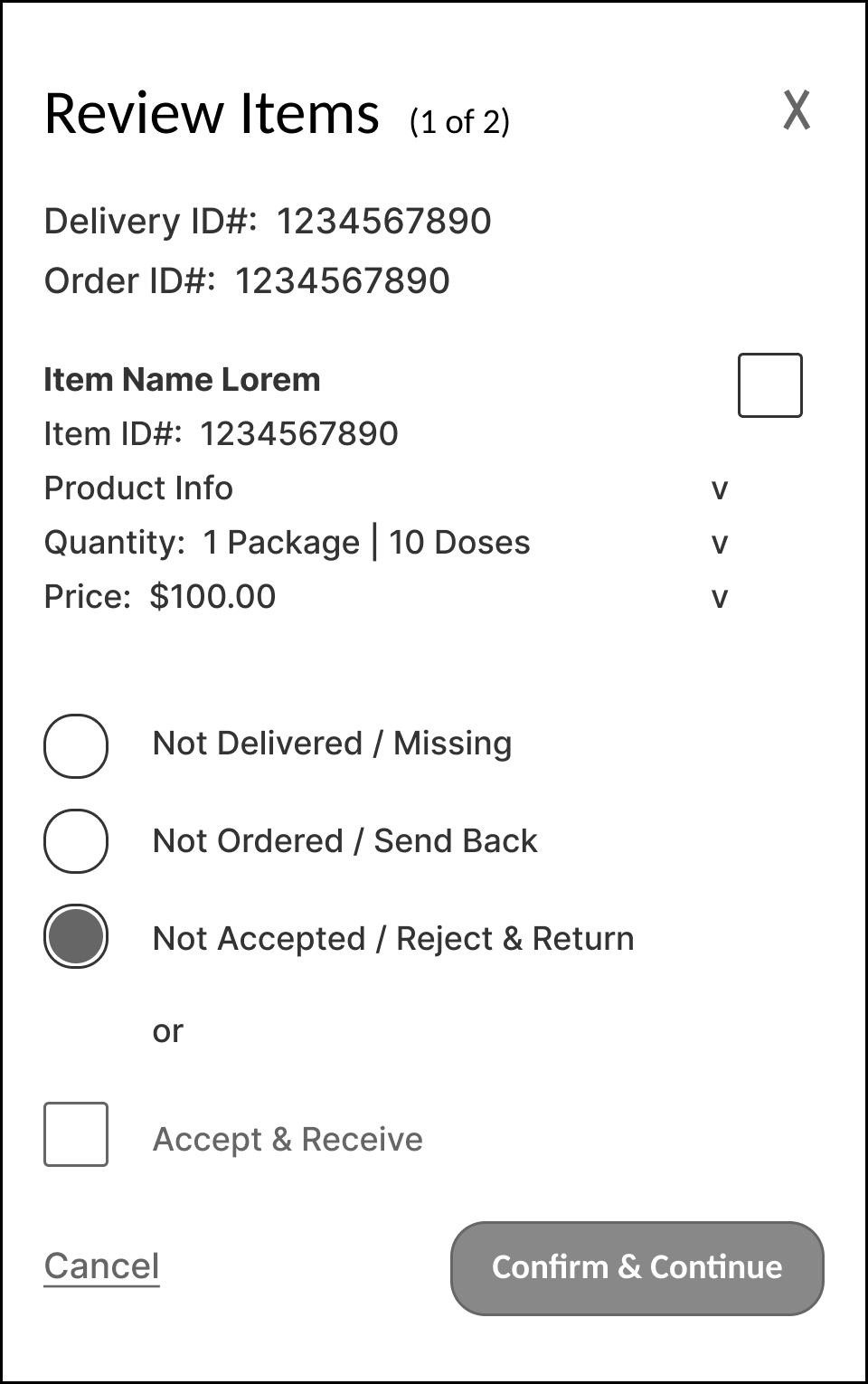
In the case that the user does not wish to accept this item, they may indicate that, here.
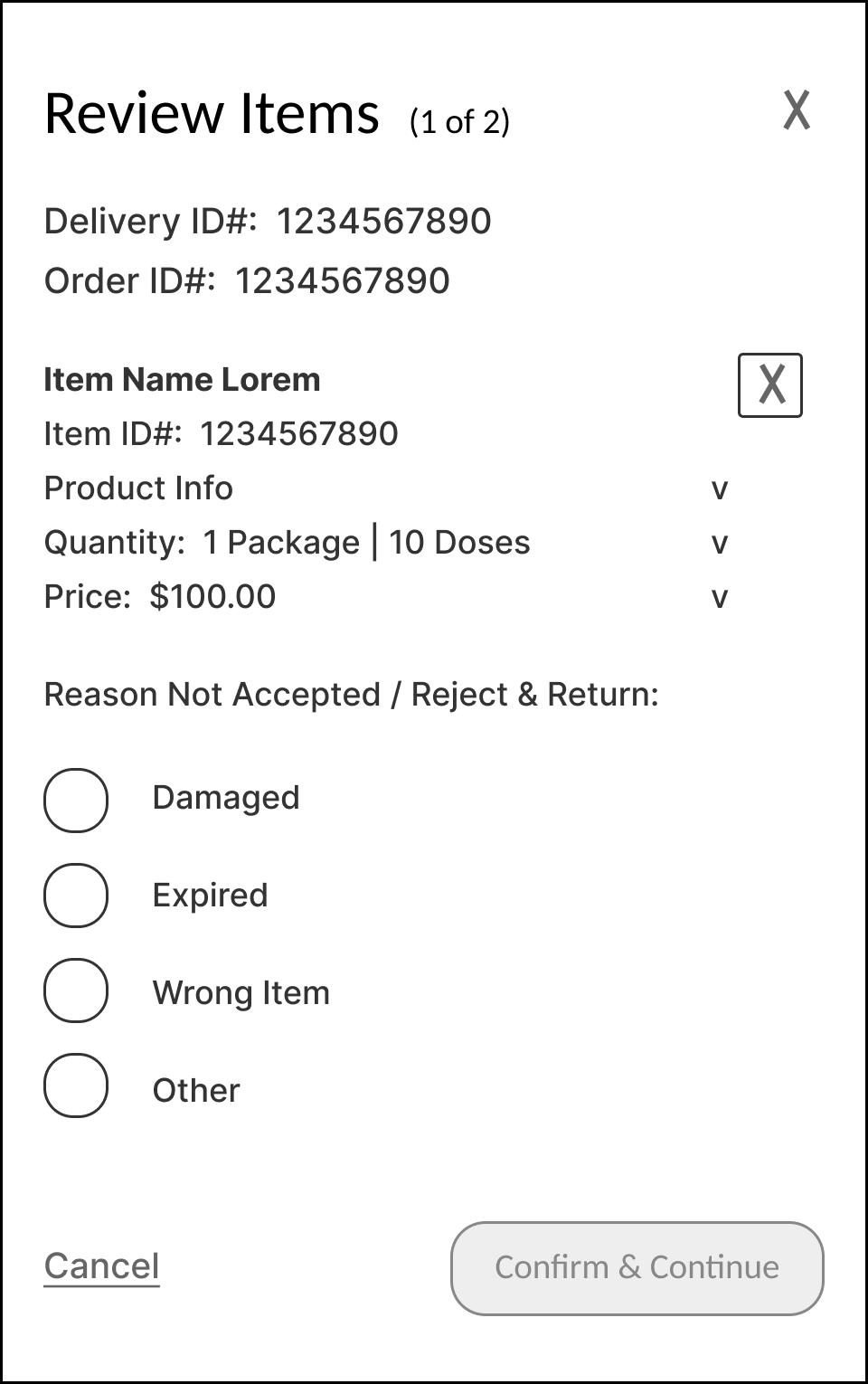
In the case that the user does not accept / rejects and returns this item, they must indicate the reason, here.
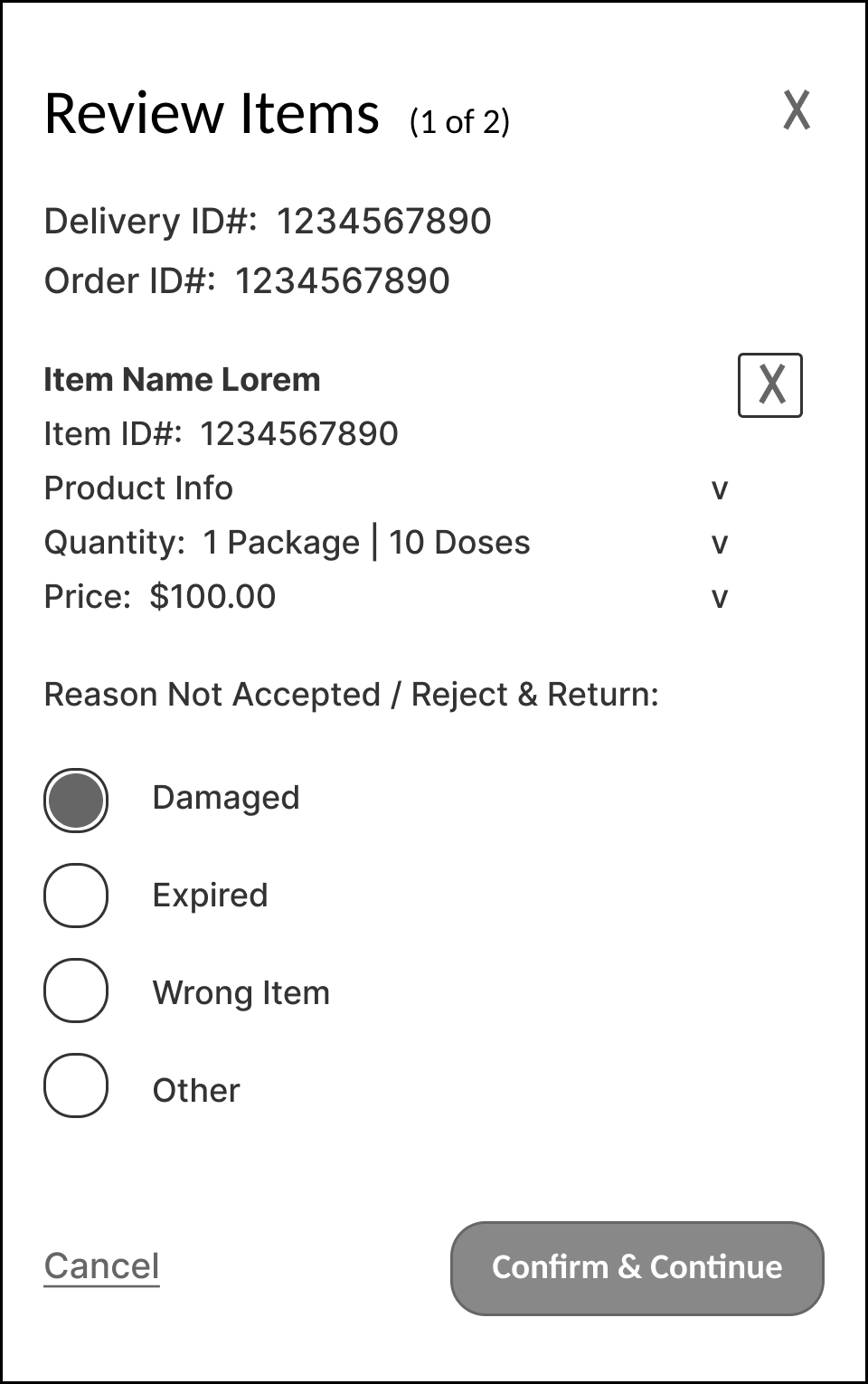
In this case that the user does not accept / rejects and returns the item, because it is damaged, as shown here.

Once all items have been reviewed and marked either as Accepted / Received or not, the user can sign and submit to Accept and Receive the Delivery.
If any Delivery List items are not marked as Accepted / Received, the user must also check the box to indicate that these were either not ordered, not delivered / received, or not accepted / rejected (for a reason).
Receive > New Delivery - ‘Accept & Sign’
Once all items have been reviewed and marked either as Accepted / Received or not, the user can sign and submit to Accept and Receive the Delivery.

If any Delivery List items are not marked as Accepted / Received, the user must also check the box to indicate that these were either not ordered, not delivered / received, or not accepted / rejected (for a reason).
Once all items are marked as either Accepted / Received, or otherwise, signature field is populated, and the check box is checked, the Sign & Accept button will become active.
User can sign and accept to finalize the delivery and accept the items indicated.
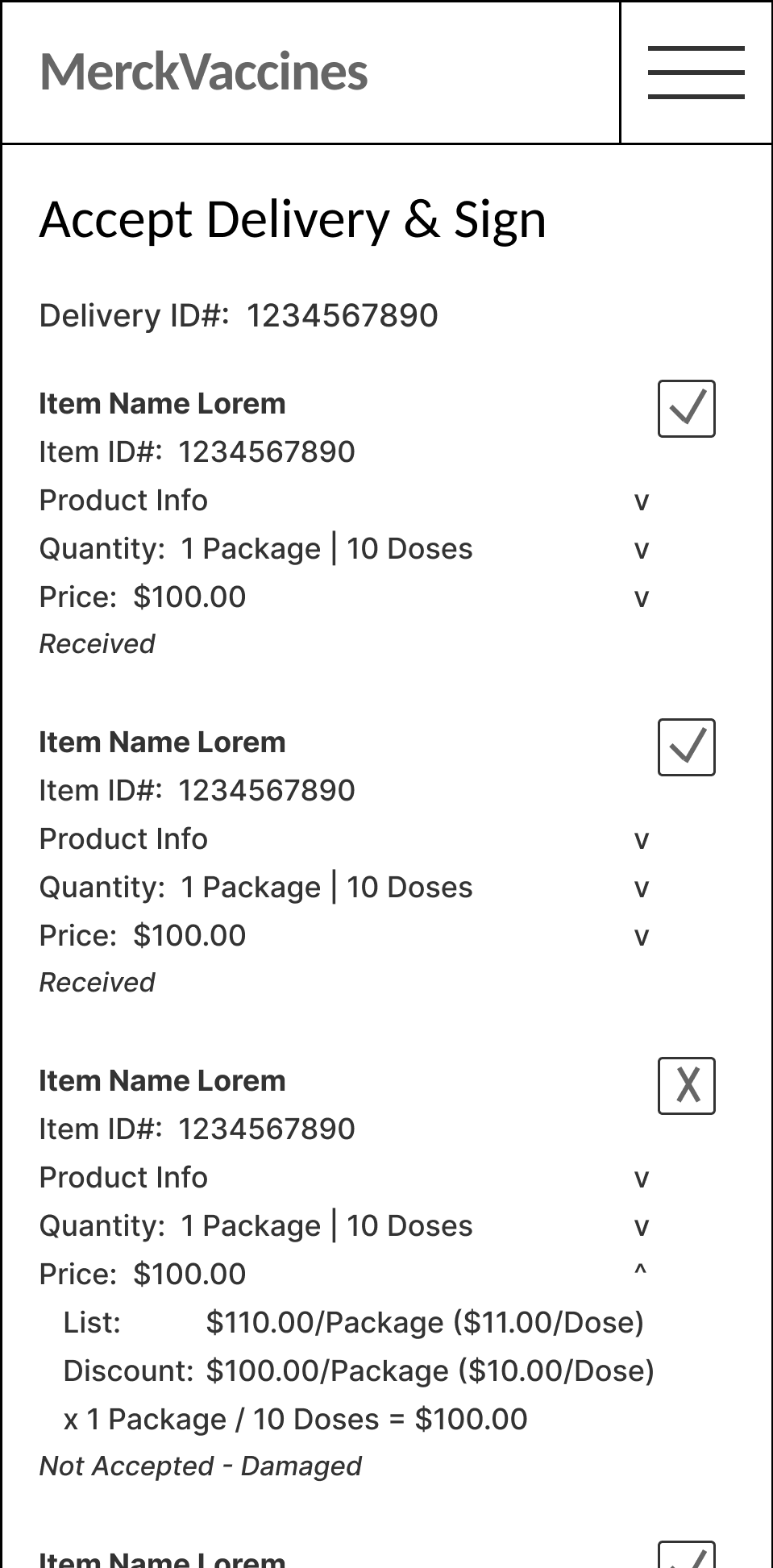
Supplementary option: Status of each item could also be indicated, after user selects it (tbd based on business constraints with invoicing and supply delivery data)..
Receive > Stock New Items
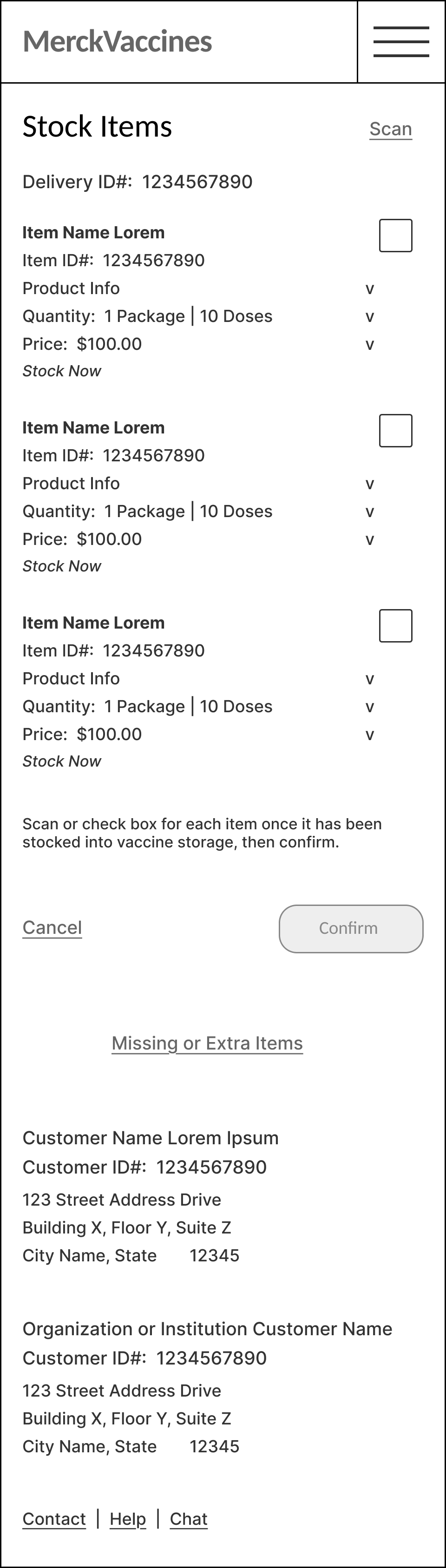
Stock Items screen.
After Accept Delivery & Sign is completed, the Stock (New) Items screen appears, to enable user to log new inventory items, and confirm that they have been properly stocked into vaccine cold storage.
User may also visit this screen from the Stock Now link, in the Stock New Items alert notification in Inventory or other sections.
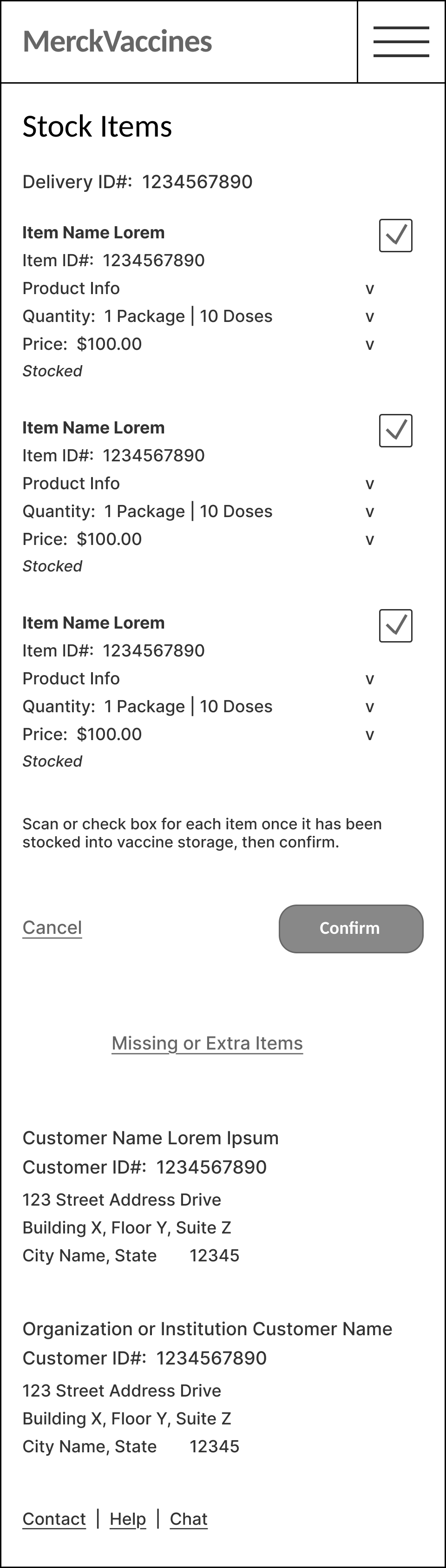
Stock Items enables user to select the check box for each item listed, to indicate that it has been stocked, as shown here.
Once user has indicated each item has been stocked, they can confirm and submit.
Once stocked and logged / confirmed, these items will be added to and appear in the Inventory list.
Receive > Select Item to Be Stocked - ‘Confirm Stocked’
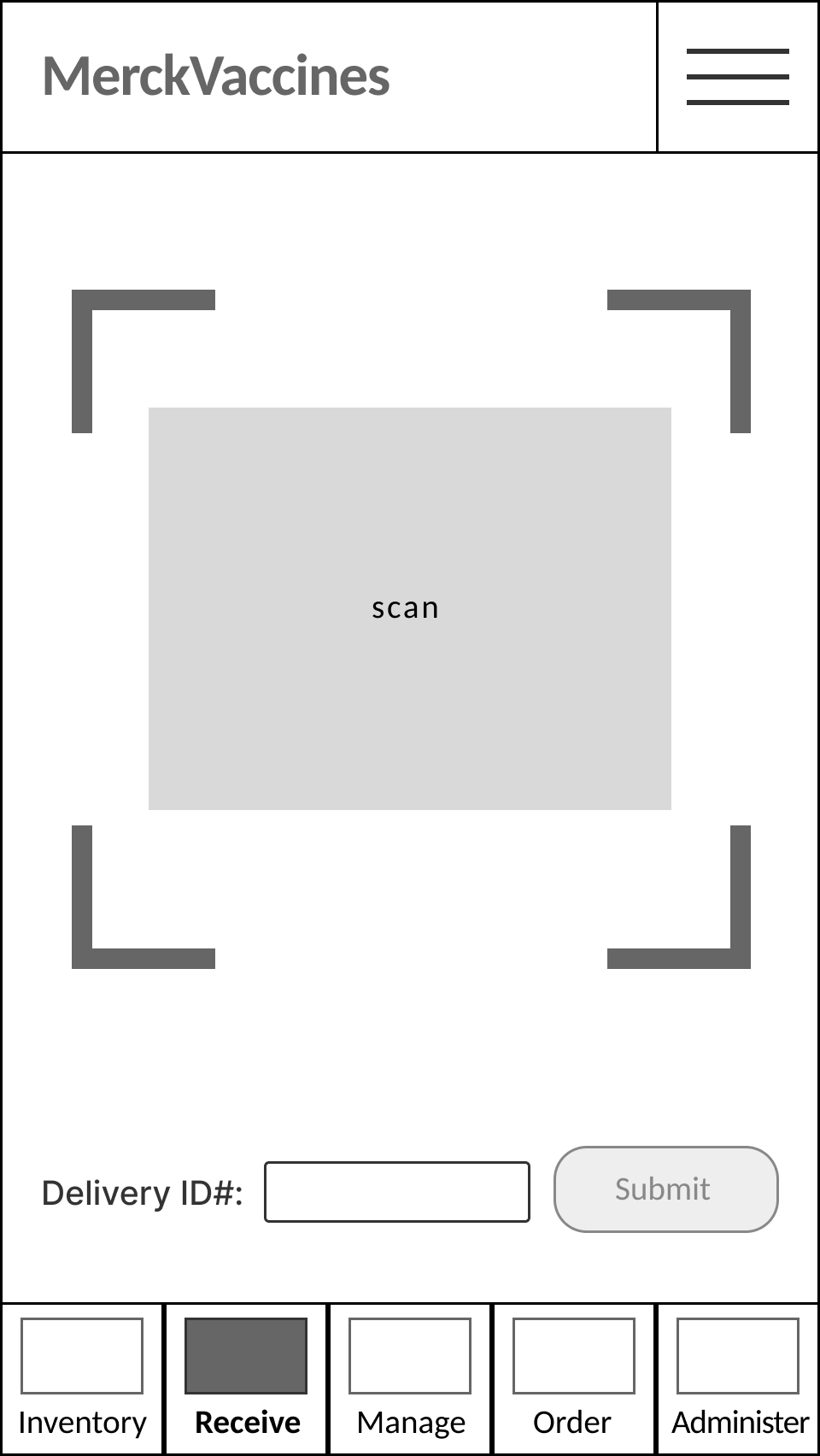
The scan feature allows user to scan each item being stocked, to automatically view the item.
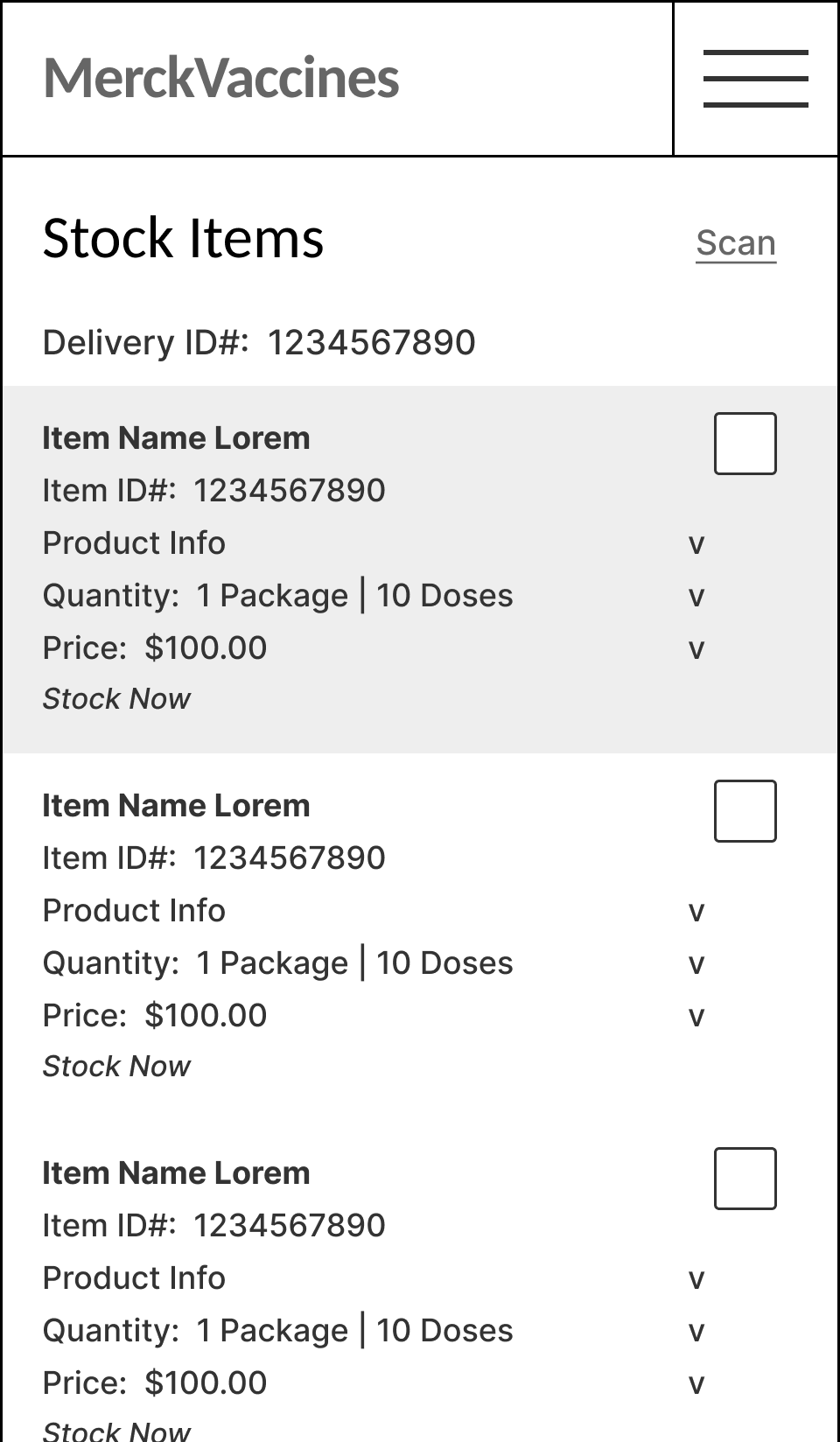
The user can also select an individual item on the list to view the item.
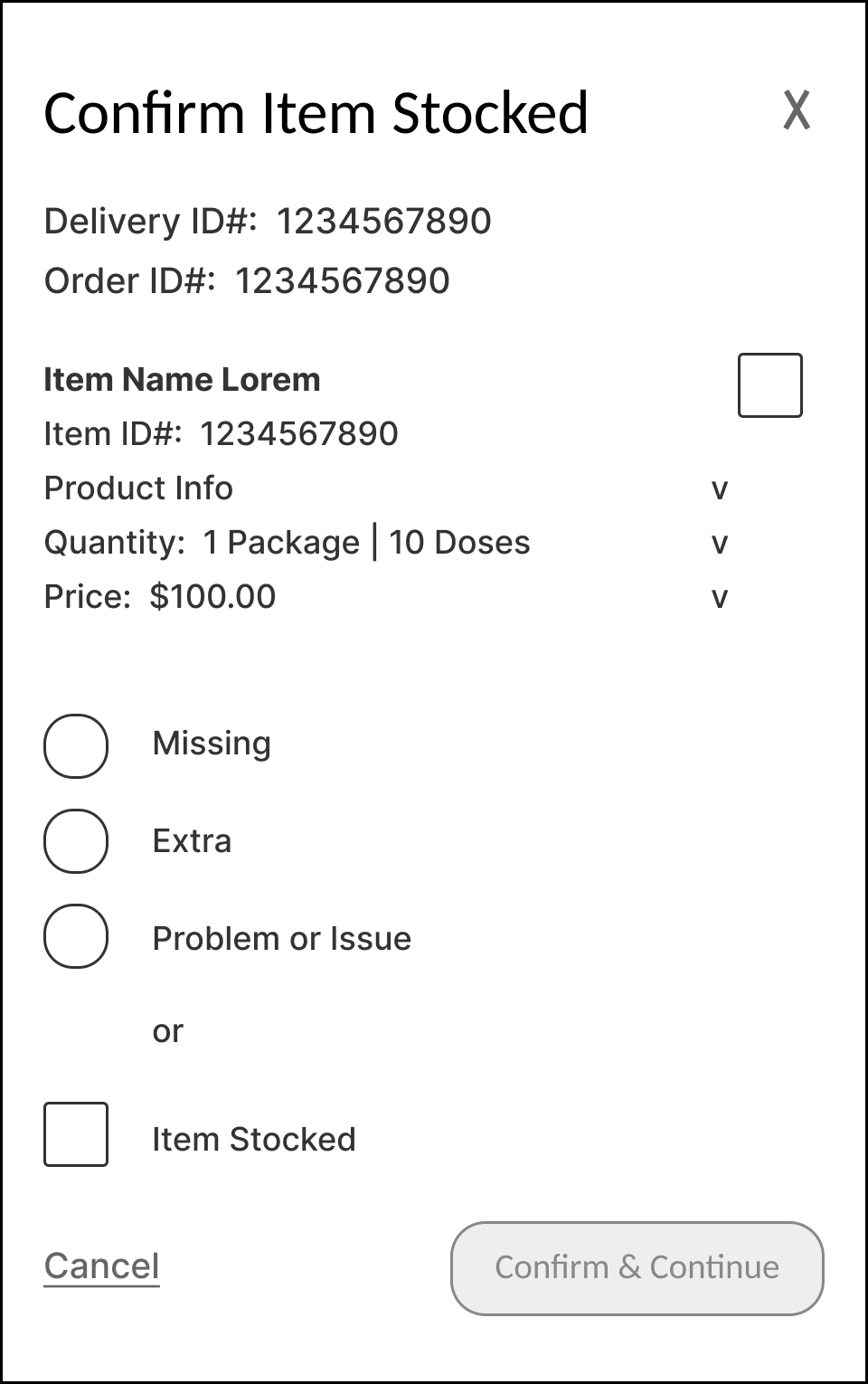
Once the user has selected an item, user can view item details and mark as stocked.
Or flag the item as missing, extra, or as having a problem or issue.
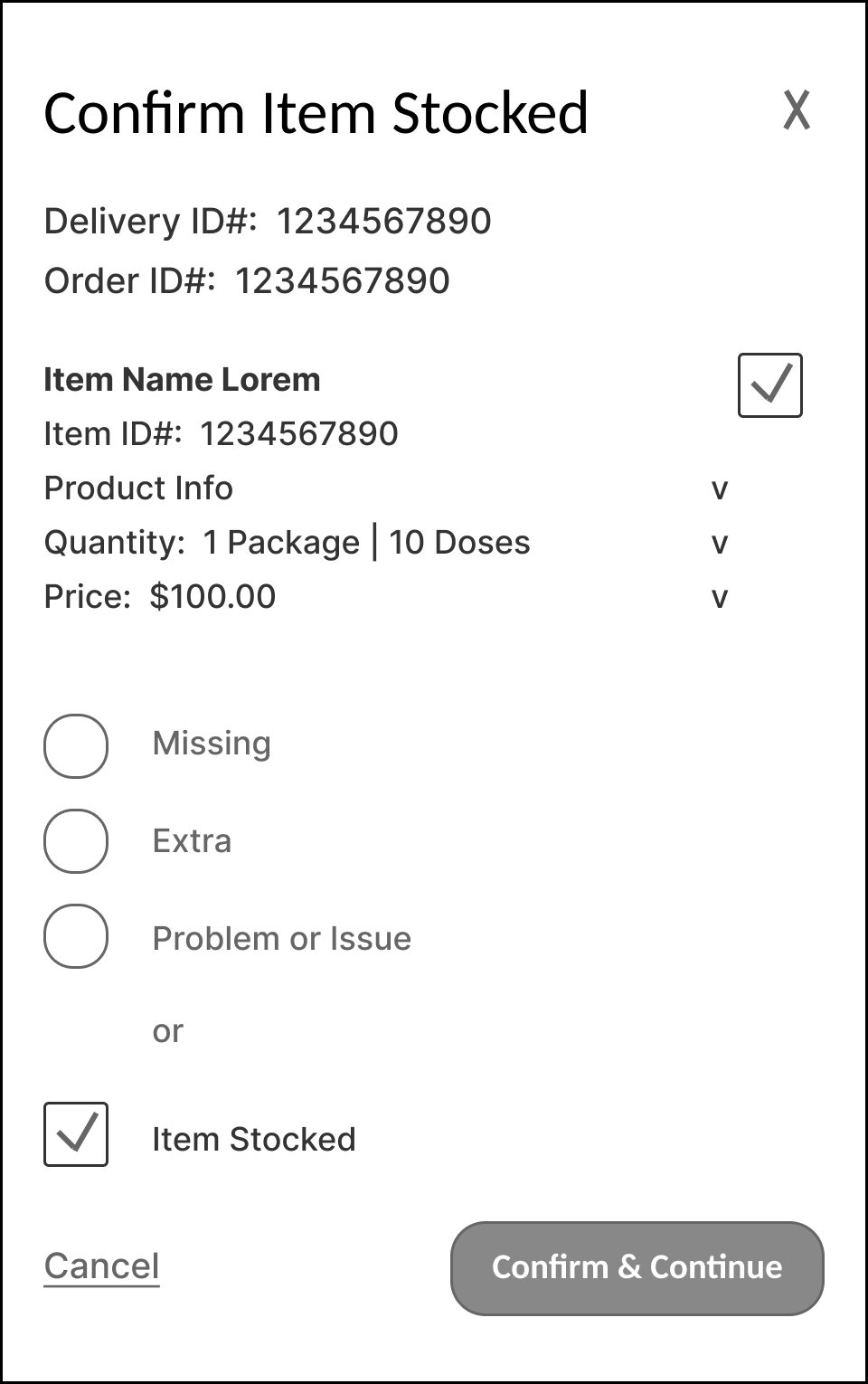
User can mark the item as stocked, as shown here.
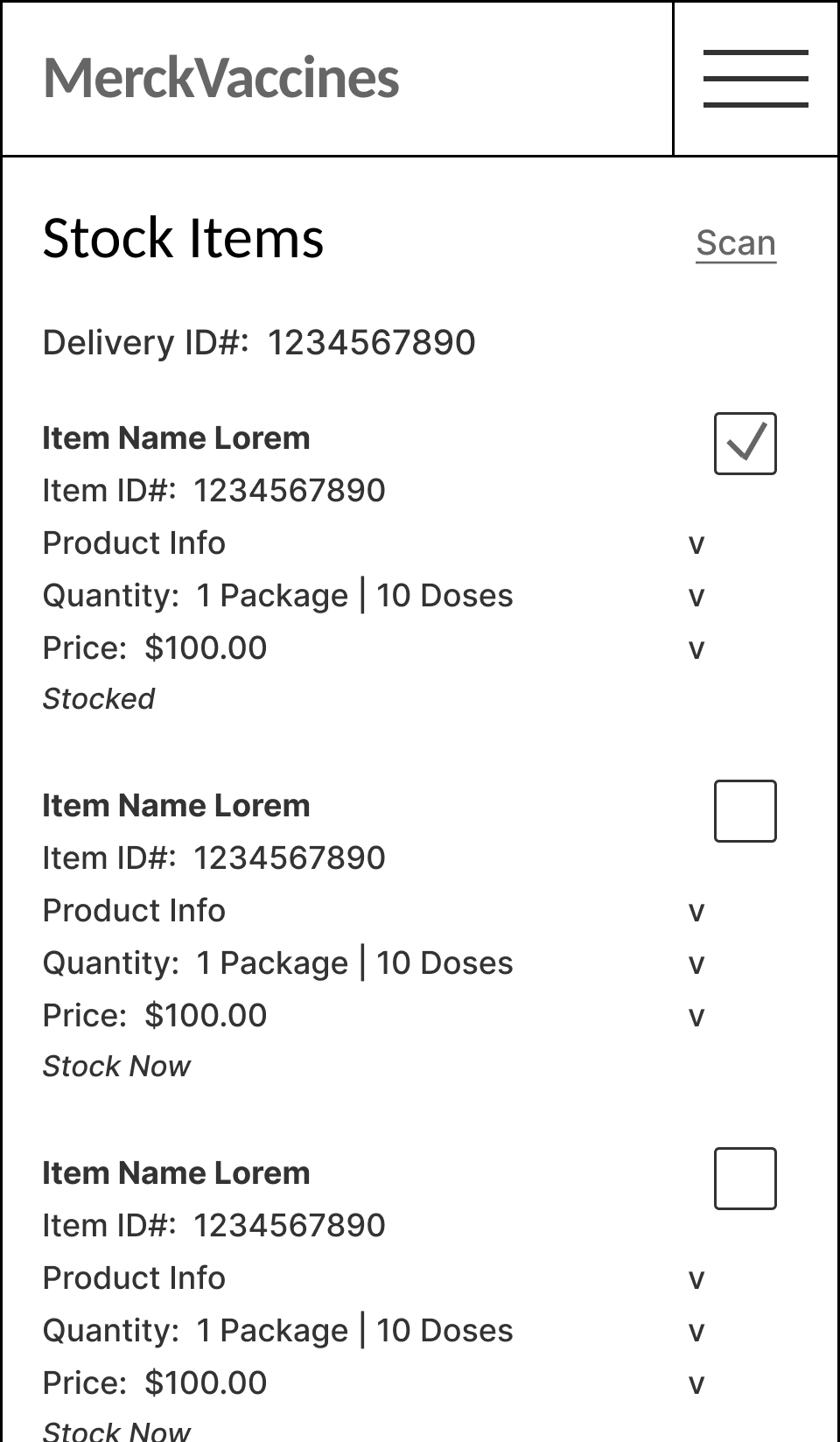
Once marked as stocked, the item appears checked on the list, with the status ‘Stocked’.
Receive > Select Item to Be Stocked - Flag ‘Not Stocked’
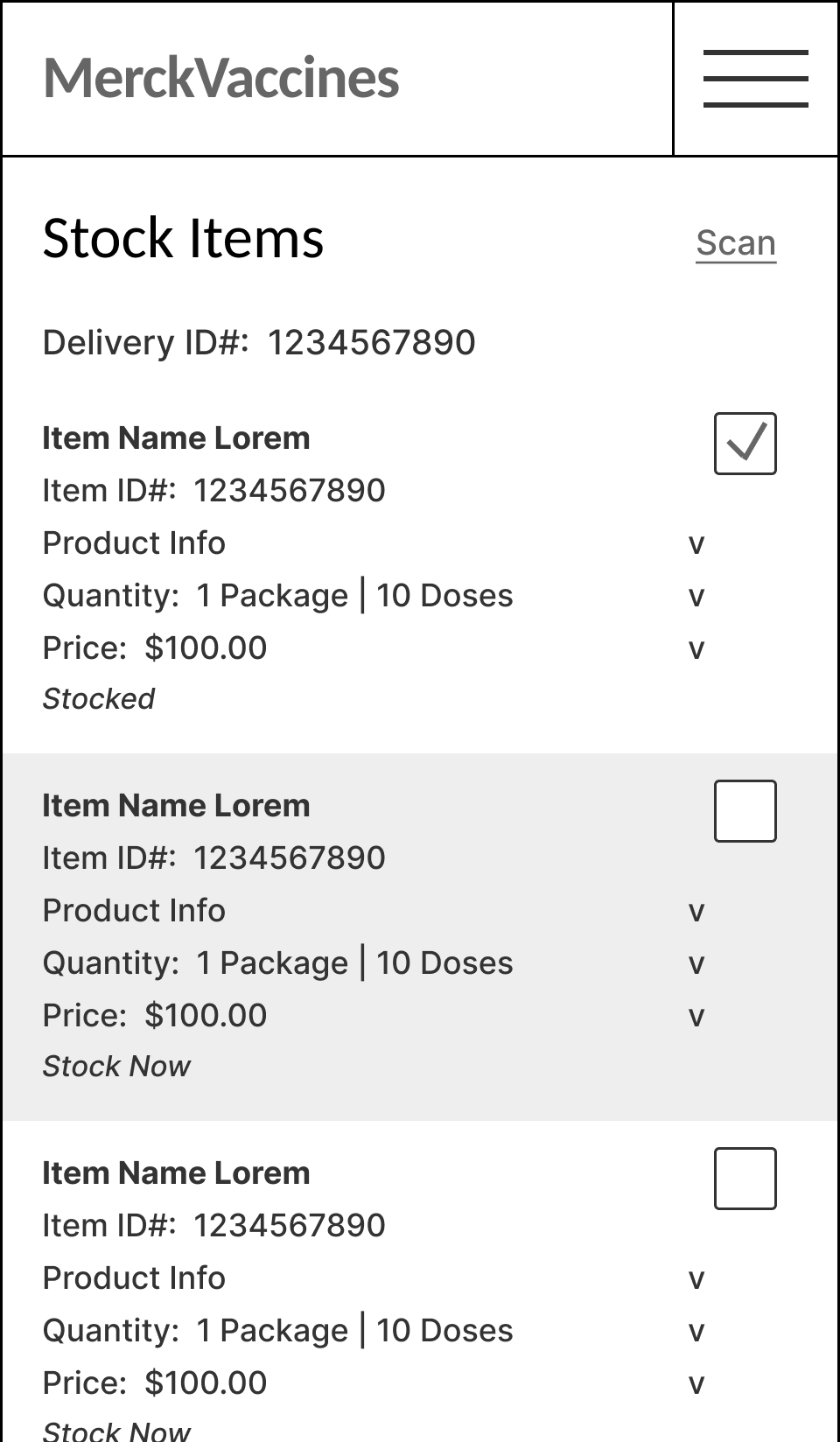
The user can select an individual item on the list to view the item, as shown here. (Or, user can use scan, shown above.)
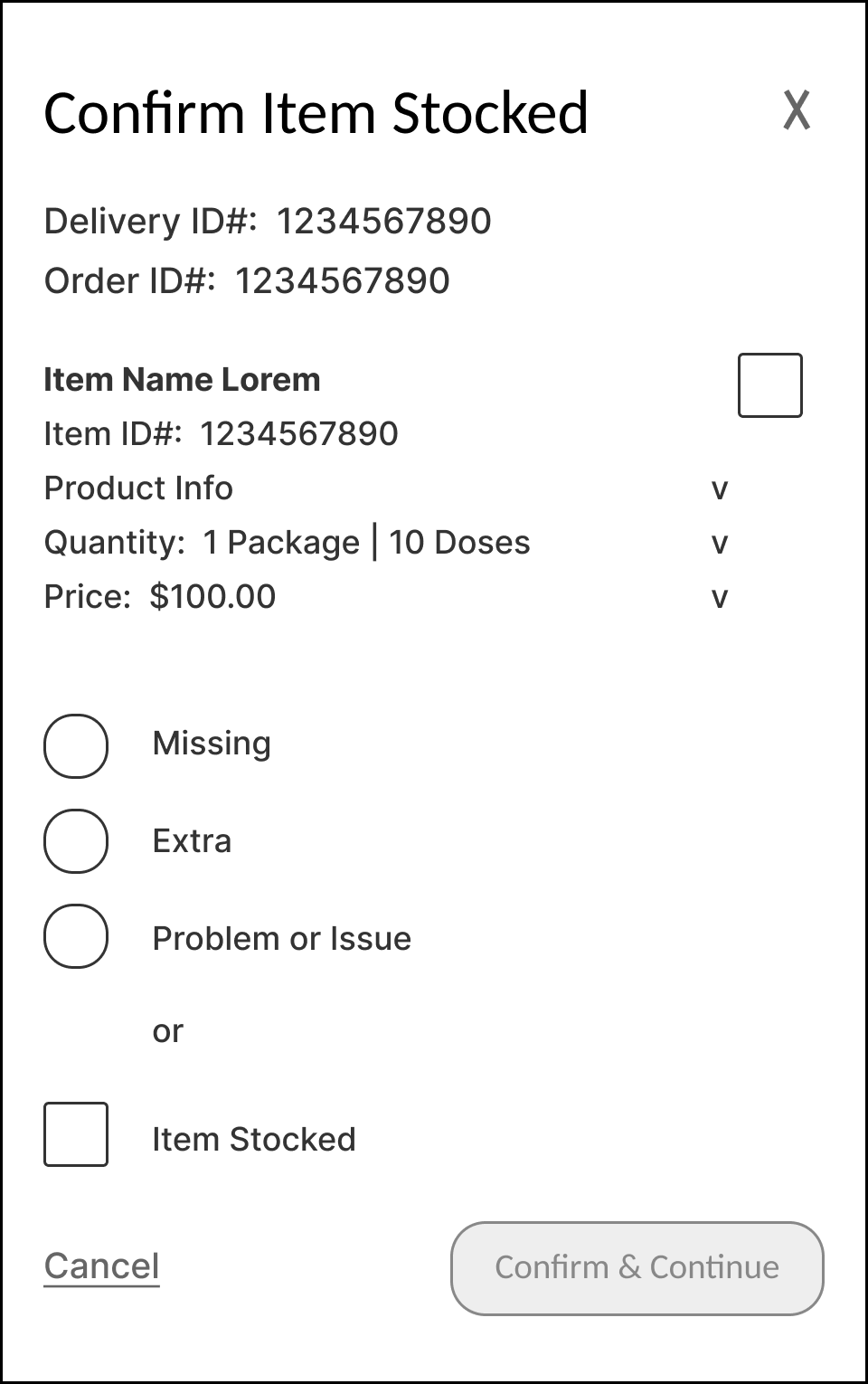
Once the user has selected an item from the list, or using the scan feature, user can view item details and mark as stocked.
Or flag the item as missing, extra, or as having a problem or issue.
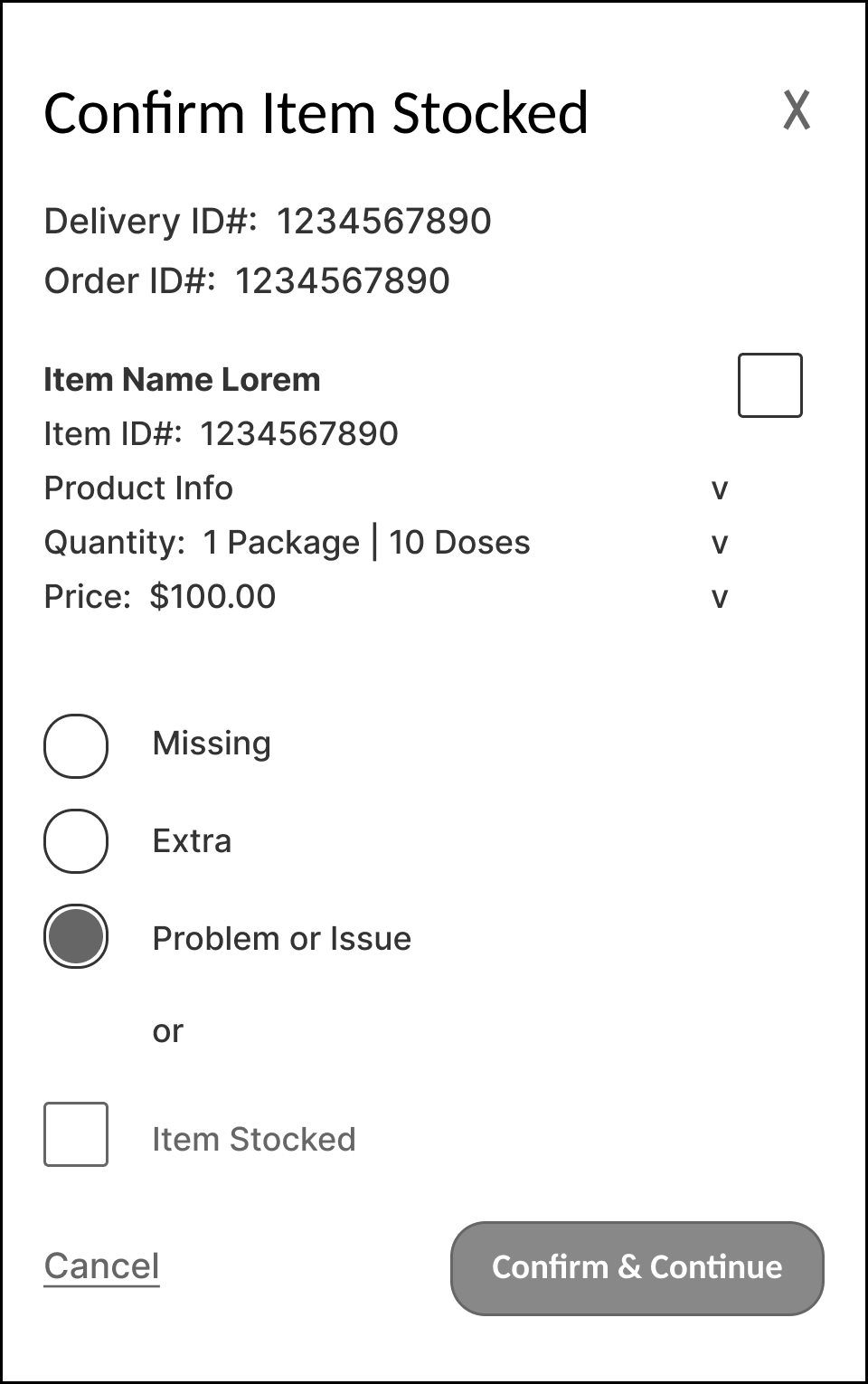
For any item with a problem or issue, user can mark as such, as shown here.
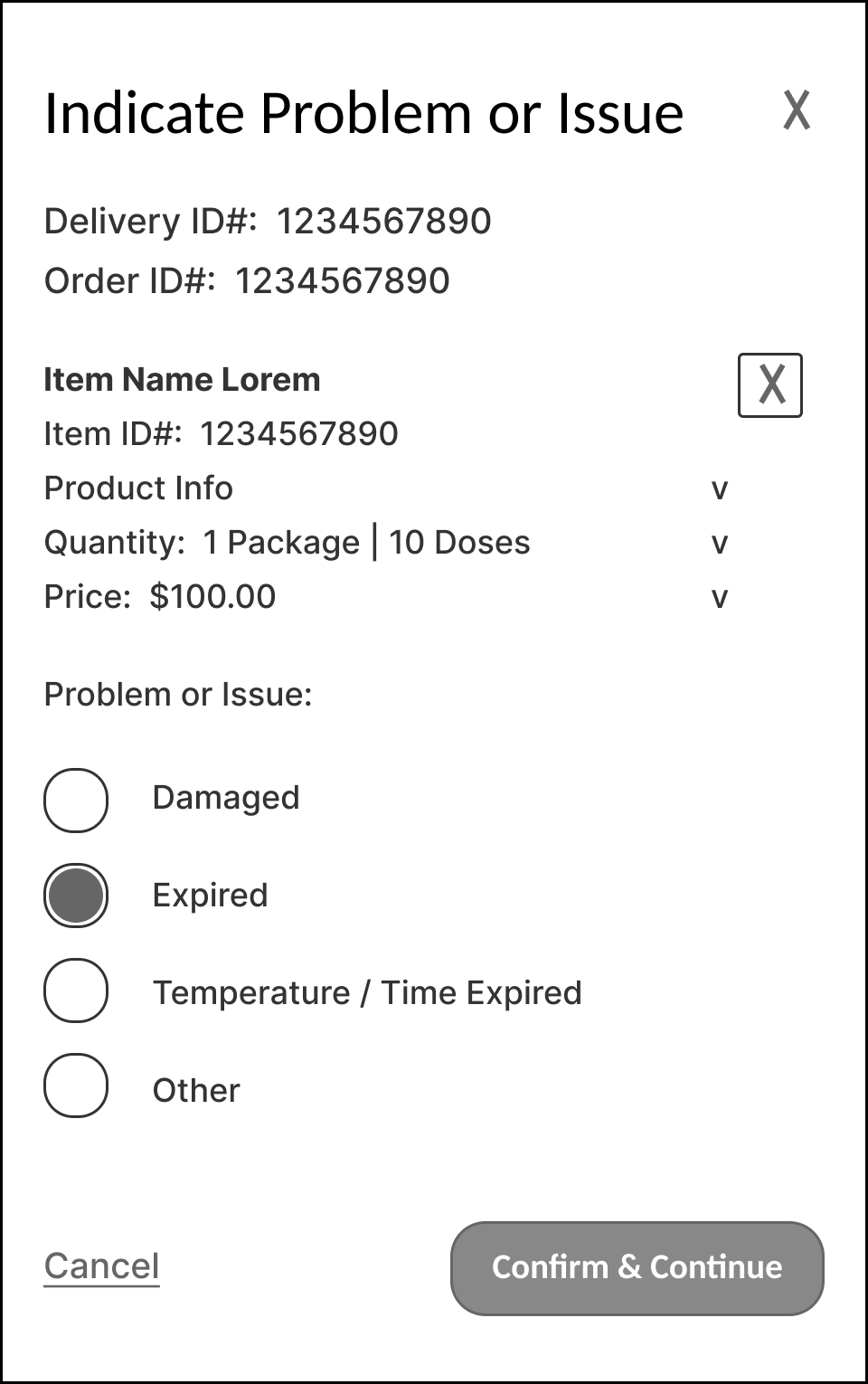
User must then indicate the nature of the problem or issue - Damaged, Expired, Temperature / Time Expired, or Other.
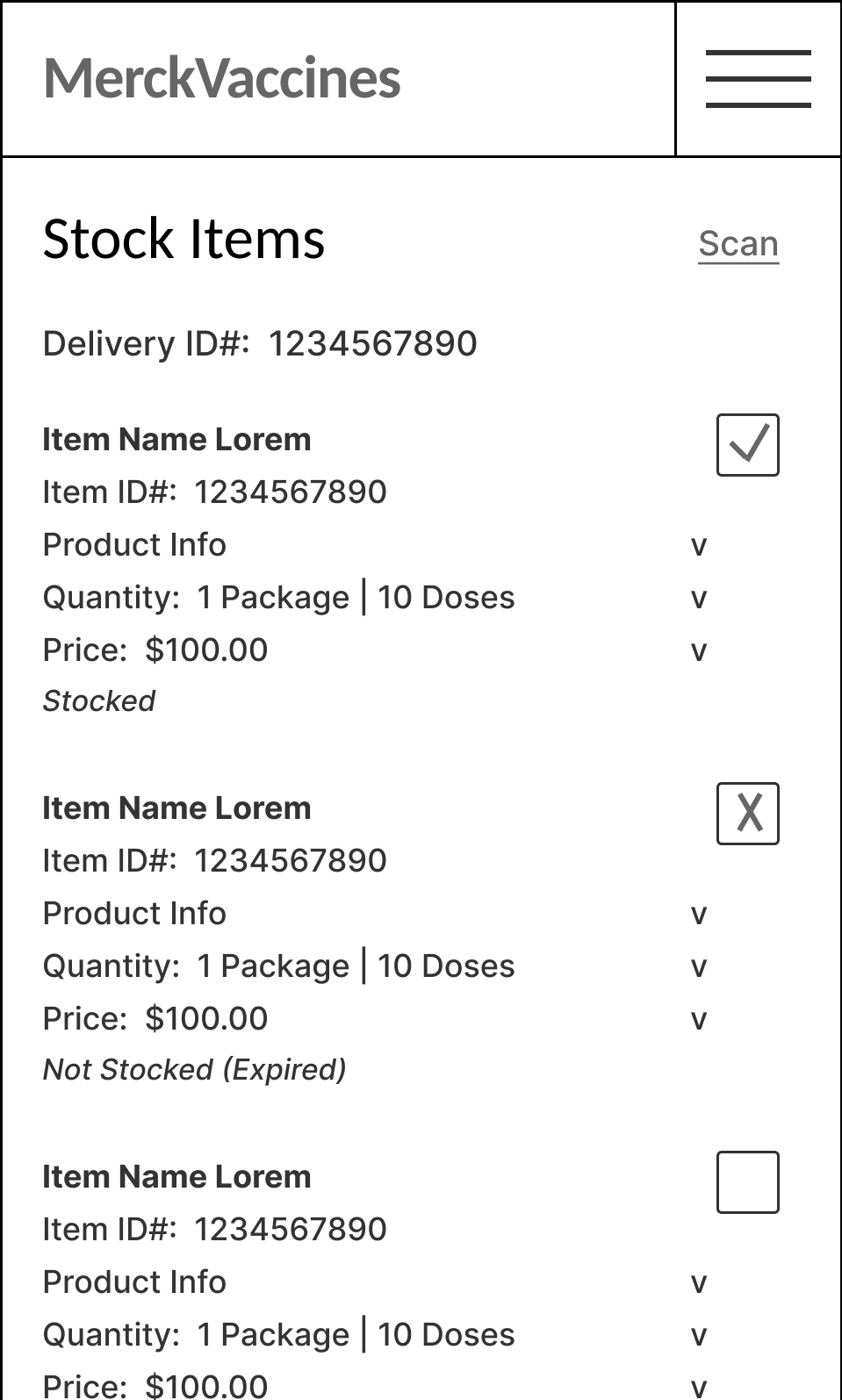
The Stock Items list will then reflect any item flagged as missing, extra, or as having a problem or issue, accordingly.
Receive > Stock New Items - Review Unstocked Items to ‘Confirm’ or ‘Reject’
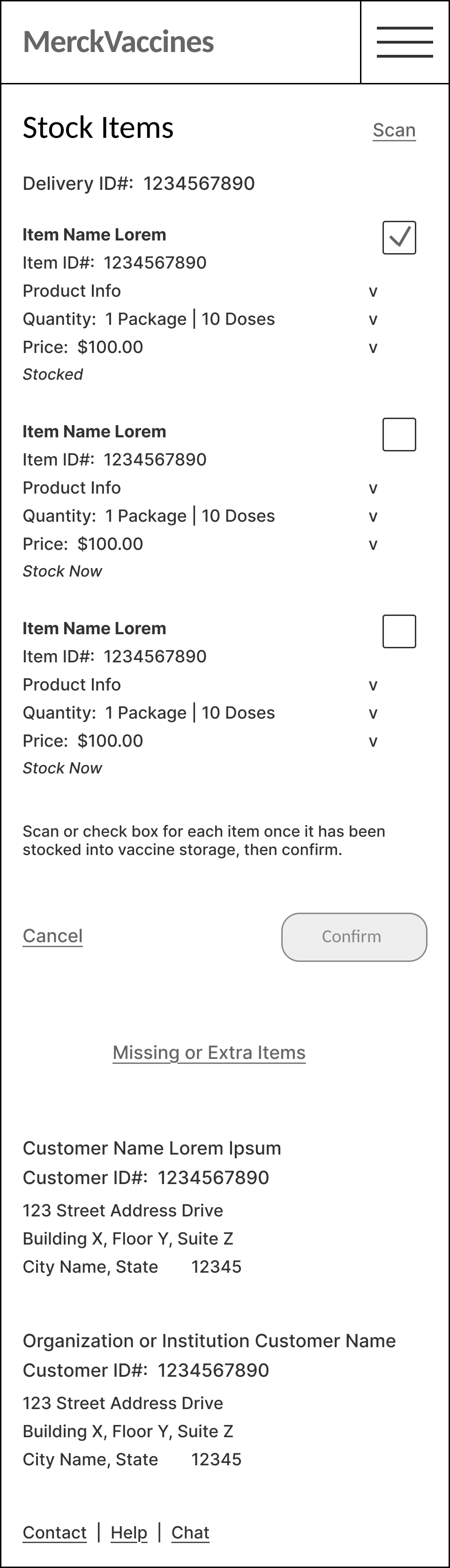
In the case where several items remain unchecked, or if user selects the Missing or Extra Items link, the user can review all outstanding / as yet unchecked items, and either mark as Stocked or flag.
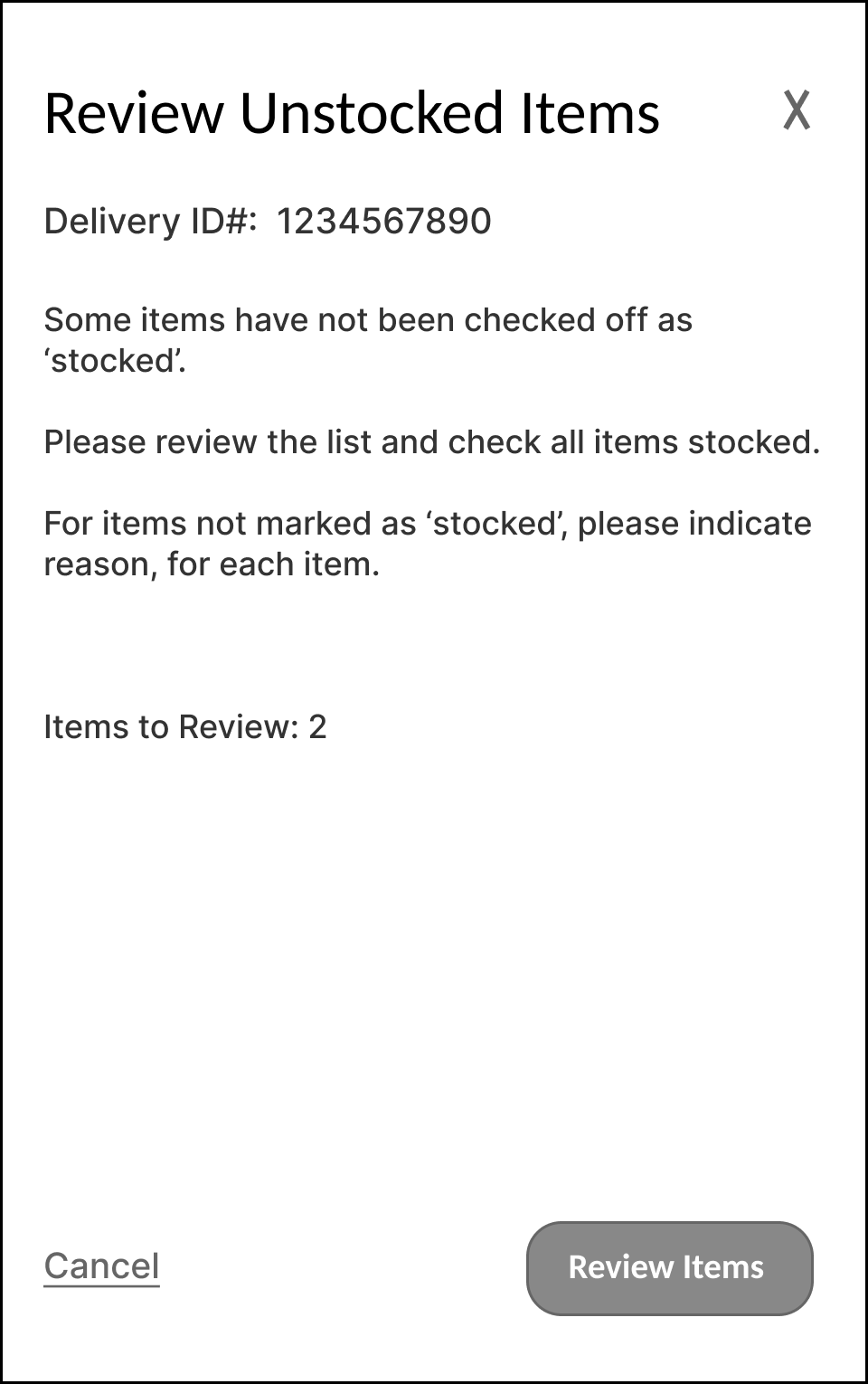
Review Unstocked Items enables user to review all outstanding / as yet unchecked items, and either mark as Stocked or flag.
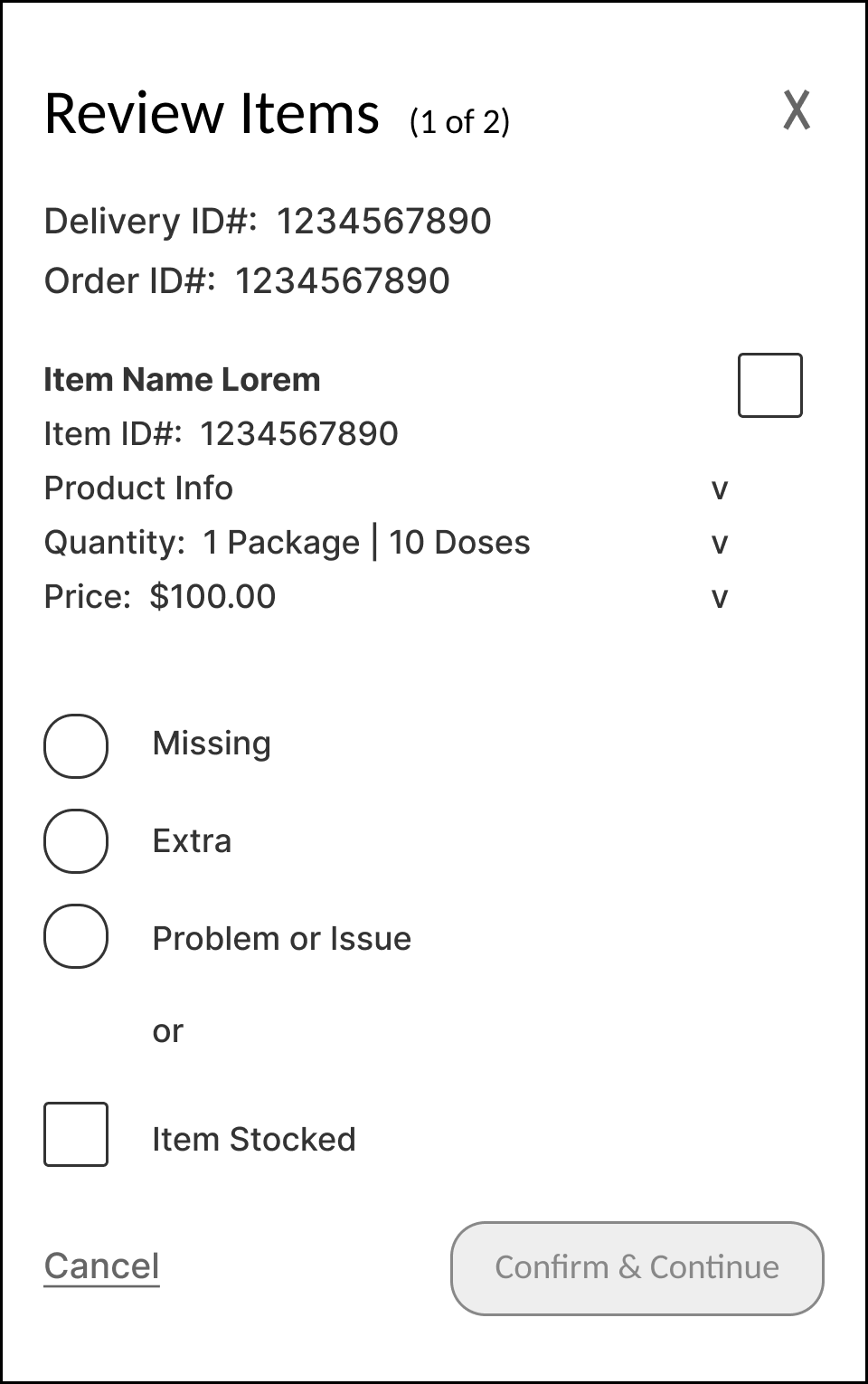
For each item reviewed, user can either mark the item as Stocked, or flag as Missing, Extra, or Problem or Issue.
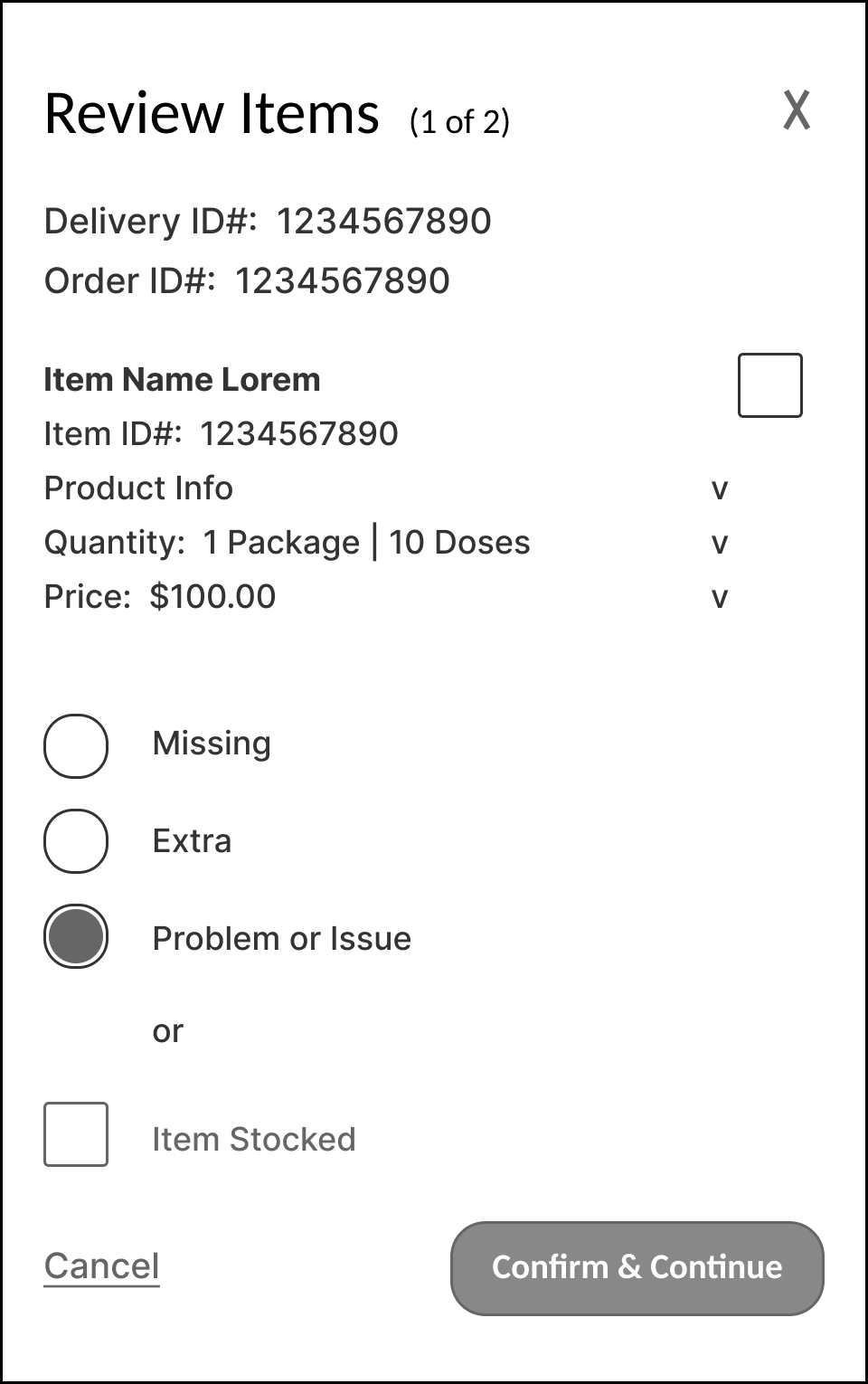
The case where user flags the item as Problem or Issue, shown here.
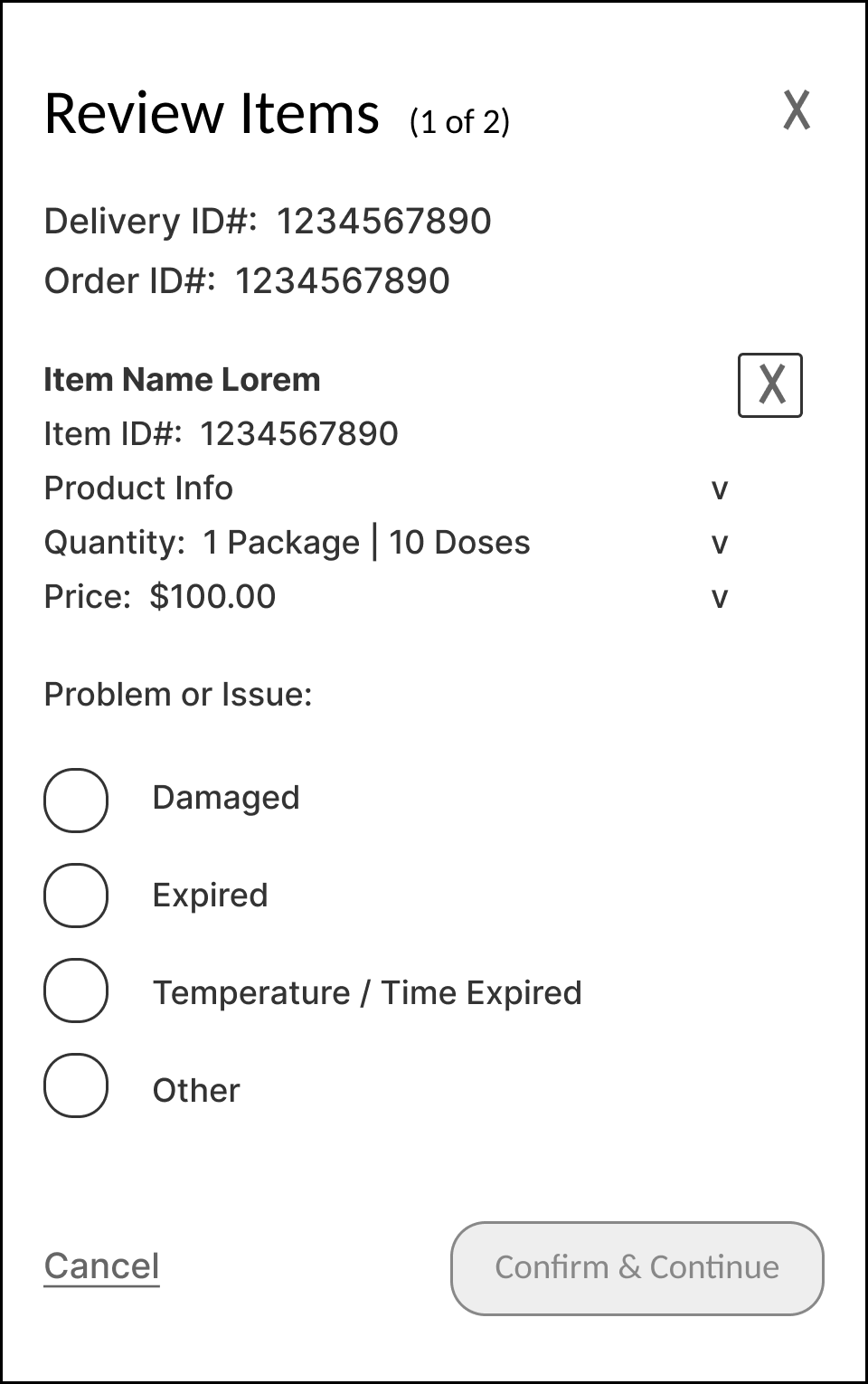
The user must then indicate the nature of the Problem or Issue - Damaged, Expired, Temperature / Time Expired, or Other.
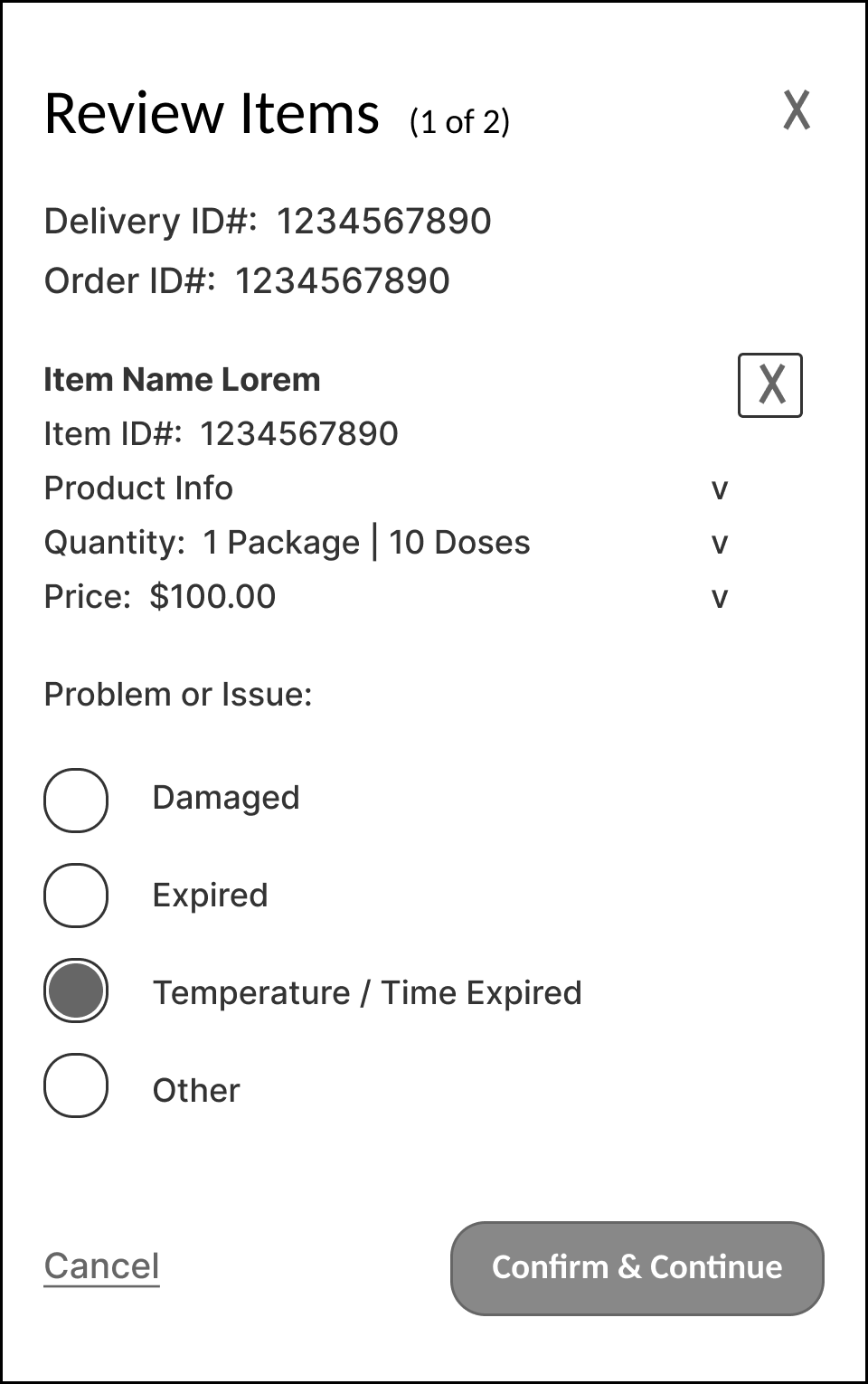
In this case the user flags the item as Temperature / Time Expired, as shown here.
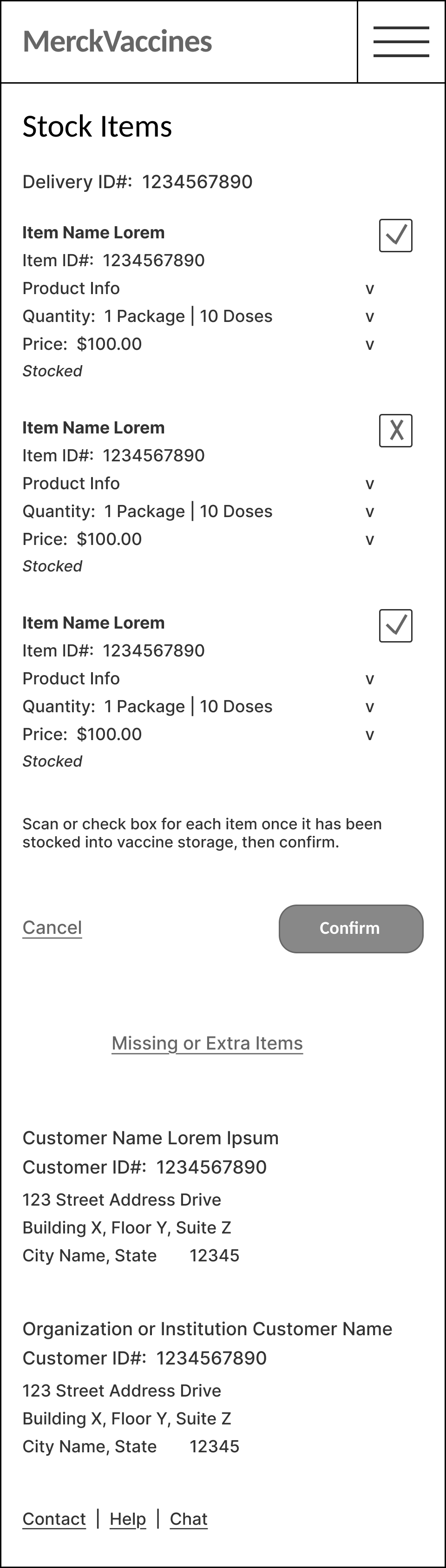
Items flagged as not Stocked, are indicated as such in the Stock Items list.
Receive > ‘Scan’ Item to Be Stocked - ‘Item Not Found’
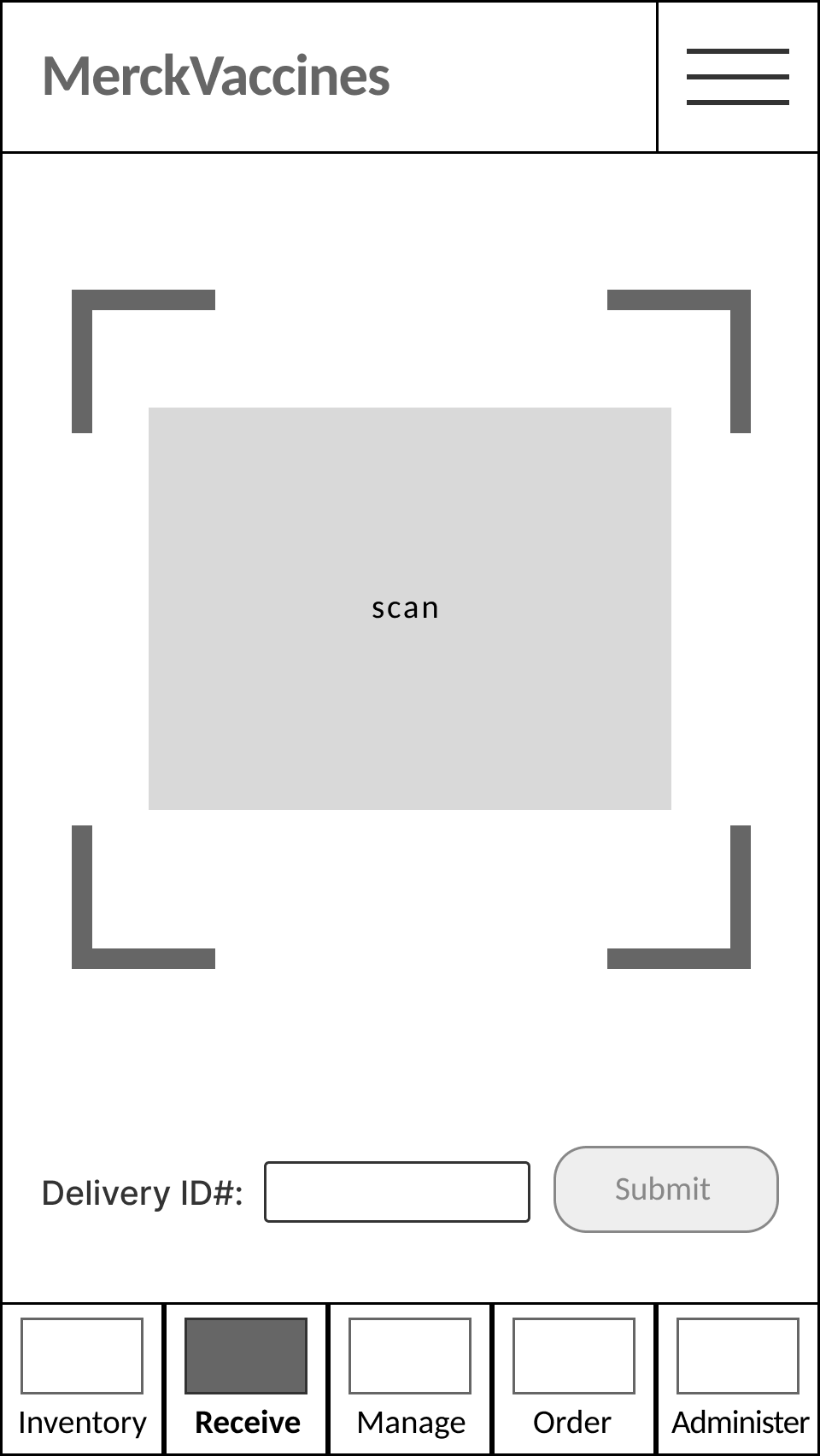
For any item(s) that do(es) not appear in the list, user can scan or manually enter the ID# to view details for that item.
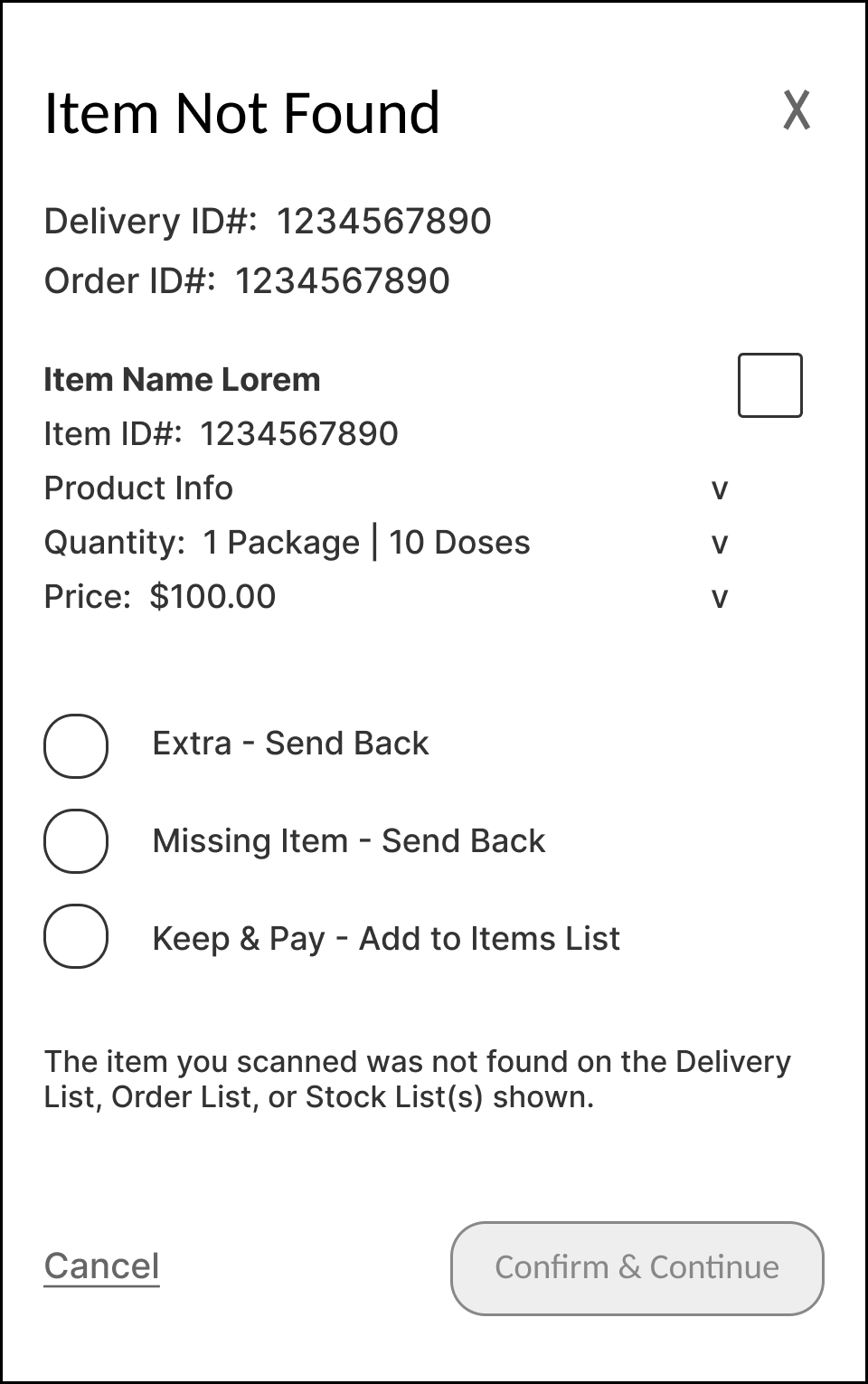
In the case where the item is not found on the Delivery List, Order List, or Stock Items list, the user has the option to flag as Extra or Missing and send back, or to Keep & Pay for the item, thereby adding it to the Stock Items list and then the Inventory list.
Order / Manage > List - ‘Scan’
Order screen.
When finalizing and placing a vaccine order.
Administer > ‘Confirm Dose’ Administered
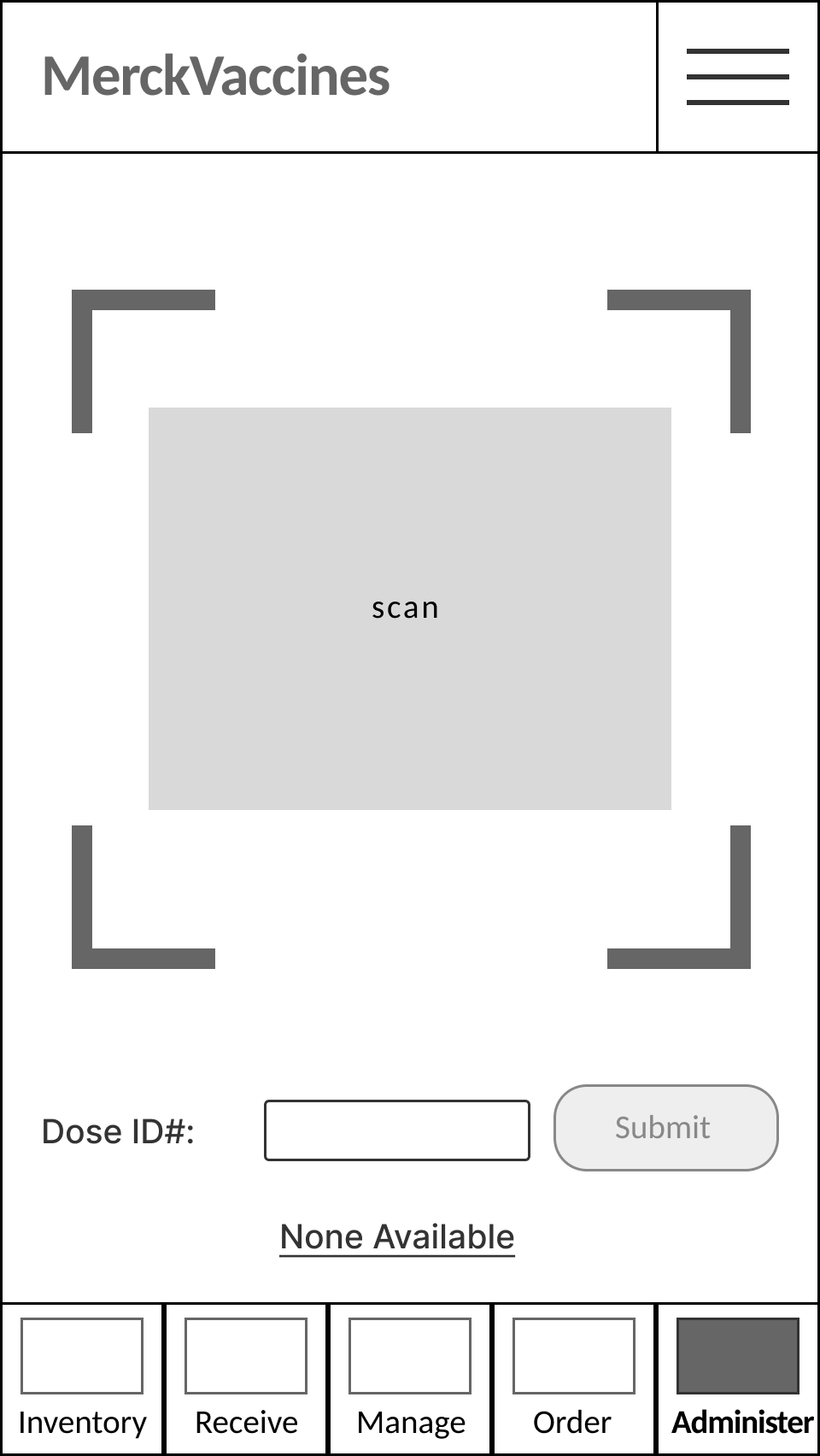
Administer screen.
When retrieving a vaccine dose to administer, user can scan or manually enter the Dose ID#, to log the dose.
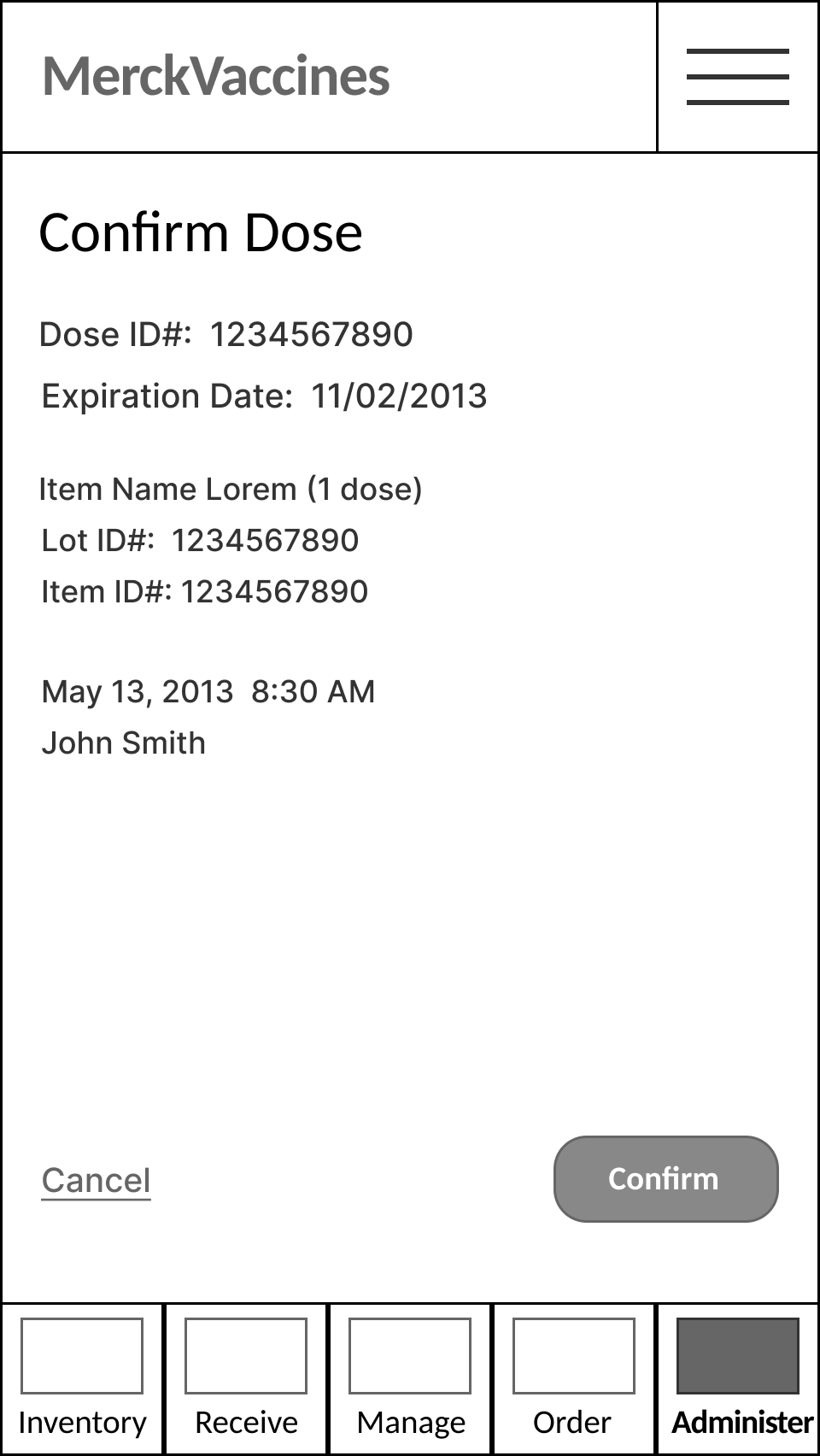
Once the Dose ID# is scanned or entered, the user can confirm the information for the dose to be administered.
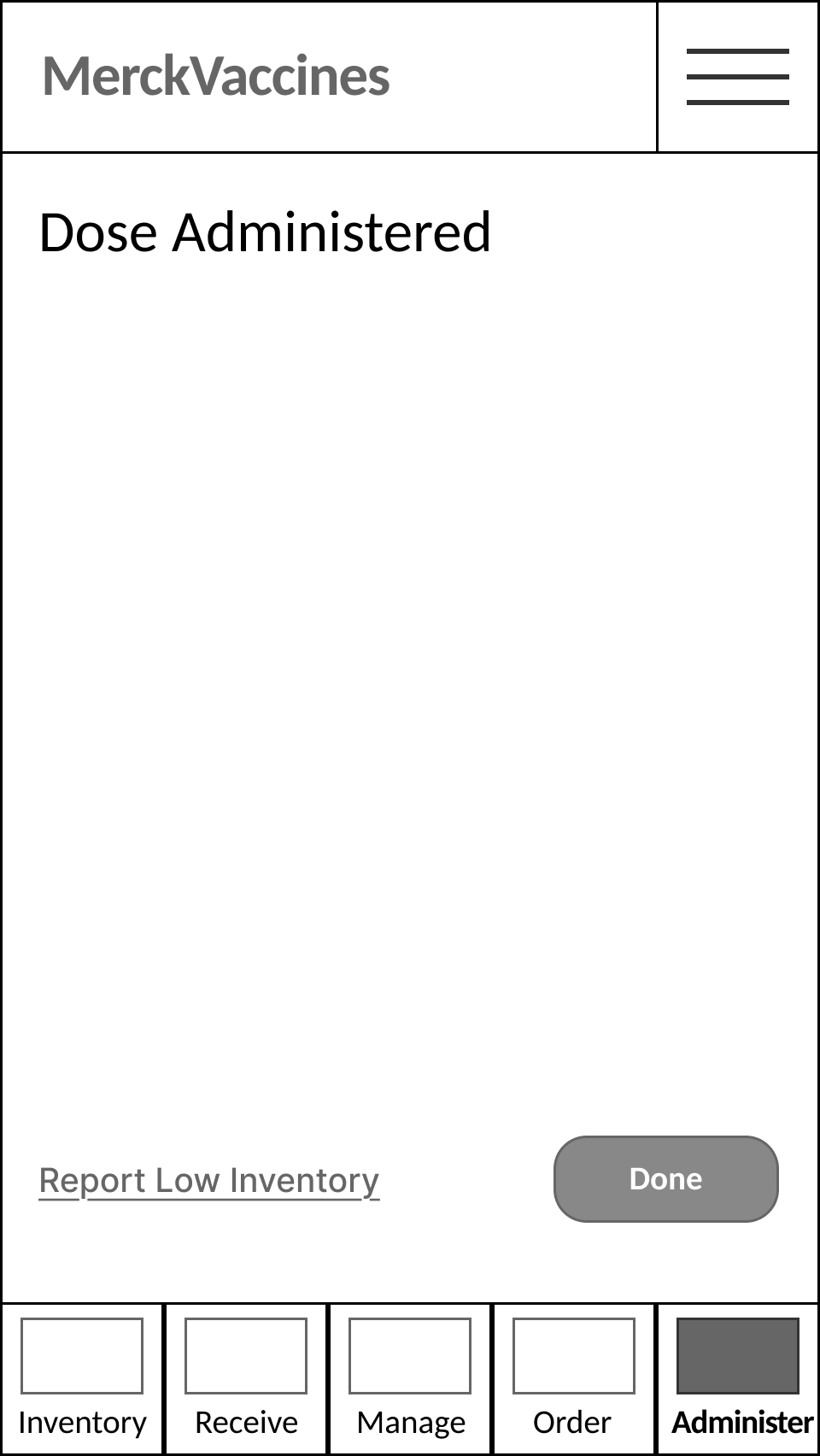
Confirmation message indicates dose has been administered (and will automatically be registered and subtracted from the stock in the Inventory list.
In the event of low inventory, user can select the link to ‘Report Low Inventory’.
Administer > Report ‘Low Inventory’ or ‘Problem / Issue’
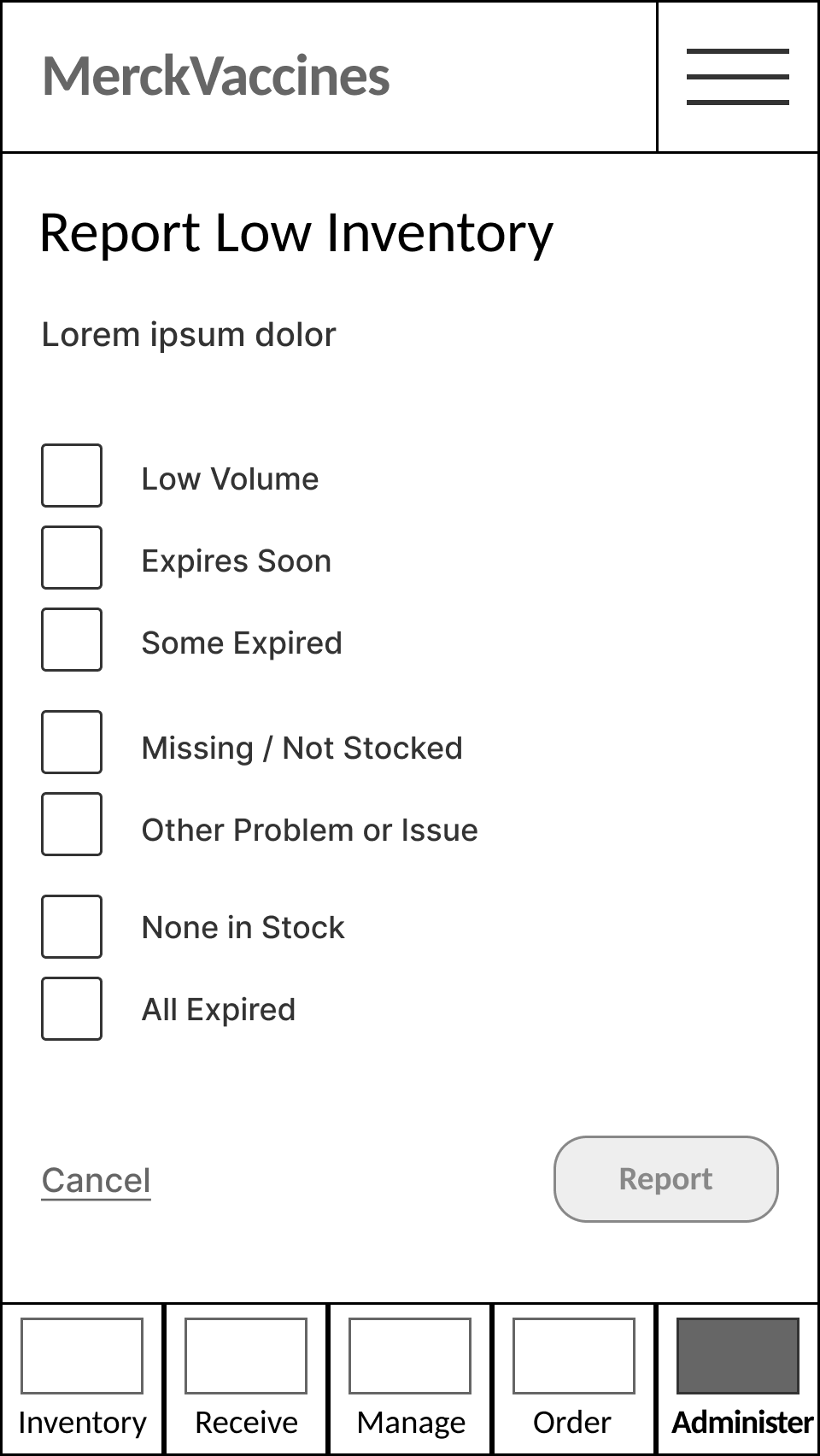
If the user selects the link to ‘Report Low Inventory’, they will be offered the same options as in Inventory.
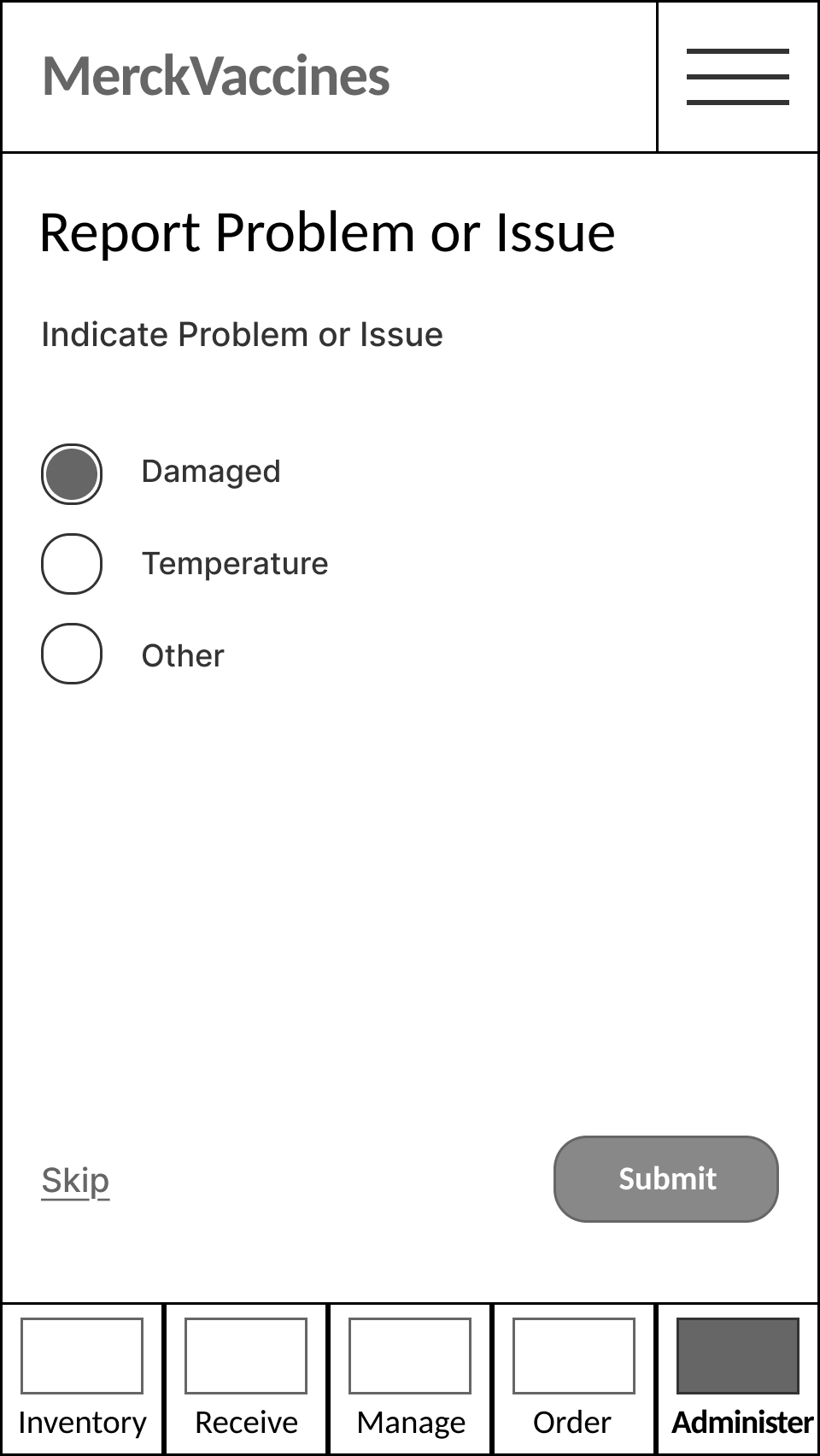
Additionally, if user selects Other Problem or Issue, they will be able to indicate Damage, Temperature, or Other.
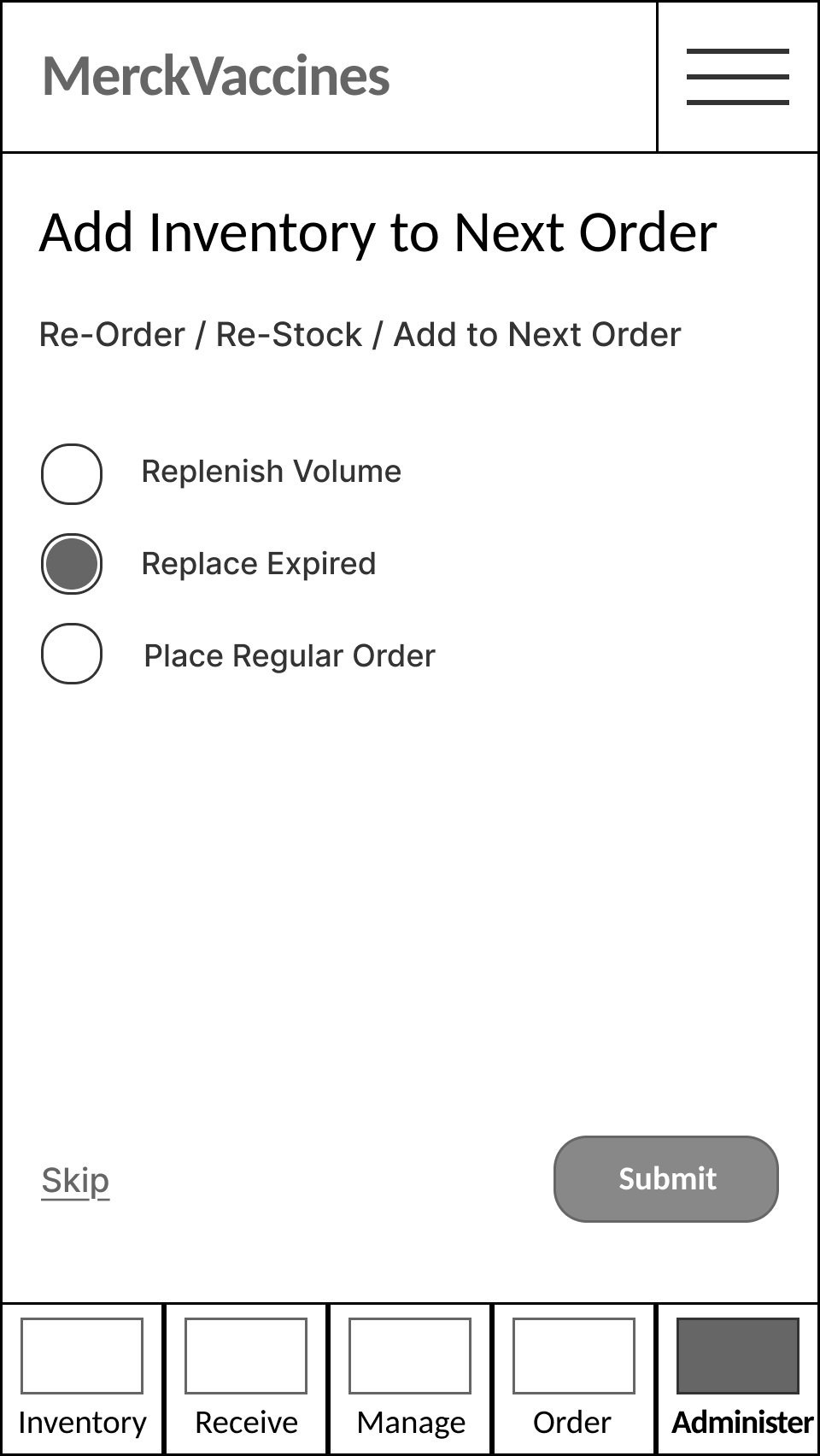
Finally, user will have the option to add this item to the next order, according to a the desired approach - Replenish Volume, Replace Expired units, or simply Place a (pre-defined) Regular Order.
Wireframes
Vaccine Inventory Management Mobile Prototype UI
Challenge
Reduce ordering, delivery, and supply chain friction. Shift call-center-dependent customer service to more efficient self-driven customer self-service. Facilitate more regular, consistent ordering and distribution patterns. Add value for our customers with digital app-based inventory management. Increase Merck Vaccine Customer satisfaction.
Solution
UI for mobile app prototype. Designing an interface for vaccine inventory management and ordering
Inventory > Inventory List
Home screen: Inventory.
Inventory is the primary home screen of the app, listing all vaccine inventory.
The Inventory section lists each vaccine currently (or recently) in stock, in the vaccine storage.
For each vaccine, the vaccine name, ID#, product information, and how many packs/lots and doses are currently in stock are provided. Customer ID# is also listed, for reference.
‘Scan’ feature allows the user to scan any vaccine item into the app via the graphic code (barcode, QR, etc.), using the phone camera, at any time.
Each Inventory item can be expanded to show individual Lot #s, with current supply volume and expiration date info for each.
Inventory can also be expanded to show full details of Product Info.
A link allows user to flag or report a problem or issue, for example low inventory, approaching or past expiry date, damaged stock, missing inventory or other discrepancies - to inform vaccine management staff of the need to re-order, restock, etc.
Additional links to Contact, Help, or Chat, connect user to support resources, as needed.
Customer Information is also indicated, including both local office, and larger Organization or Institution, where applicable.
Inventory > Select an Inventory List Item - ‘Scan’ or ‘Press to Select’
Inventory items may also be selected from the list by the user to view information about, and manage it.
‘Scan' feature allows user to scan any individual inventory item, to select, view information about, and manage it.
Inventory > Inventory Item Selected - Flag ‘Low’ or ‘Expiring’, ‘Problem’ or ‘Issue’
Inventory Item screen displays full info about the item, with options to Report Low or Expiring Inventory, Report Problem or Issue, and/or to Order More (Now) or Add to (Next) Order.
Report Low or Expiring Inventory and Report Problem or Issue enable user to track and manage inventory supply volume, in order to ensure continuous supply.
Report Low or Expiring Inventory allows user to specify and flag supply status.
Report Low or Expiring Inventory, flagging Low Volume, shown here.
Report Problem or Issue enables user to flag Expired, Damaged, Temperature non-compliant, Missing (Not Stocked), or other issues.
Report Problem or Issue, flagging Damaged inventory, shown here.
Once they are reported, flags appear in inventory item status.
Item is now listed as ‘Stocked’ and ‘Damaged’, ‘Low Volume’, shown here.
Inventory > Inventory Item Selected - ‘Order More’
For Inventory items which are running low in supply volume, the ‘Order’ link automatically appears, to encourage and enable user to re-order more to replenish the stock.
On Inventory Item screen, user can also select option to Order More / Add (Item) to (Next) Order.
Inventory items can then be added to next upcoming orders, according to a variety of options: to Replenish Volume (based on a pre-defined quantity of desired stock), Replace Expired (based on volume of stock past expiration date), and/or Place a Standard Order (based on pre-defined regular order parameters).
Replace Expired (based on volume of stock past expiration date), is shown selected here.
Once item has been added to ‘next order’, user has the option to ‘Order Now’ (immediately place order, and pay), or to ‘Add to Next Order (when placed)’, in which case item will be added to the Order list.
‘Add to Next Order (when placed)’, is shown selected here.
Once order has been placed, the item’s status in the Inventory list is update to reflect that it has been ‘Ordered’.
Inventory > Alerts - ‘New Delivery’, ‘Stock Items’, ‘Expiring’ or ‘Out of Stock’
When a new delivery is arriving / has arrived, an alert notification message in Inventory appears with link to ‘Receive’.
When a new delivery has been received, but not yet stocked into vaccine storage, an alert notification message appears in Inventory with a link to ‘Stock Now’, and a countdown timer clock indicating the maximum time left to safely stock the item(s), without compromising temperature integrity.
When one or more items is Expired or Expiring Soon, or Out of Stock completely, an alert notification message appears on Inventory with link to ‘Manage’ stock and add items to upcoming orders.
Receive > New Delivery - ‘Accept & Sign’
Receive section initial screen.
When a new vaccine delivery arrives, Receive enables user to review, accept, and sign for the new inventory.
User can select Receive, from the app primary navigation menu, to get here.
User may also select the link to Receive from a New Delivery alert notification in the Inventory (or other) section(s).
User can scan the delivery code on the box or shipping materials, or manually enter the Delivery ID#, to initiate.
Once the Delivery ID has been scanned (or manually entered) and identified, the Delivery List is displayed.
Delivery list includes Delivery ID#, Item name(s) and info, including Quantity and Pricing, and the Order Total price.
Delivery list also indicates date and time of delivery, and the receiver’s name (based on user ID).
A date and time stamp and a signature field enable user to sign to accept the delivery.
(Delivery of one item, shown here.)
User can review the delivery item list, check the box for each item delivered, to confirm receipt, sign their signature in the box, and then ‘Sign and Accept’ (submit) to accept the delivery.
User can review the delivery item list, check the box for each item delivered to confirm receipt, and then sign their signature in the box and select ‘Sign and Accept’ (submit) to accept the delivery.
Once user has Signed and Accepted the delivery, a confirmation message affirms the delivery has been received.
Delivery ID#, receiver name and date / time stamp, are all included.
Additionally, a reminder to ‘Stock Items Now’ appears, along with a countdown timer clock indicating the maximum time left to safely stock the item(s), without compromising temperature integrity.
Receive > New Delivery - Select Delivery List Item & ‘Confirm Receipt’
Items on the Receive Delivery list can also be reviewed individually / one by one, to accept (or flag / reject).
Delivery list items may be selected from the list by the user to view the item and accept, or flag / reject, it.
Once selected, the Delivery Item can be individually Accepted & Received, or can be marked as Not Delivered / Missing (if not present in the delivery), Not Ordered / Send Back (if incorrectly delivered), or Not Accepted / Reject & Return - in the case of damage, expiration date, temperature integrity failure, etc.
Delivery Item Accepted & Received, shown here.
Once confirmed, the item appears on the Delivery list with a check mark, indicating it has been Received.
Receive > New Delivery - Select Delivery List Item & ‘Reject / Return’
Further Delivery list items may be selected from the list one by one by the user to view each item and accept, or flag / reject, it.
The options to Accept & Receive, or flag and report otherwise, are shown here.
In the case where an Item is damaged, expired, or other issue, the user receiving the vaccine delivery may mark item as Not Accepted / Reject & Return.
In the case where an Item is marked as Not Accepted / Reject & Return, the user can then specify the reason - item is damaged, expired, or other issue.
Once item has been marked as Not Accepted, Not Delivered / Missing, or Not Ordered / Send Back, it will appear on the Accept & Sign Delivery list with a mark indicating it has NOT been accepted or received.
Receive > New Delivery - Review Outstanding Items to ‘Confirm’ or ‘Reject’
In the case that some Items have not been marked as Received / Accepted, the user may select the link to Missing or Rejected Items, in order to review all not yet accepted items.
If user signs to Accept the Delivery, but has not yet indicated ‘Accept’ for ALL items on the Delivery List, then the link to Items Not Accepted or Received appears, below the signature field, with instructions to review the Delivery List, and indicate reasons for any / all items not marked as ‘Received’.
The link(s) to Items Not Received or Missing or Rejected Items will take the user to Review Outstanding Items.
This allows the user to review all Items not yet marked as received / accepted.
Review Items allows the user to review all Items not yet marked as received / accepted.
User can Accept & Receive the item, or select other options to indicate why item is not accepted or was not received.
In the case that the user does not wish to accept this item, they may indicate that, here.
In the case that the user does not accept / rejects and returns this item, they must indicate the reason, here.
In this case that the user does not accept / rejects and returns the item, because it is damaged, as shown here.
Once all items have been reviewed and marked either as Accepted / Received or not, the user can sign and submit to Accept and Receive the Delivery.
If any Delivery List items are not marked as Accepted / Received, the user must also check the box to indicate that these were either not ordered, not delivered / received, or not accepted / rejected (for a reason).
Receive > New Delivery - ‘Accept & Sign’
Once all items have been reviewed and marked either as Accepted / Received or not, the user can sign and submit to Accept and Receive the Delivery.
If any Delivery List items are not marked as Accepted / Received, the user must also check the box to indicate that these were either not ordered, not delivered / received, or not accepted / rejected (for a reason).
Once all items are marked as either Accepted / Received, or otherwise, signature field is populated, and the check box is checked, the Sign & Accept button will become active.
User can sign and accept to finalize the delivery and accept the items indicated.
Supplementary option: Status of each item could also be indicated, after user selects it (tbd based on business constraints with invoicing and supply delivery data)..
Receive > Stock New Items
Stock Items screen.
After Accept Delivery & Sign is completed, the Stock (New) Items screen appears, to enable user to log new inventory items, and confirm that they have been properly stocked into vaccine cold storage.
User may also visit this screen from the Stock Now link, in the Stock New Items alert notification in Inventory or other sections.
Stock Items enables user to select the check box for each item listed, to indicate that it has been stocked, as shown here.
Once user has indicated each item has been stocked, they can confirm and submit.
Once stocked and logged / confirmed, these items will be added to and appear in the Inventory list.
Receive > Select Item to Be Stocked - ‘Confirm Stocked’
The scan feature allows user to scan each item being stocked, to automatically view the item.
The user can also select an individual item on the list to view the item.
Once the user has selected an item, user can view item details and mark as stocked.
Or flag the item as missing, extra, or as having a problem or issue.
User can mark the item as stocked, as shown here.
Once marked as stocked, the item appears checked on the list, with the status ‘Stocked’.
Receive > Select Item to Be Stocked - Flag ‘Not Stocked’
The user can select an individual item on the list to view the item, as shown here. (Or, user can use scan, shown above.)
Once the user has selected an item from the list, or using the scan feature, user can view item details and mark as stocked.
Or flag the item as missing, extra, or as having a problem or issue.
For any item with a problem or issue, user can mark as such, as shown here.
User must then indicate the nature of the problem or issue - Damaged, Expired, Temperature / Time Expired, or Other.
The Stock Items list will then reflect any item flagged as missing, extra, or as having a problem or issue, accordingly.
Receive > Stock New Items - Review Unstocked Items to ‘Confirm’ or ‘Reject’
In the case where several items remain unchecked, or if user selects the Missing or Extra Items link, the user can review all outstanding / as yet unchecked items, and either mark as Stocked or flag.
Review Unstocked Items enables user to review all outstanding / as yet unchecked items, and either mark as Stocked or flag.
For each item reviewed, user can either mark the item as Stocked, or flag as Missing, Extra, or Problem or Issue.
The case where user flags the item as Problem or Issue, shown here.
The user must then indicate the nature of the Problem or Issue - Damaged, Expired, Temperature / Time Expired, or Other.
In this case the user flags the item as Temperature / Time Expired, as shown here.
Items flagged as not Stocked, are indicated as such in the Stock Items list.
Receive > ‘Scan’ Item to Be Stocked - ‘Item Not Found’
For any item(s) that do(es) not appear in the list, user can scan or manually enter the ID# to view details for that item.
In the case where the item is not found on the Delivery List, Order List, or Stock Items list, the user has the option to flag as Extra or Missing and send back, or to Keep & Pay for the item, thereby adding it to the Stock Items list and then the Inventory list.
Order / Manage > List - ‘Scan’
Order screen.
When finalizing and placing a vaccine order.
Administer > ‘Confirm Dose’ Administered
Administer screen.
When retrieving a vaccine dose to administer, user can scan or manually enter the Dose ID#, to log the dose.
Once the Dose ID# is scanned or entered, the user can confirm the information for the dose to be administered.
Confirmation message indicates dose has been administered (and will automatically be registered and subtracted from the stock in the Inventory list.
In the event of low inventory, user can select the link to ‘Report Low Inventory’.
Administer > Report ‘Low Inventory’ or ‘Problem / Issue’
If the user selects the link to ‘Report Low Inventory’, they will be offered the same options as in Inventory.
Additionally, if user selects Other Problem or Issue, they will be able to indicate Damage, Temperature, or Other.
Finally, user will have the option to add this item to the next order, according to a the desired approach - Replenish Volume, Replace Expired units, or simply Place a (pre-defined) Regular Order.
Wireframes