Royal Caribbean Cruiselines
Cruise Booking & Purchase
Royal Caribbean
JWT
Senior Information Architect
Transactional eCommerce Website
Customer Conversion Journey, Transactional Flow Charts, Wireframes (UI) & Functional Specifications
Cruise Planning & Booking Journey
Challenge
Identifying opportunities to help the brand and business engage customers more deeply, to drive increased consideration and booking of onboard offerings - where and how can we better intervene in the lifecycle of cruise planning and booking to more effectively drive sales?
Solution
Illustrating audience cruise planning broken into stages of customers’ experience along the journey, from Inspiration to Exploration to Planning and Sharing (with other groups they are cruising with) - mapping customer engagement and planning behaviors back to business conversion funnel metrics, and marketing tactics and objectives to drive them

Customer research data shows that after booking a cruise (cabin reservation) customers spend significant time throughout the months or year leading up to the cruise researching, planning, and booking their activities while onboard - many customers do so annually or biannually. The Agency drove strategic planning with the Client for where and how social media engagement and direct outreach from representatives might more effectively drive planning, decision-making, and purchase, to grow sales and booking of onboard offerings.
Customer Conversion Journey
Social Media Community & Outreach for Loyal Cruisers
Challenge
How to deepen connection and engagement with our customers, and foster community connection among loyal cruisers, through online engagement and social media programs, to drive increased loyalty, consideration and booking, and customer retention
Solution
Royal’s own social media network for Cruisers, called ‘The Nation of Why Not’. Featuring cruiser social profiles and ‘user generated content’ (cruise stories and photos), livestreamed online ‘events’ (live chats) with well-known figures from senior leadership at Royal Caribbean, for loyal cruisers to stay in touch with the brand and stay informed on latest news from the company, such as new ships being launched, and new offerings on board

Timeline and communications flow for promoting one of many livestreamed ‘events’ for loyal cruisers, with senior Royal Caribbean leadership, under the banner of the ‘Nation of Why Not’ social media network.
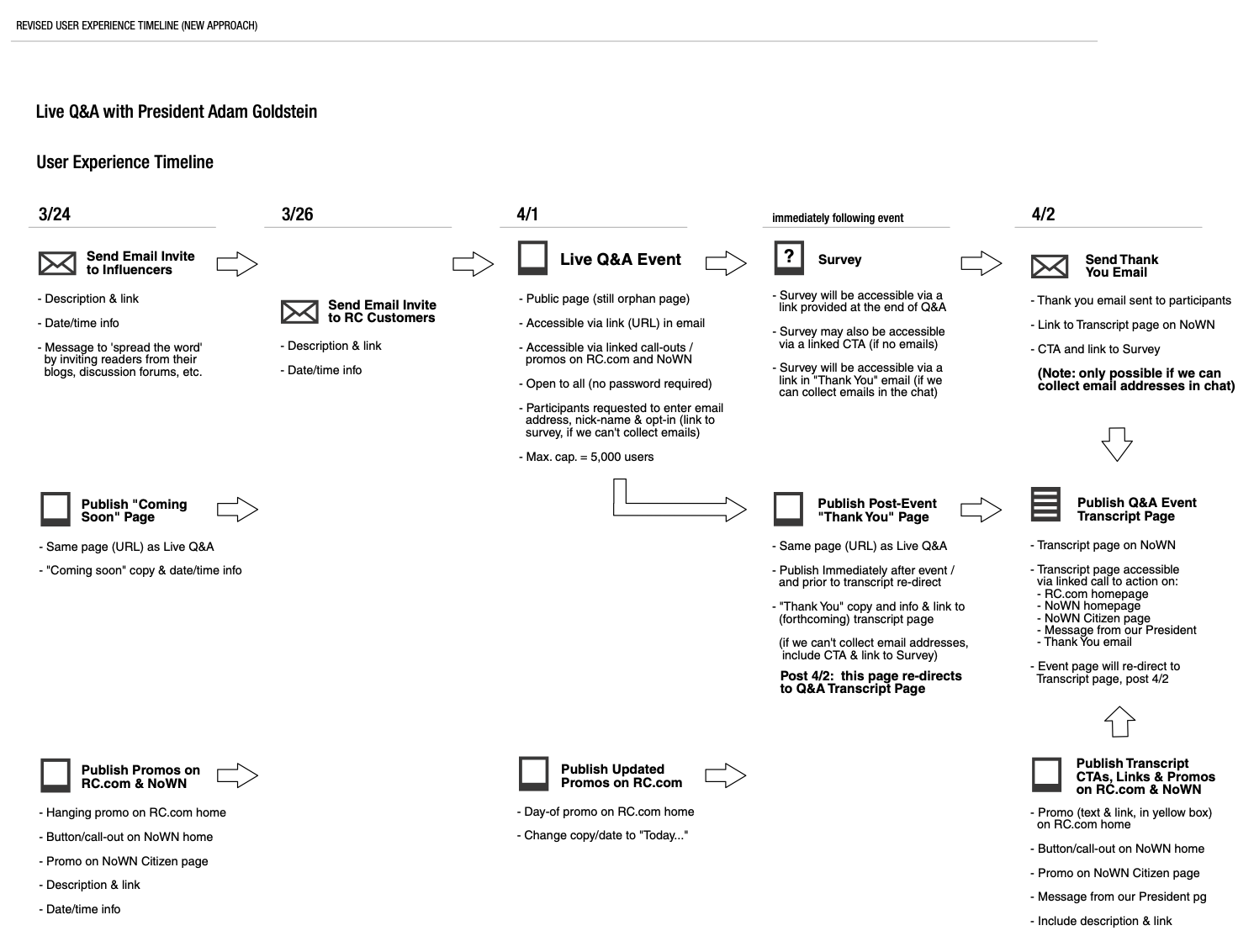
Full timeline for promotion, live event hosting, and post-event follow up, for all livestreamed ‘events’ for customers, on the ‘Nation of Why Not’.
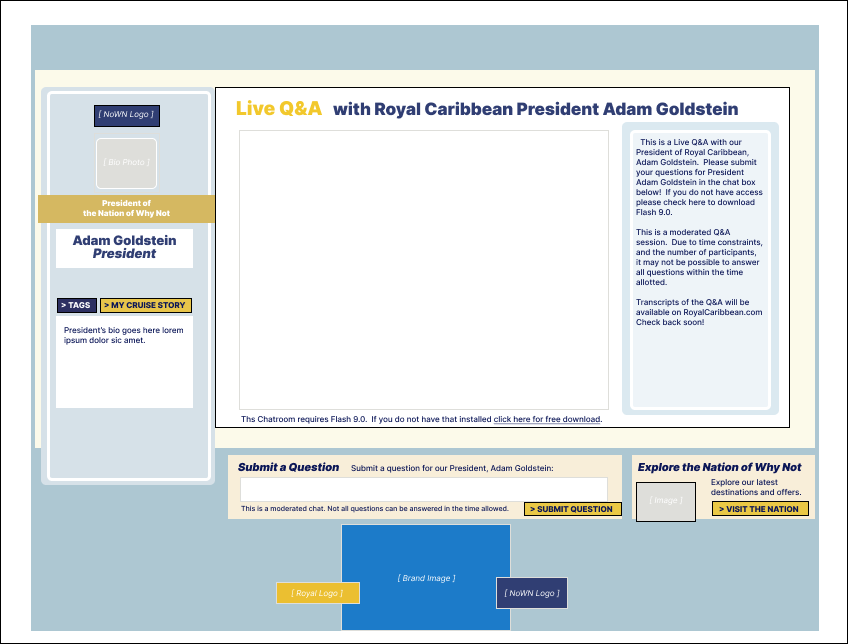
Page template design for skin of 3rd-party livestream ‘event’ chat page, based on branding and design guidelines, and ‘Citizens’ profile page design, for the ‘Nation of Why Not’ social media network.

Page wireframe draft for skin of 3rd-party livestream ‘event’ chat page, based on Citizens’ profile page design and layout, for the ‘Nation of Why Not’.
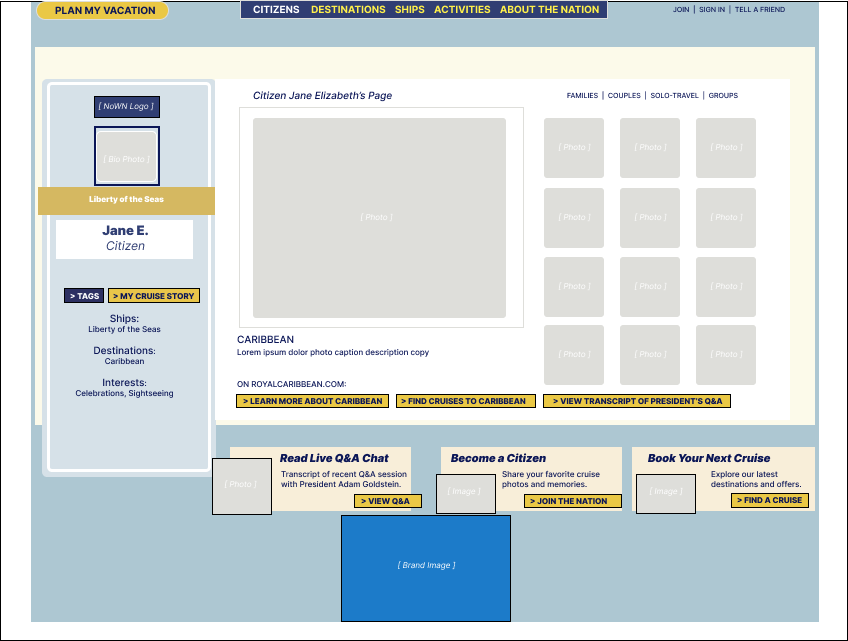
‘Citizen’ (user) profile page template for the ‘Nation of Why Not’, Royal Caribbean’s branded social media network for loyal cruisers to connect and share stories, experiences, and cruise photos, as well as get the latest news regarding new destinations, newly launched ships, and new cruise offerings.
User Flow, Wireframes
Shows, Entertainment & Activities Aboard the Cruise
Challenge
Enabling cruisers to browse and book shows, activities, and entertainment experiences onboard the cruise
Solution
Enhanced flows and pages in the cruise booking experience, to search shows by name, day, and time, book and schedule tickets, and manage scheduling

Flow chart showing cruise entertainment browsing on the non-secure website, then login to view specific shows, days and times, and availability, and opportunity to book, on the booking engine.

Browse and search specific shows, days and times, availability, pricing, and restrictions (age, etc.), and then select, schedule, and book, when logged in to cruise booking.

Entertainment main page lists shows available for this cruise reservation, with link to show details and option to reserve now
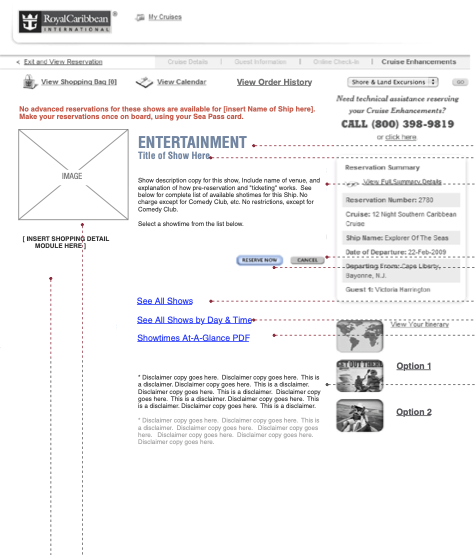
Show page provides show description and option to reserve, cancel, or view other shows
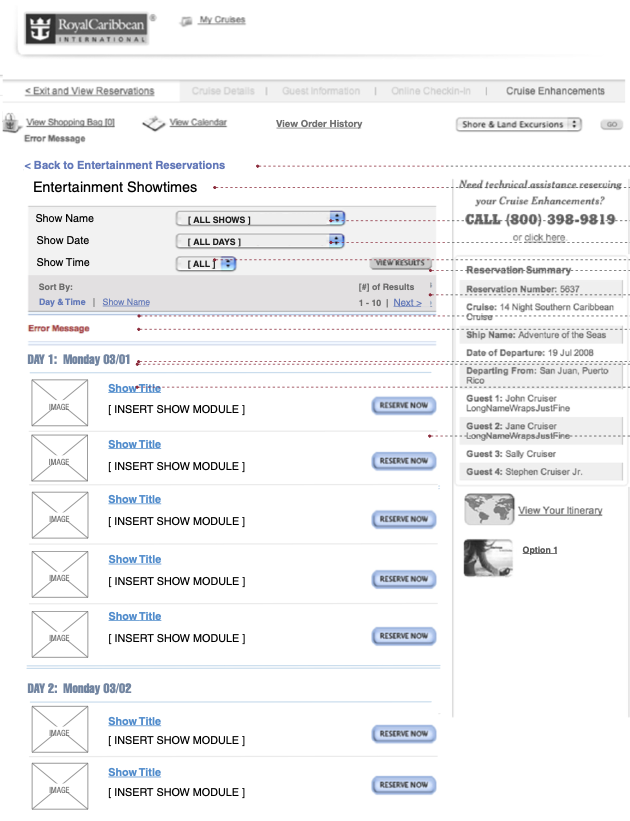
Entertainment browsing page lists shows for this cruise, with ability to filter by show name, dates and times, and display results sorted either alphabetically by show name, or chronologically by date / by day of cruise - shown here
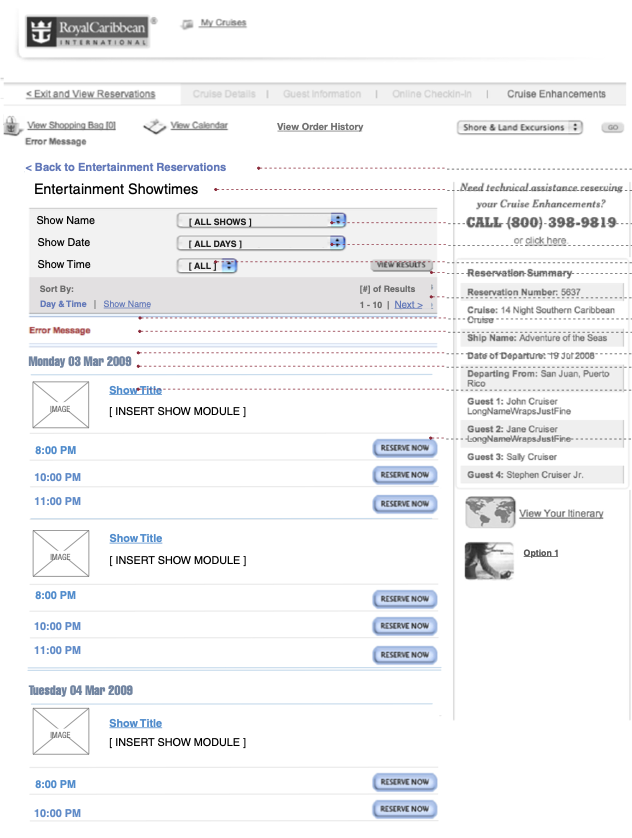
Alternative option for Entertainment browsing, displays results sorted chronologically by date, and then showtimes for that show on that date
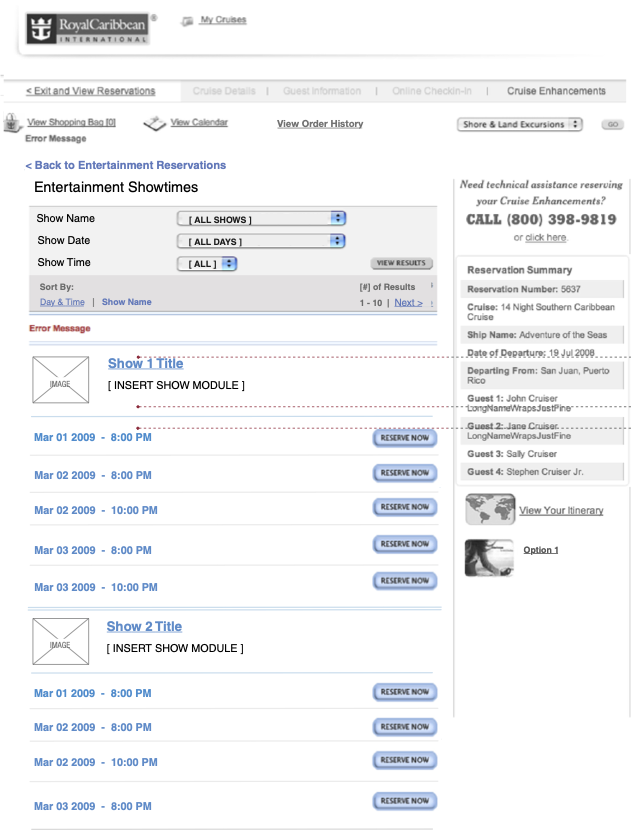
Entertainment browsing, with results sorted alphabetically by show name, with show days and times during the cruise, under each show name
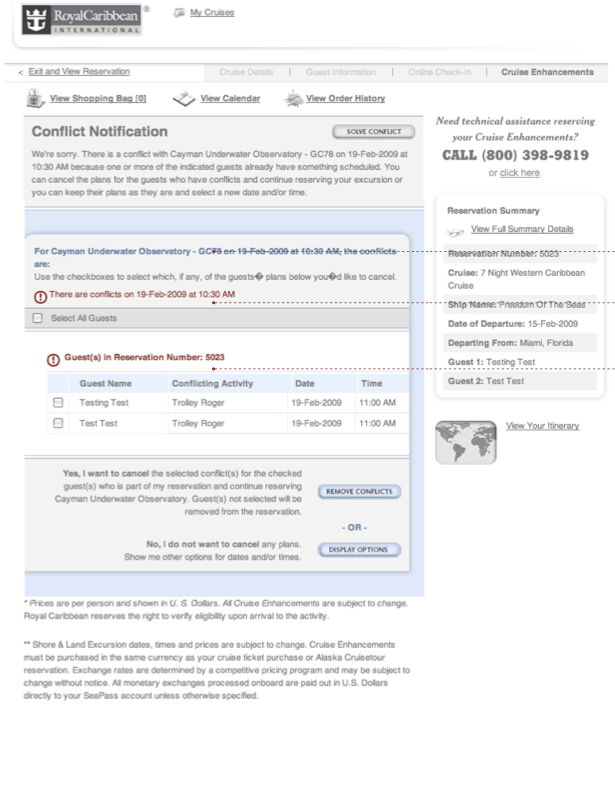
Conflicts page alerts user to scheduling conflicts in their bookings, showing guest names and reservation numbers and conflicting activity(ies) names, dates, and times, with options to resolve
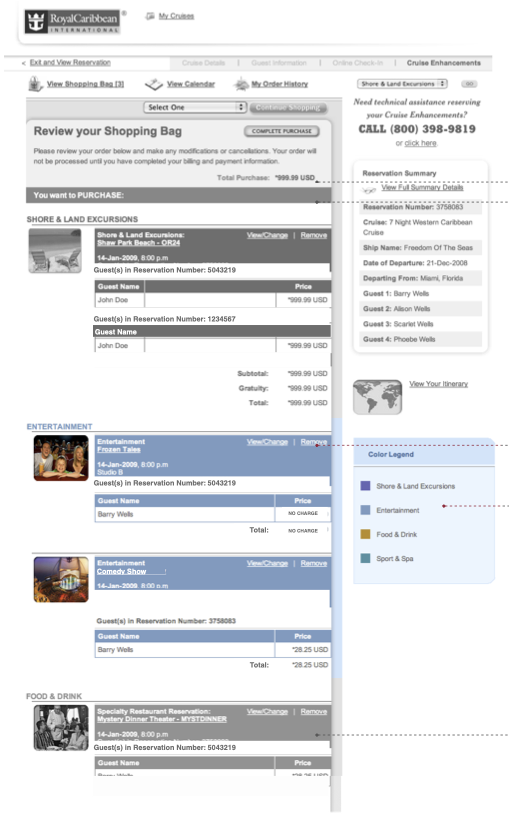
Shopping cart at check out / payment, showing Entertainment (shows) that have been booked for this cruise, with dates and times, and cost (if any)
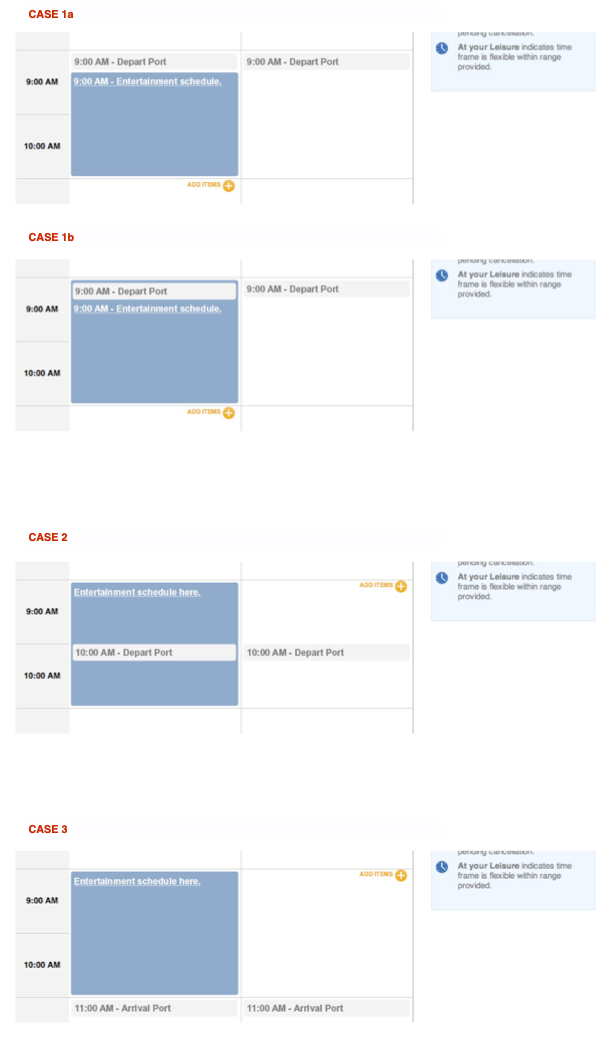
Calendar entry for Entertainment (shows) illustrates how show times are presented, in relation to other events such as departure
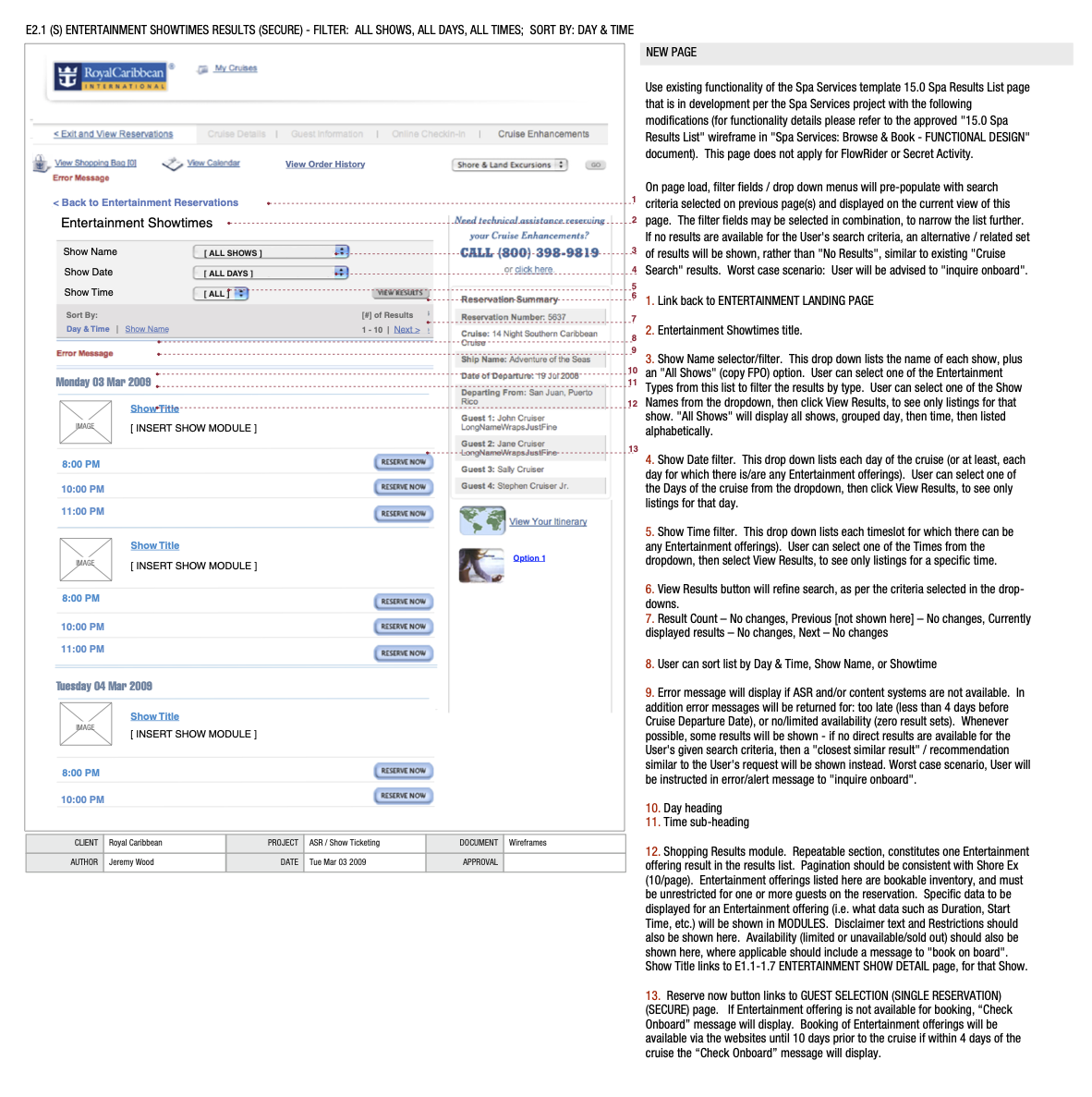
Annotated with full functional specifications outlining purpose, use case scenarios, labeling, content and copy, interactive behavior and functionality, links, conditional and error cases, data collection and population, and all other requirements and specifications, for each UI element.
Transactional Flow, Wireframes (UI), Functional Specifications (Annotations)
Dining Times for the Cruise
Challenge
Rolling out an all-new feature for onboard dining, offering cruisers the opportunity to select various dining options, and reserve specific dining times for each day, and each guest, on the cruise
Solution
Traditional dining, with reserved times and table seating for the cruising party, or the new ‘My Time Dining’ option, allowing cruisers to dine when and with whom they please

Onboard Dining Preferences offers cruisers the opportunity to select various dining options for the cruise, to reserve a daily dining time and table seating for the group, or to select different specific dining times and seatings for each day and guest.
User can select ‘Traditional’ dining to reserve a daily seating time reservation, at the same time each day of the cruise. Or user can select the new ‘My Time Dining’ option, to reserve a different dining time for each day. With ‘My Time Dining’ user can also select an option to leave dining time open, to dine ‘At My Leisure’, at whatever time they please.
‘Traditional’ dining also offers the ‘For Families’ option, at the ‘Early’ 5:30 seating, for guests traveling with children and teens, to ensure prompt wait times and kid-friendly service.
For groups traveling together, on separate cruise reservations, Dining Preferences also allows users to group guests from multiple reservations together in a single dining reservation and seating.
If a desired dining time is currently fully booked and not available, the user can add the group to a ‘Waitlist’ for that option, in case it becomes available. Or if uncertain which option to choose at the time of booking, user can select an option to ‘Decide Later’.
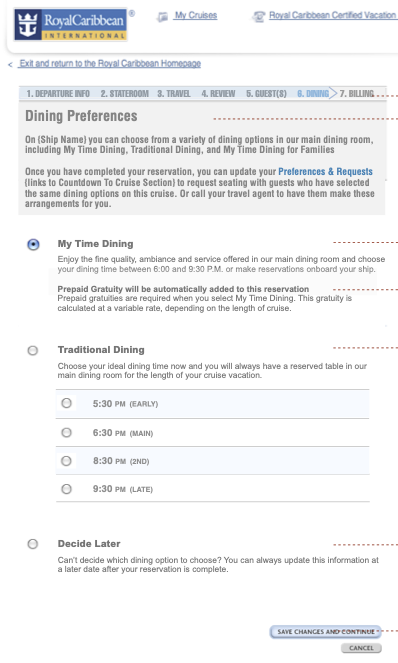
‘My Time Dining’ selected, allows user to reserve a different specific dining time for each day of cruise (in next step). User also has the option of ‘Traditional Dining’ or to simply ‘Decide Later’

‘Reservation Linking’ allows user to link reservations with guests from other cruise reservation numbers, to dine together

‘Traditional Dining’ selected, allows user to reserve a single daily dining time (dinner seating), for dinner at the same time each day; ‘Waitlist’ option allows user to request a different ‘Traditional‘ dining time, if it becomes available, or to be added to the waitlist for ‘My Time Dining’

Under ‘Traditional Dining’, the ‘For Families’ option is available for the 5:30pm ‘Early’ seating, which ensures prompt kid-friendly service, for guests traveling with children and teens
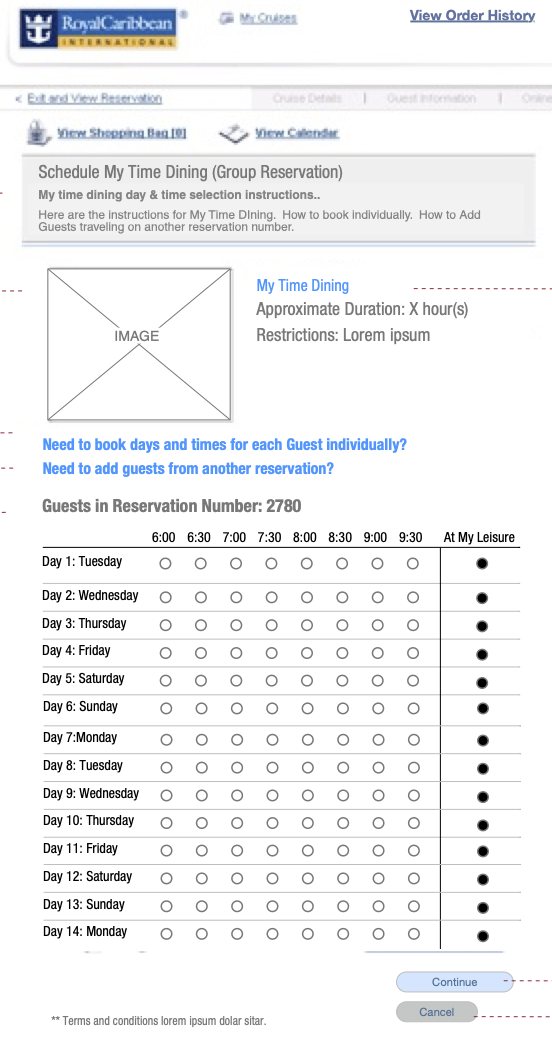
‘My Time Dining’ enables user to book a different specific dining reservation time for each day of cruise (in next step)
Transactional Flow Charts, Wireframes (UI), Functional Specifications (Annotations)
Travel Industry Professionals
Challenge
Support group sales and booking tools, outreach and education, and partnership and affiliate programs, for travel industry professionals and agents
Solution
‘Cruising Power’ site enhancements and new features, for travel professionals to access group insurance, amenities requests, other offerings
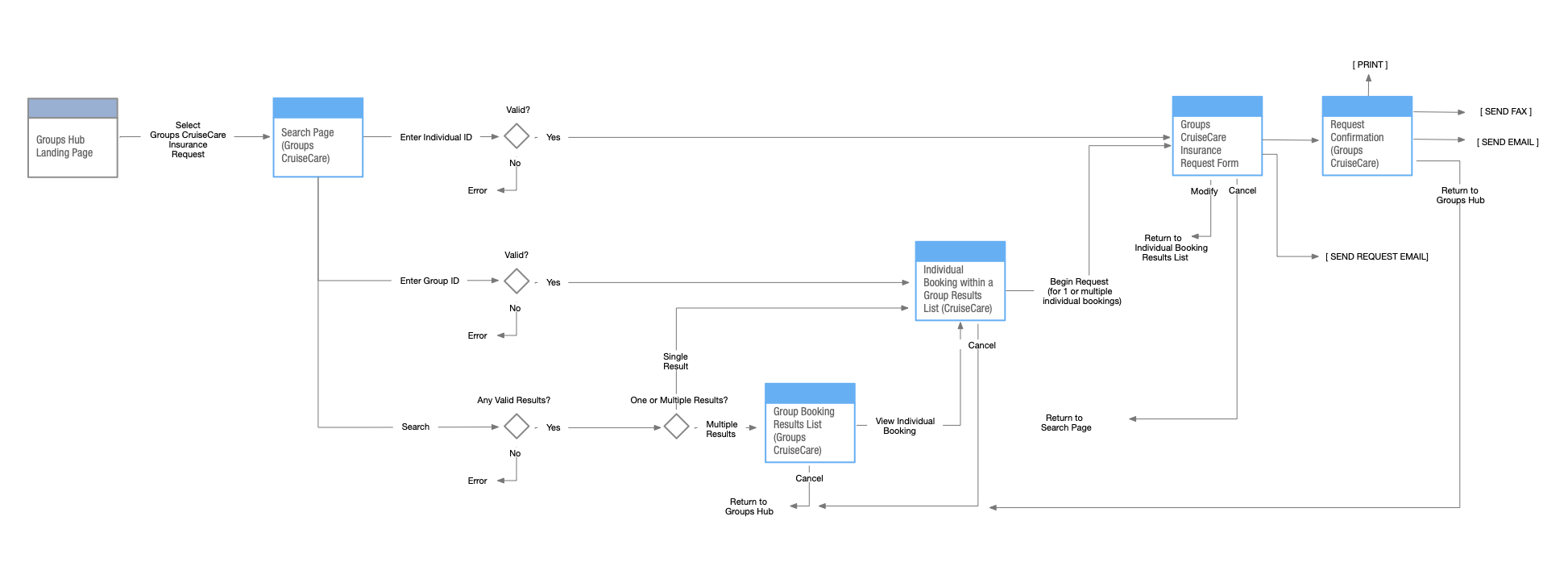
‘Cruising Power’ site provides tools and information for travel agents and other travel professionals to access resources when booking group cruises on behalf of their clients (as shown in this flow, for ‘Group CruiseCare Request’), as well as access to professional development, education, and other support (shown in ‘Education & Certification’ wireframes below).
in the flow shown here, for ‘Groups CruiseCare Insurance Request’, user can access a client reservation using individual or group ID number, or searching by name of client, of brand and ship, and other search criteria, within the ‘Trip Details’ > ‘Group Travel’ section.
Once the desired reservation has been accessed, the user can then submit a request for group insurance (shown here), amenities requests, and other offerings.

When making a ‘Groups CruiseCare Request’, user can access a client reservation using individual or group ID number, or by searching by name of client group, cruiseline brand or ship name, and/or date of travel period or sail date.

Once the desired reservation has been found, the user can then select one or more (or all) guest(s) from that reservation, to generate the request.

Once the request is generated, the user receives a confirmation including all the details and information included in the group insurance request, along with functionality to email, print, or fax the confirmation to themselves and to their clients.

The ‘Education & Certification’ page, within the ‘Working with Us’ section of ‘Cruising Power’, provides links to resources for ongoing education and professional development, for travel agents and professionals wishing to deepen their knowledge and expertise on cruise travel, and keep up on industry trends, including Royal’s newest ships and latest cruise offerings.
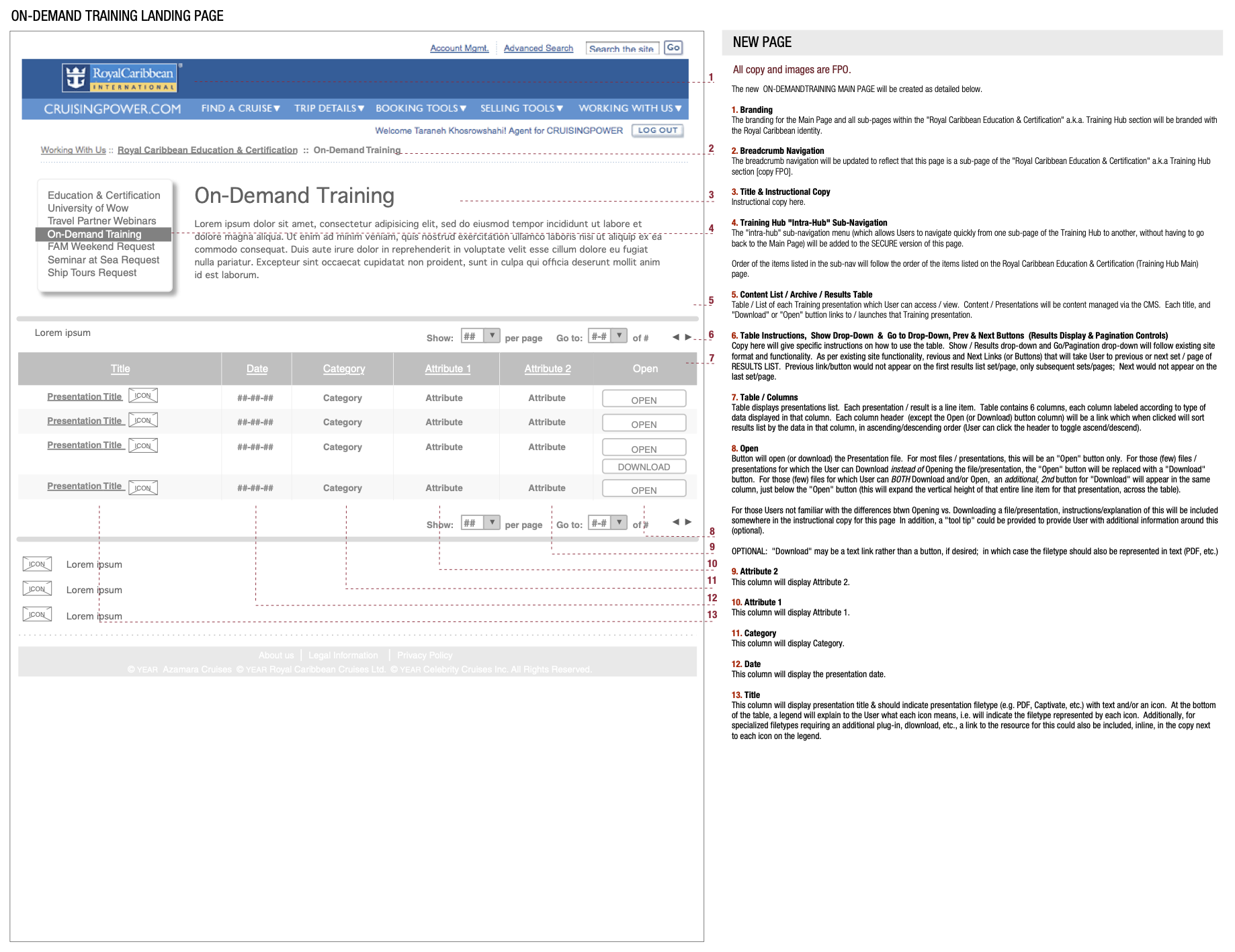
Within the ‘Education & Certification’ section, ‘On-Demand Training’ is an example of one resource for travel agents, a sortable inventory of ‘training’ presentations, videos, and other materials, providing training and information on each aspect of Royal Caribbean’s cruise offerings, as well as opportunities for doing business with Royal as a travel agent.

Travel industry professional outreach also included a variety of marketing and lead generation landing pages to connect the travel agent arm of Royal’s business to a steady stream of new incoming agents.
Transactional Flow, Wireframes (UI), Functional Specifications (Annotations)
Wine & Beverages for the Cruise
Challenge
New onboard offering enabling customers to book and purchase wine, juice, water, sodas, and other beverages in advance, for meal times and deliver to cabin (room)
Solution
Wine and beverage booking, on the cruise booking site

The new wine and beverage offering allows user to select, order, and pay for beverage packages in advance of the cruise, to be delivered to the cabin throughout the cruise. The new offering lives in the ‘Cruise Additions’ section, alongside existing items such as spa services and specialty restaurant experiences.
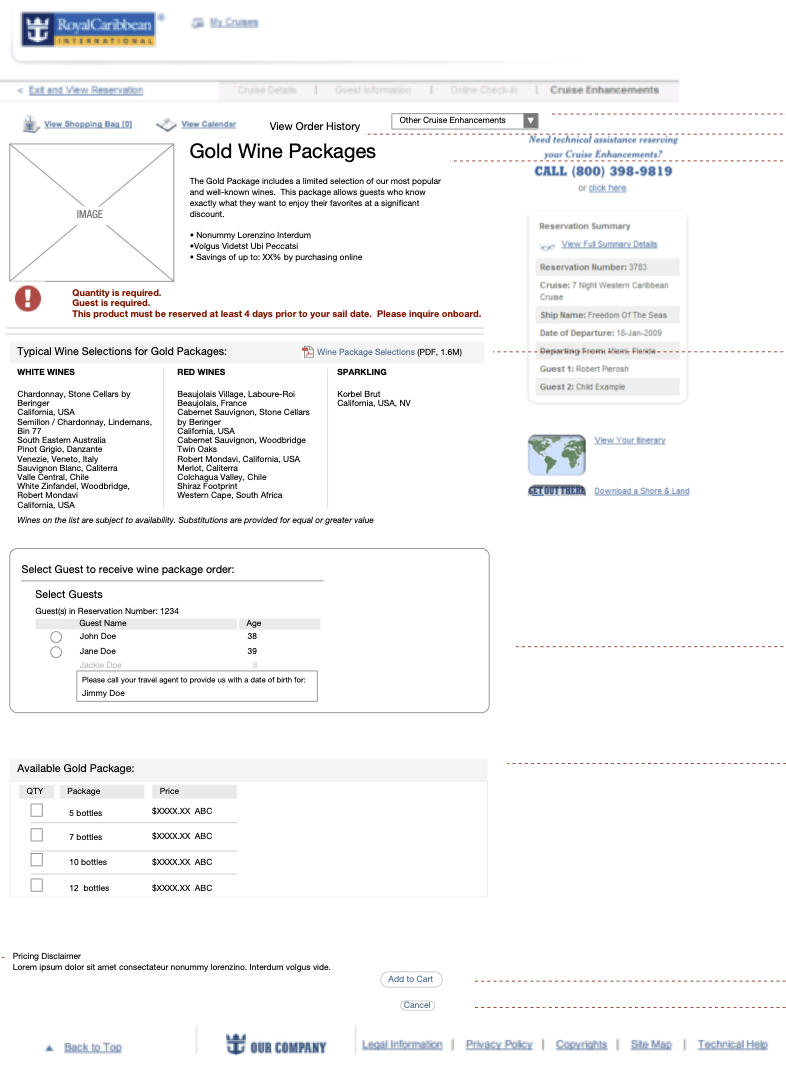
‘Wine Package’ page lists wines that may be included in the package, subject to availability, to be delivered to the cruiser’s cabin. This page gives user the ability to select which reservation number and guest the package should be delivered to, and specify the desired quantity of packages, and bottles per package, at the price listed.
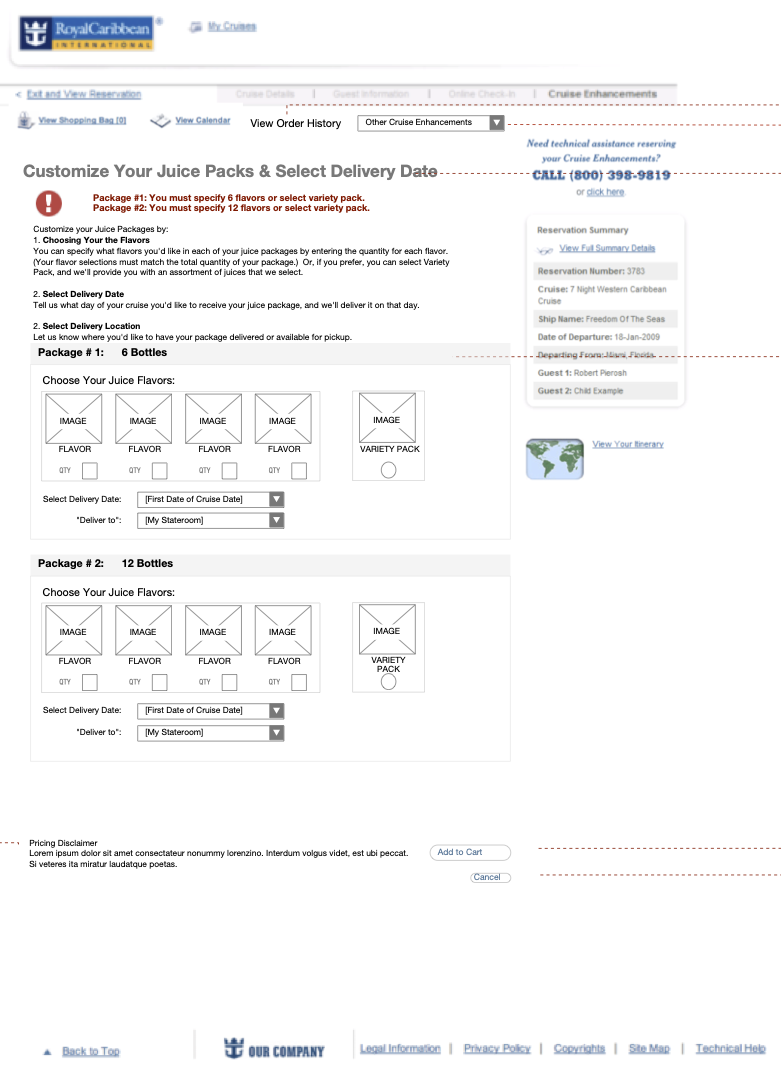
For each type of package, ‘Wine’, ‘Soda’, and ‘Juice’, this page (shown here for ‘Juice’), allows user to select flavors or wine choices, and quantity, for each package, as well as set delivery date and delivery destination (cabin, meals, etc.).
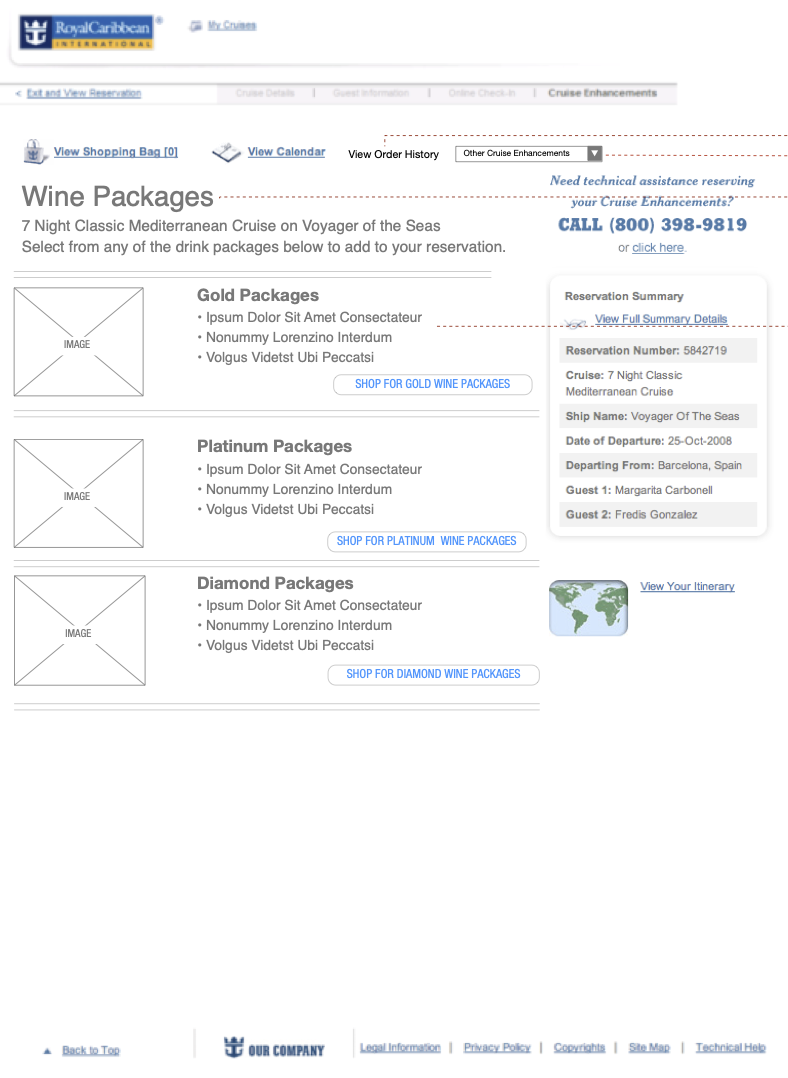
‘Wine Packages’ page showcases the tiers of onboard wine packages available to be selected, for this cruise.
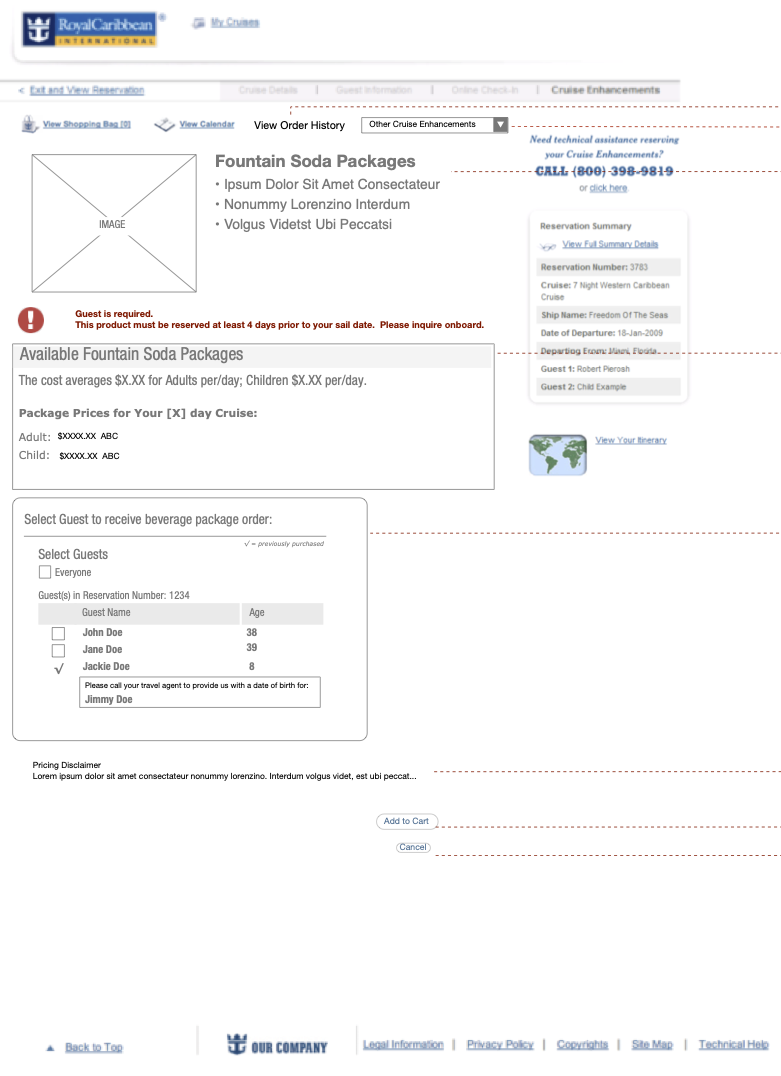
‘Fountain Soda Packages’ page lets user order daily soda deliveries for the desired guests. This page gives user the ability to select guests to receive daily soda delivery, at the priced listed per guest (child and adult pricing), per day.
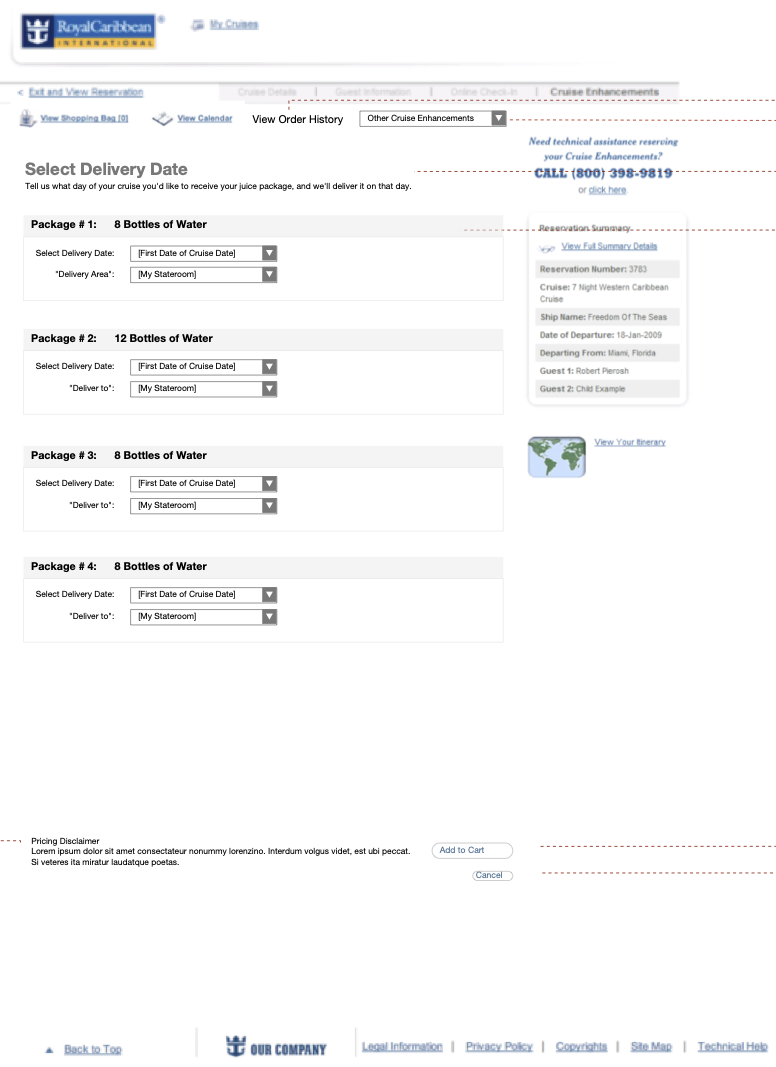
A variant of this page, for bottled water, omits flavor selection, but allows user to set delivery date and delivery destination (cabin, meals, etc.).
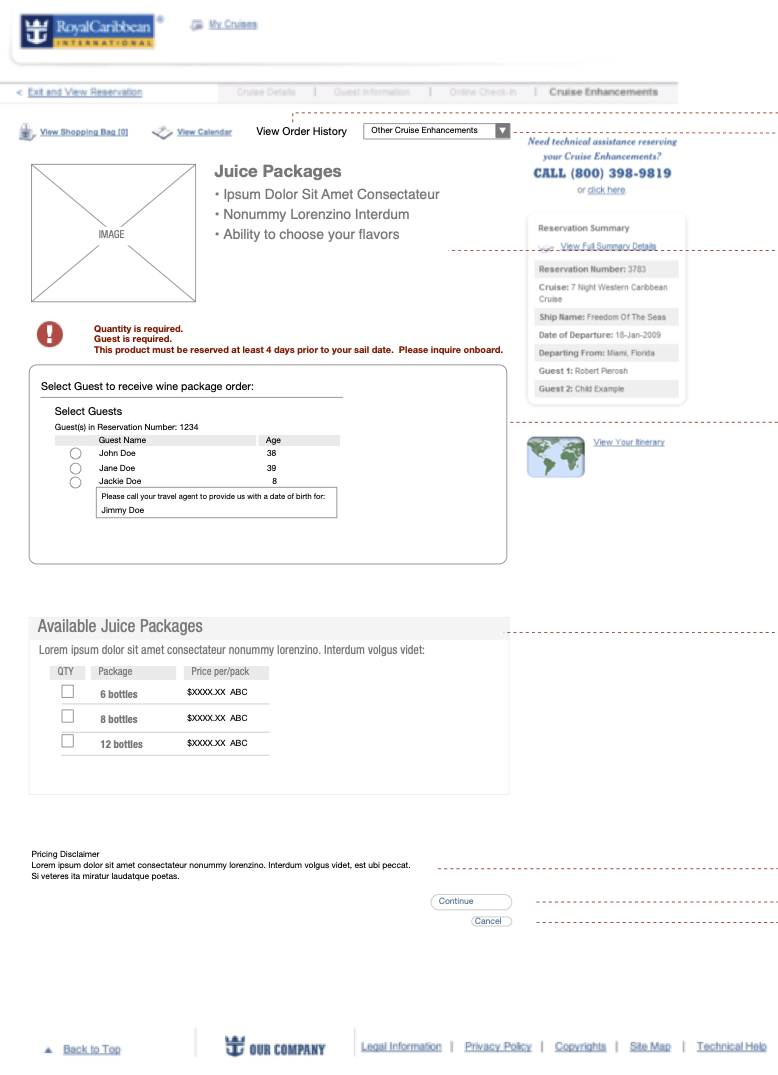
‘Juice Packages’ page lets user order a package of a set number of bottles of juice, for the duration of the trip. This page gives user the ability to specify the user to receive the package, and select the number of bottles of juice to be delivered.
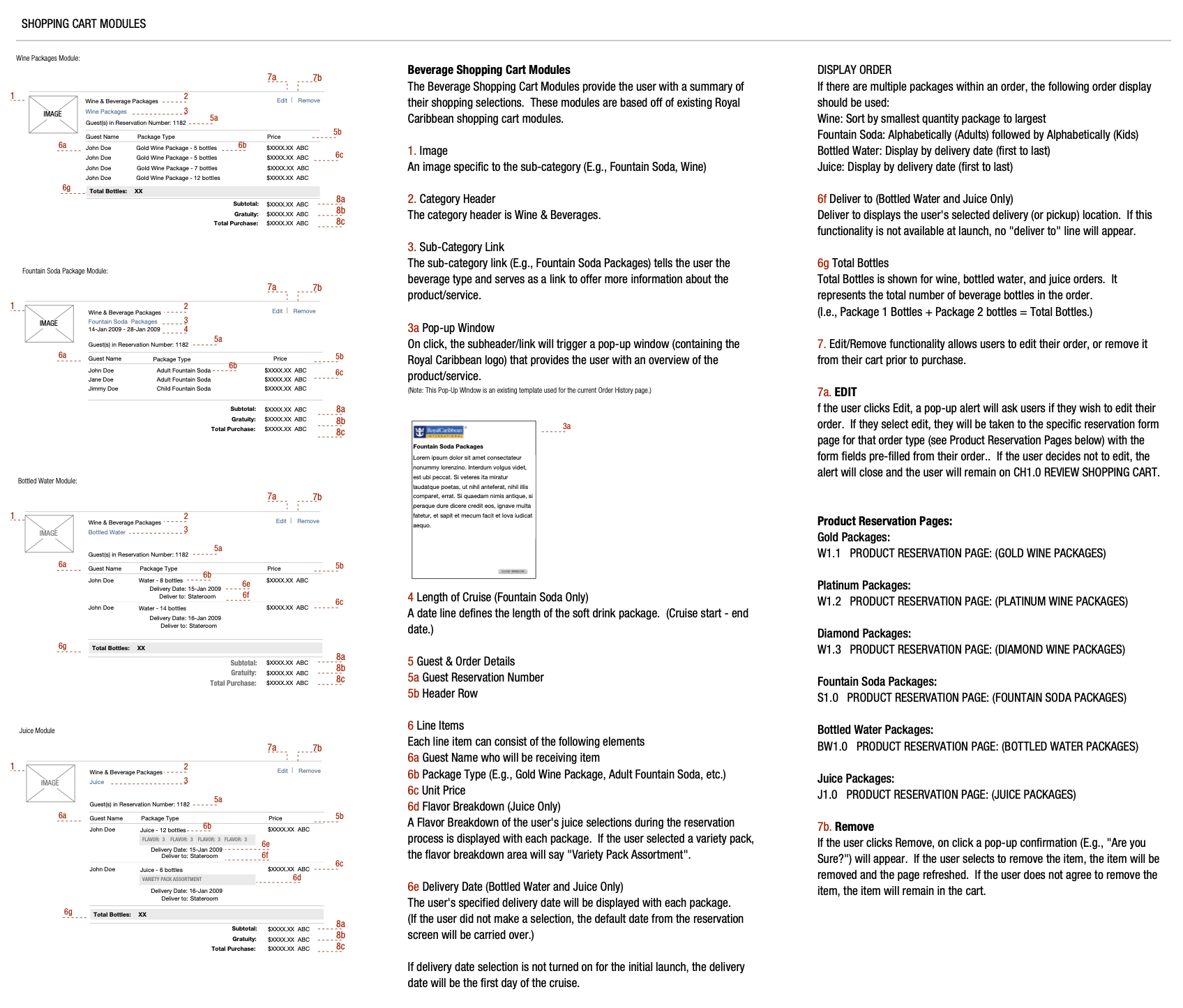
New module details for wine and beverage package modules for shopping cart, confirmation, and order history pages, showing different variations for wine, fountain soda, bottled water, and juice.
User Flows
Digital Activities Waivers Online & Onboard
Challenge
Many shows, events, activities, and experiences onboard require a signed waiver, in order to participate - based on age, ‘minor’ vs. adult status, and other requirements - currently this is managed via paper waiver forms distributed on board, that require staff to administer, add to event wait times, and must be physically tracked, logged, and maintained
Solution
An all new digital activity waiver feature allows cruisers to sign online in advance, during booking, or onboard, via tablet, which will be digitally tracked and logged
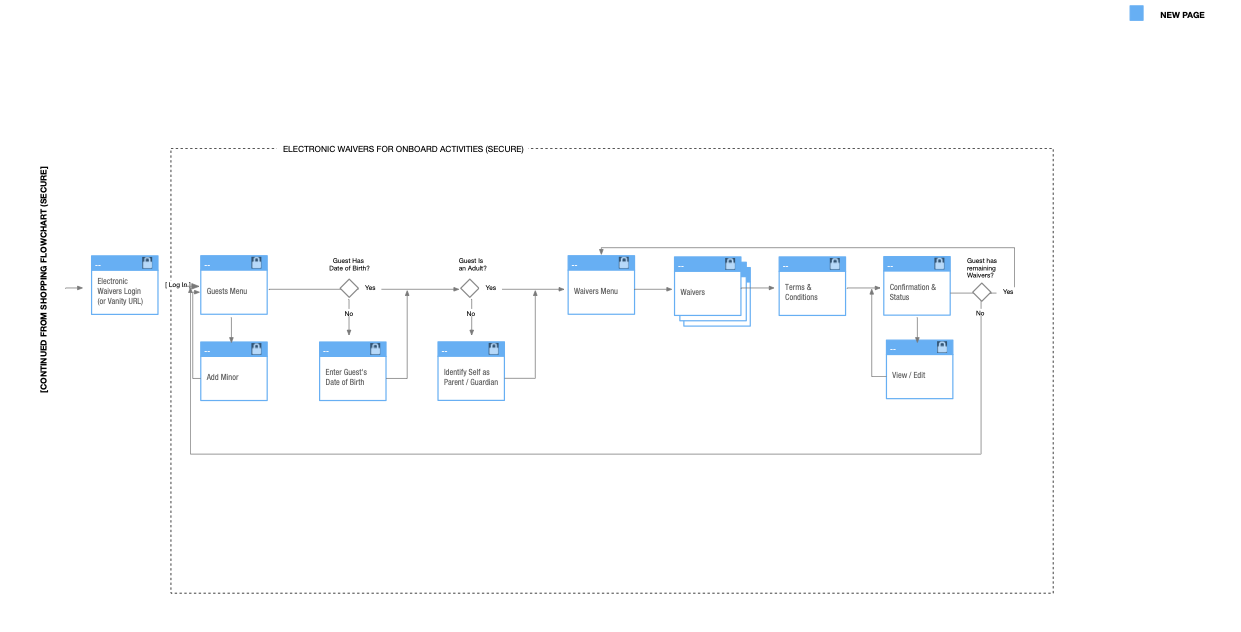
Activities waiver flow, including guest selection, date of birth entry, minor child registration, and parent / guardian registration, as well as waiver selection and signing, per activity, per guest, terms and conditions, and confirmation and status.
User must first select a guest from the reservation (or add a minor from another reservation number), to sign waivers for that guest. If the selected guest’s birth date is unknown, user must then enter the guest’s birthdate. If the selected guest is a minor, the user must then confirm that they are the parent or guardian of the minor guest (and are legally allowed to sign the waiver).
Activities waiver selection and signing flow for the selected guest then proceeds. The user can select the waiver(s) they wish to sign, for the selected guest, then sign the waivers, and complete the flow.
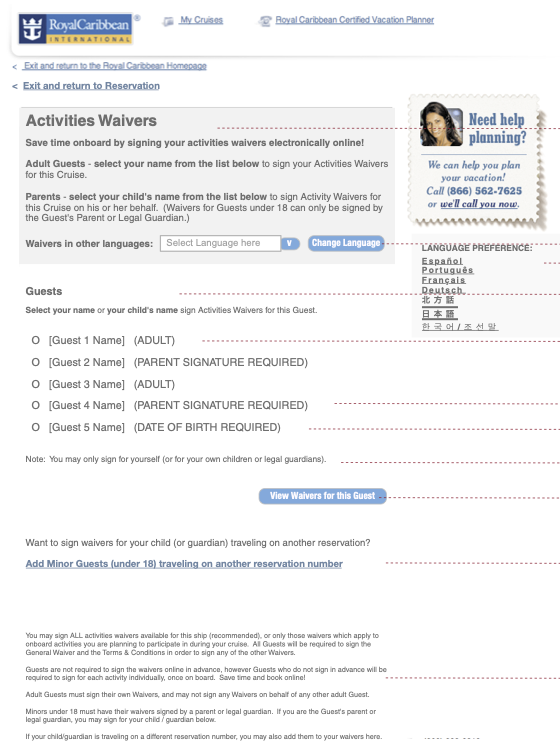
Guest selection, shows where signature is required for minor or date of birth is missing
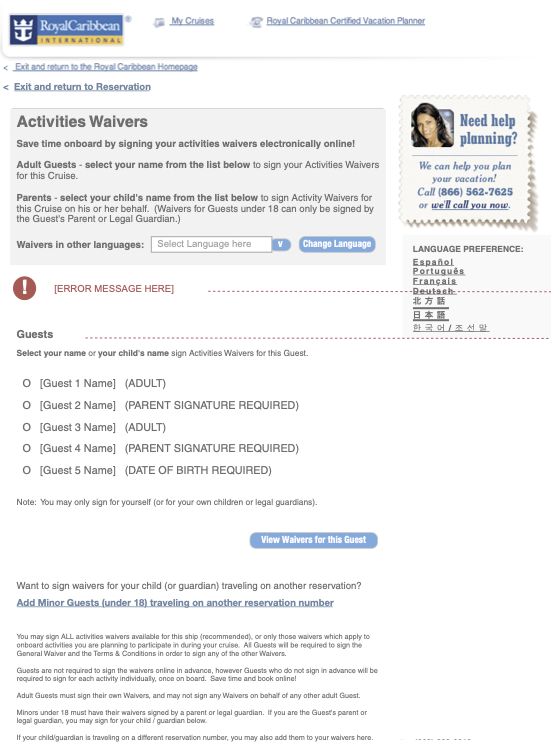
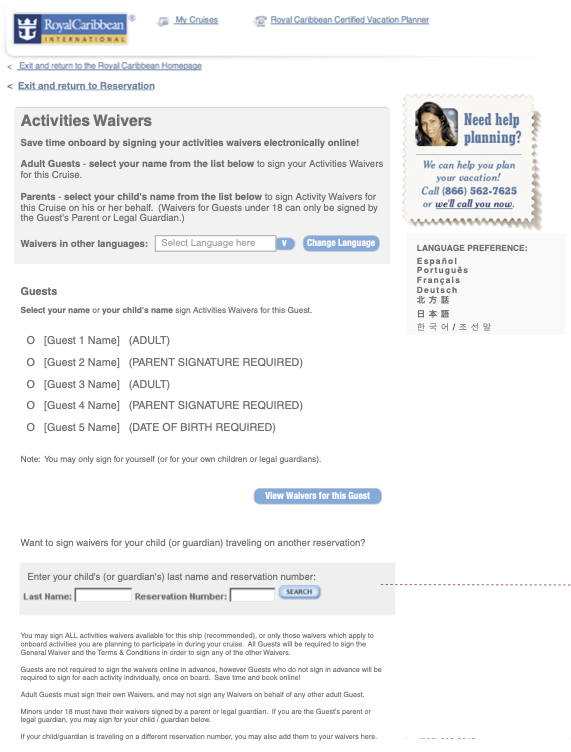
Guest selection, showing error message case
Guest selection, with feature activated to add a minor guest from another reservation number
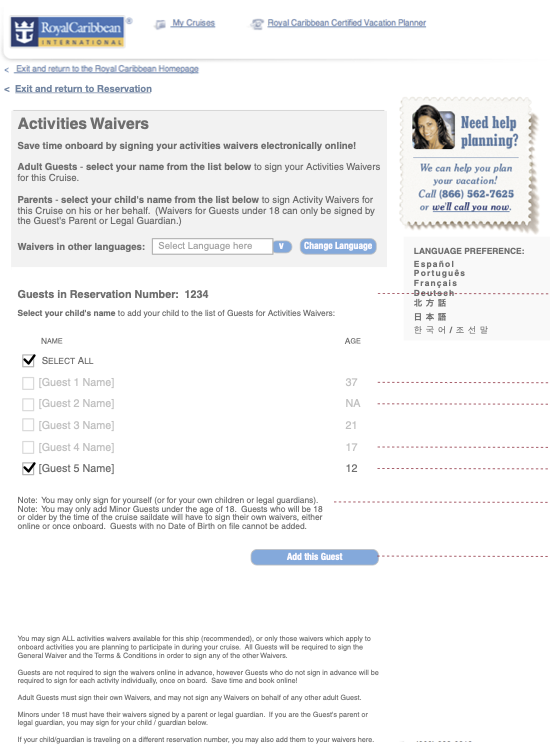
Guest selection, showing guests from associated other reservation number, with minor guests available to be added to list of guests for waivers

Guest date of birth entry, when a guest has been selected from the list that is missing a date of birth
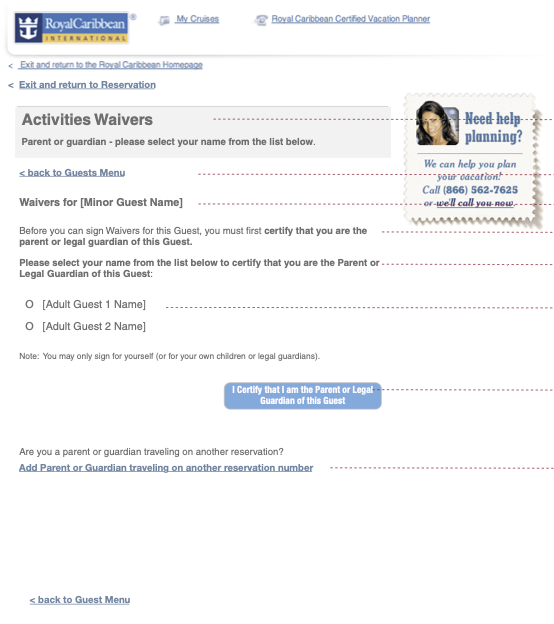
For minor guests, user must also confirm that they are the parent or guardian, by selecting their own name from the list of adults here
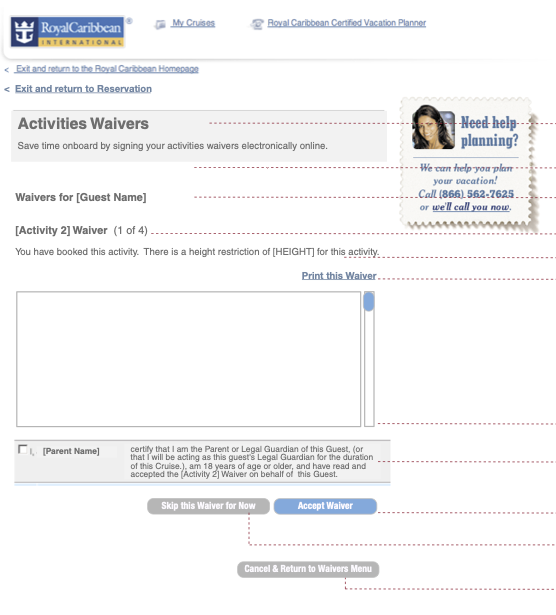
Activities waiver flow, user now signs each waiver they’ve selected, for this guest; for minors also confirming they are the parent or guardian
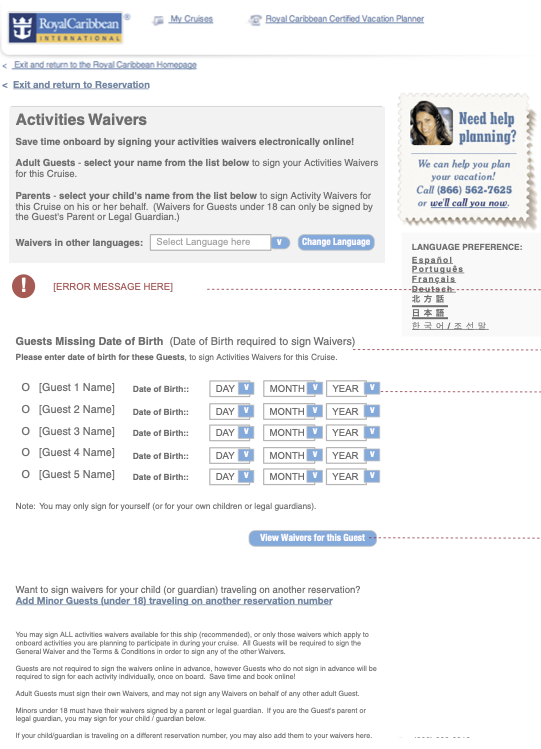
Alternative option for missing birth dates case, allows user to enter missing date of birth for each guest, directly on guest list (not separate step)
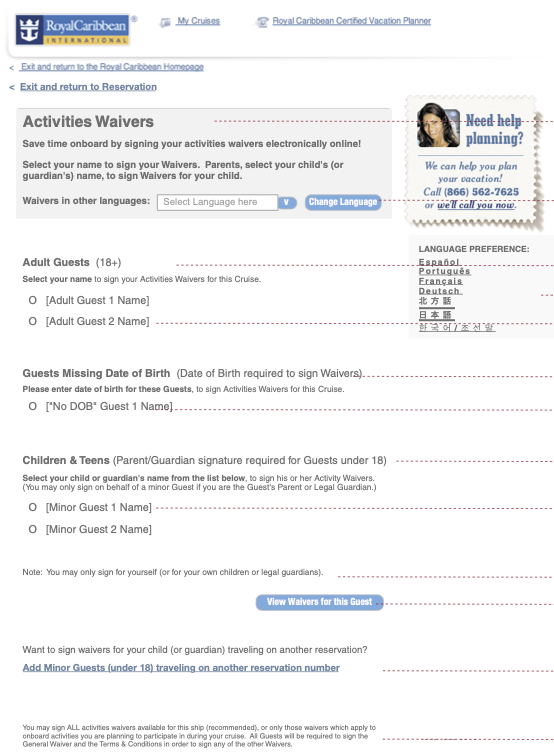
Guest selection alternative option, guests listed broken out by category - ‘Adult’, ‘Children & Teens’ (minors), and ‘Date of Birth Missing’
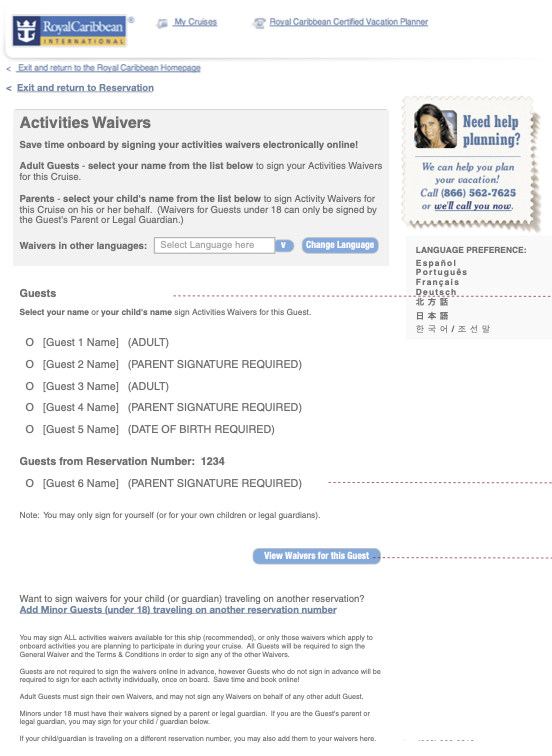
Guest selection, showing minor guest added from another reservation number (Reservation 1234)
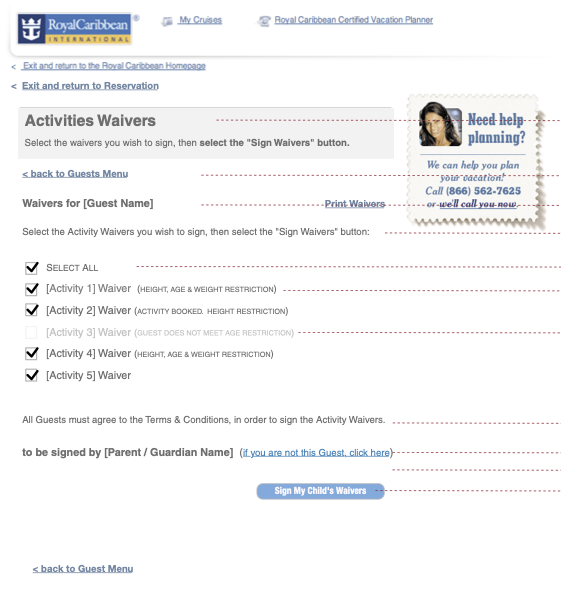
Once the guest has been selected from list (and date of birth added, if missing; and user’s parent or guardian status confirmed, for minor guests) the activities waiver flow proceeds, and the user selects the waiver(s) they wish to sign to continue

Alternative option for missing birth dates case, showing missing dates now added by user for each guest, on guest list
Wireframes